
Jump to content
LaunchBox Community Forums

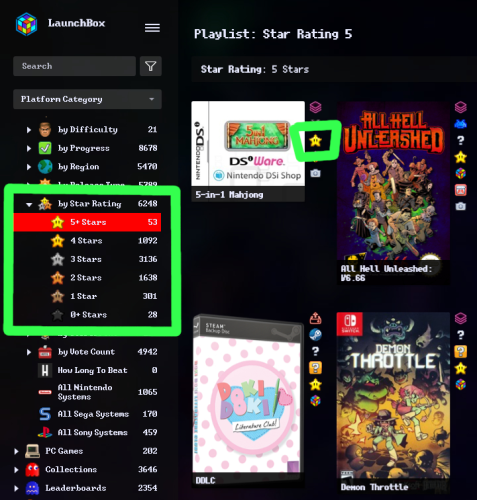
1 Screenshot

About This File

Small media pack for Star Ratings. Included is:

- 2 badge plugins + badge icons (star rating 4 and 5)

- 6 playlists + icons (star rating 0-5)

- 1 category icon (star ratings)

The badges help to see at a glance what games are rated more highly.

How To Use:

When you extract the zip, the Data and Plugins folders can go into your root "Launchbox" directory.

Inside the Images folder, you'll see two sub-folders:

I would put the images in the "Badges" folder into "Launchox/Images/Media Packs/Overrides/Badges"

And then the two folders inside "Platform Icons" can both go into "Launchbox/Images/Media Packs/Platform Icons/Legacy Conversion Icon Pack" (or whichever media pack you use for platform icons)

Disclaimer: The images are only recolored by me. I yanked the original star icon form the internet, somewhere...

◟(•‿•)◞

Edited by d66dle
added installation instructions

  • Like 2

User Feedback

Recommended Comments

retrospace

Posted

can you please teach me where should I put this files?  Thanks man

d66dle

Posted

1 minute ago, retrospace said:

can you please teach me where should I put this files?  Thanks man

Sure! When you extract the zip, the Data and Plugins folders can go into your root "Launchbox" directory.

Inside the Images folder, you'll see two sub-folders:

I would put the images in the "Badges" folder into "Launchox/Images/Media Packs/Overrides/Badges"

And then the two folders inside "Platform Icons" can both go into "Launchbox/Images/Media Packs/Platform Icons/Legacy Conversion Icon Pack" (or whichever media pack you want to use for platform icons)

I hope that helps... If so, I should probably add it to the description so it's less confusing where everything goes 😅

  • Like 1
retrospace

Posted

1 minute ago, d66dle said:

Sure! When you extract the zip, the Data and Plugins folders can go into your root "Launchbox" directory.

Inside the Images folder, you'll see two sub-folders:

I would put the images in the "Badges" folder into "Launchox/Images/Media Packs/Overrides/Badges"

And then the two folders inside "Platform Icons" can both go into "Launchbox/Images/Media Packs/Platform Icons/Legacy Conversion Icon Pack" (or whichever media pack you want to use for platform icons)

I hope that helps... If so, I should probably add it to the description so it's less confusing where everything goes 😅

Thanks a lot for your explanation. Really appreciate that!  have a Nice Week man!

  • Thanks 1
retrospace

Posted

I have another question if you can answer. 

how did you create your Platform Categories? I saw many different stufs that I couldnt see normally.  Can you teach od Share ?  Looks like amazing seeing these prints.

d66dle

Posted

23 minutes ago, retrospace said:

I have another question if you can answer. 

how did you create your Platform Categories? I saw many different stufs that I couldnt see normally.  Can you teach od Share ?  Looks like amazing seeing these prints.

Do you mean the icons? Because I have shared a bunch of those in this file (should be in the folder "Platform Categories" inside the zip), and a lot of those come from random internet sources and googling, though sometimes I'll edit or recolor the source image using GIMP.

retrospace

Posted

I mean the separated list. like this!

image.thumb.png.b9274f35a3b20f13ae37583b9557c53d.png

d66dle

Posted

I could share from my data folder (My Parents xaml), if you're interested in the categories themselves? I just make them up as I think of different ways to organize my games.

If you mean how to create them in general, I just left click while in the "Platform Category" view, mouse over Add and then click New Category, then you can name it in the "Details" tab and place it where you like in the "Parents" tab.

Does this screenshot help?

LaunchBox_yDz86yYKwy.png.7897331e0817be6c729d9d0c8e0af518.png

I do apologize if I'm not understanding what you are asking exactly.

Parents.xml

Join the conversation

You can post now and register later. If you have an account, sign in now to post with your account.

Guest
Unfortunately, your content contains terms that we do not allow. Please edit your content to remove the highlighted words below.
Add a comment...

×   Pasted as rich text.   Paste as plain text instead

  Only 75 emoji are allowed.

×   Your link has been automatically embedded.   Display as a link instead

×   Your previous content has been restored.   Clear editor

×   You cannot paste images directly. Upload or insert images from URL.

×
×
  • Create New...