
About This File
Second Screen Companion - View Manuals, Guides, & Media on your Phone!
Second Screen Companion is a lightweight LaunchBox plugin that instantly turns your smartphone or tablet into a dedicated companion hub for whatever game you are currently playing.
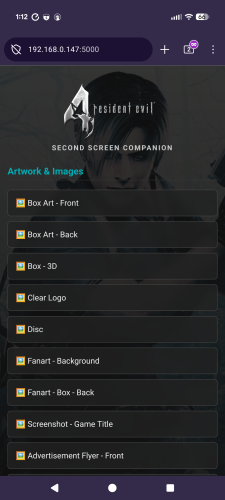
Whenever you launch a game, the plugin silently starts a local web server. Just scan a QR code, and your phone will instantly load a beautiful, dark-mode hub containing all of the game's manuals, strategy guides, artwork, and media so you can browse them while you play!
🌟 Features
-
The Companion Hub: A sleek, mobile-optimized webpage that automatically uses your game's Clear Logo and Fanart Background for a premium look.
-
Comprehensive Media Scanner: Automatically finds and serves:
-
📖 Documents: Game Manuals and Strategy Guides (pulled dynamically from your Additional Apps).
-
🖼️ Artwork: Front/Back Box Art, Discs, Carts, Clear Logos, Fanart, Storefront Posters, and dozens of other image folders.
-
🎵 Media: Automatically plays your game's Theme Music or Gameplay Videos right in your mobile browser via native HTML5 players.
-
-
Smart Image Viewer: Transparent PNGs (like Clear Logos or isolated box art) are displayed over a dark-mode checkerboard background so they always look perfect and never vanish into a black screen.
-
One-Click Network Setup: Built-in tools to automatically open the required Windows Firewall ports so you don't have to mess with command prompts.
🛠️ Installation
-
Download the latest release zip file and unpack in your
LaunchBox\Plugins\directory. -
You might have to right-click the dll file, go to Properties, and check the "Unblock" box at the bottom (this is required by Windows for downloaded DLLs).
-
Extract the
Second Screen Companionfolder directly into yourLaunchBox\Plugins\directory. (You should have a folder path that looks like:LaunchBox\Plugins\Second Screen Companion\WirelessScreenServer.dllandQRCoder.dll)
📱 How to Set Up & Use
-
Open LaunchBox.
-
Go to the top menu and click Tools -> Second Screen Companion Settings.
-
You can leave the Default Port as
8080, or change it if you have conflicts. -
Click Apply Network Rules (Admin). This will trigger a Windows prompt to automatically open the port in Windows Firewall for the server. (You only need to do this once!)
-
Click Test Connection QR. Scan it with your phone's camera. If your phone and PC are on the same Wi-Fi network, you will see a green "Success!" screen.
-
Play a game! The next time you launch a game, access the host pc ip on the port assigned. The hub will automatically populate with all the media for the active game.
⚠️ Troubleshooting / Notes
-
Same Network Required: Your phone/tablet and your LaunchBox PC must be connected to the same local network/Wi-Fi.
-
Missing Media? The plugin strictly reads the media you have stored in your LaunchBox folders. If LaunchBox doesn't have a manual or video for the game, the hub won't display it.
-
Browser Caching: Mobile browsers like to cache things. If you swap games and the phone still shows the old game, just pull down to refresh the page!


Edited by spiritedusual
Incorrect LB version requirments
What's New in Version 1.0.0 See changelog
Released
No changelog available for this version.
