

idealbrandon
-
Posts
6 -
Joined
-
Last visited
1 Follower

idealbrandon's Achievements

4-Bit Adder (2/7)
4
Reputation
-
QuickFieldToggle v1.0.0
idealbrandon commented on idealbrandon's file in Third-party Apps and Plugins
 Thank you @Retrovania64! Love to hear how others can use this. If there’s any thing I can improve on, let me know.
 -
QuickFieldToggle v1.0.0
idealbrandon commented on idealbrandon's file in Third-party Apps and Plugins
@C-Beats Thanks for sharing! I've also updated the plugin description implicitly call out multi-title support, which is, I think, where this really shines. -
QuickFieldToggle v1.0.0
idealbrandon commented on idealbrandon's file in Third-party Apps and Plugins
@C-Beats Thanks for that note, but thats actually part of what this plugin solves for. Each of those bulk edits requires about 8 clicks to make a change to a single field, and then allows you to change subsequent fields with a reduced number of clicks on those same titles. Additionally, this method requires you to interact with the bulk edit window which, for large libraries, can be fairly sluggish. As an example, I have a Play Queue with several buckets: Now Playing, On Deck, and Backlog. I only want titles to be in one bucket at a time. This plugin allows me to select a game (or games), right click, and hit "Move to backlog" which will set backlog to true and both Now Playing and On Deck to false. Two clicks to change three fields on multiple titles all at once. I'm not saying its for everyone, but if you use Custom Fields heavily especially for state management, this will save you some time! -
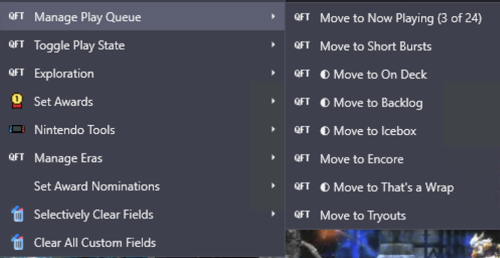
QuickFieldToggle v1.0.0 View File Hey everyone 👋 I built a plugin to solve a problem that's been driving me crazy, and I'm hoping it helps some of you too. The Problem I have 31,000 games in LaunchBox across 70+ platforms. I use custom fields heavily—tracking what I'm playing, managing a backlog, tagging award winners, marking first-party releases, organizing by era. It's a metadata system that works really well for discovery and organization. Except for one thing: actually maintaining it is miserable. You know the drill: Right-click → Edit → Custom Fields tab → scroll → find field → change value → OK That's 6+ clicks per field. Per game. If you're tagging a batch of games, it takes even more steps. When managing a play queue across thousands of titles, the friction compounds fast. I'd put off updating my metadata because it just wasn't worth the hassle. The Solution: QuickFieldToggle QuickFieldToggle puts your custom field actions directly in the right-click context menu. One click. Done. What It Does ✅ Single-click toggling — Toggle any custom field on/off instantly for a single game or multiple titles at once ✅ Create fields on-the-fly — No pre-setup needed, just define them in your config ✅ Multi-field actions — "Move to Now Playing" sets one field AND clears others ✅ Multi-value picker — For semicolon-separated fields, check/uncheck values from a submenu ✅ Conditional menus — Show "Nintendo Tools" only for Nintendo games ✅ Visual indicators — Checkmarks show current state ✅ Custom icons — Use platform icons or your own ✅ Hot reload — Edit config without restarting LaunchBox ✅ 100% JSON config — No coding required Example Use Case • Play Queue — "Move to Now Playing" / "Move to Backlog" / "On Deck" with mutual exclusivity • Award Tracking — Quick-add awards from your existing values, auto-set "Any Award Won" flag • Platform-Specific Tools — "First Party" toggle that only shows for Nintendo games • Era Management — Set console generation, platform era, lifecycle phase • Discovery Tags — "The Best" and "Discovery Bin" for standout titles Download Right here on the Launchbox Forums, or on GitHub: https://github.com/brandontravis/launchbox-quick-field-toggle The download includes two sample configs: • sample-simple.json — Basic play queue to get started • sample-complex.json — My actual working config for 31k games Installation 1. Download the latest release 2. Copy the QuickFieldToggle folder to your Plugins directory 3. Rename quickfieldtoggle.sample-simple.json to quickfieldtoggle.json 4. Restart LaunchBox 5. Right-click any game Documentation The GitHub repo has full documentation: • Configuration Reference — All options, operators, and settings • My Library Walkthrough — How I use QFT with 31k games, including my metadata philosophy and real examples What's Next? I'd love to hear your feedback. What custom field workflows would you like to automate? Any features you'd like to see? If you try it out, let me know how it works for you. And if you run into issues, open a GitHub issue or reply here. Enjoy! Submitter idealbrandon Submitted 01/13/2026 Category Third-party Apps and Plugins
-
Version 1.0.1
33 downloads
Hey everyone 👋 I built a plugin to solve a problem that's been driving me crazy, and I'm hoping it helps some of you too. The Problem I have 31,000 games in LaunchBox across 70+ platforms. I use custom fields heavily—tracking what I'm playing, managing a backlog, tagging award winners, marking first-party releases, organizing by era. It's a metadata system that works really well for discovery and organization. Except for one thing: actually maintaining it is miserable. You know the drill: Right-click → Edit → Custom Fields tab → scroll → find field → change value → OK That's 6+ clicks per field. Per game. If you're tagging a batch of games, it takes even more steps. When managing a play queue across thousands of titles, the friction compounds fast. I'd put off updating my metadata because it just wasn't worth the hassle. The Solution: QuickFieldToggle QuickFieldToggle puts your custom field actions directly in the right-click context menu. One click. Done. What It Does ✅ Single-click toggling — Toggle any custom field on/off instantly for a single game or multiple titles at once ✅ Create fields on-the-fly — No pre-setup needed, just define them in your config ✅ Multi-field actions — "Move to Now Playing" sets one field AND clears others ✅ Multi-value picker — For semicolon-separated fields, check/uncheck values from a submenu ✅ Conditional menus — Show "Nintendo Tools" only for Nintendo games ✅ Visual indicators — Checkmarks show current state ✅ Custom icons — Use platform icons or your own ✅ Hot reload — Edit config without restarting LaunchBox ✅ 100% JSON config — No coding required Example Use Case • Play Queue — "Move to Now Playing" / "Move to Backlog" / "On Deck" with mutual exclusivity • Award Tracking — Quick-add awards from your existing values, auto-set "Any Award Won" flag • Platform-Specific Tools — "First Party" toggle that only shows for Nintendo games • Era Management — Set console generation, platform era, lifecycle phase • Discovery Tags — "The Best" and "Discovery Bin" for standout titles Download Right here on the Launchbox Forums, or on GitHub: https://github.com/brandontravis/launchbox-quick-field-toggle The download includes two sample configs: • sample-simple.json — Basic play queue to get started • sample-complex.json — My actual working config for 31k games Installation 1. Download the latest release 2. Copy the QuickFieldToggle folder to your Plugins directory 3. Rename quickfieldtoggle.sample-simple.json to quickfieldtoggle.json 4. Restart LaunchBox 5. Right-click any game Documentation The GitHub repo has full documentation: • Configuration Reference — All options, operators, and settings • My Library Walkthrough — How I use QFT with 31k games, including my metadata philosophy and real examples What's Next? I'd love to hear your feedback. What custom field workflows would you like to automate? Any features you'd like to see? If you try it out, let me know how it works for you. And if you run into issues, open a GitHub issue or reply here. Enjoy! -
Hey all, so I recently reset my laptop and I'm trying to get LaunchBox / BigBox working again and running into issues. Just some quick setup details: - LaunchBox Premium. - Windows 11. Everything up-to-date. - Regular DualSense controller. Not Edge. Last thing, I am using DualSenseX. So the issue I am having is that when I am wired, everything works fine. I can control LaunchBox / BigBox, RetroArch, Steam, Yuzu, etc. No issues. This is with DualSenseX set to no controller emulation. Basically plug-and-play without having to think about it. When I switch to wireless, my controls stop working in LaunchBox and at least Retroarch. Both LB and Retroarch see the controller just fine (LB sees it as a DualSense Wireless Controller and Retroarch says "DualSense configured in port 1") but no buttons work. Steam and standalone emulators seem to work fine as best I can tell. In DualSenseX, changing my controller emulation to Xbox 360, things work fine. The only difference is Retroarch now says "Xbox 360 Controller Configured in Port 1." and "DualSense Controller Configured in Port 2". Emulating a DualShock 4 controller also works without issue. Prior to resetting my laptop, things worked fine without having to do controller emulation. Any ideas? I am losing my mind on this one.

