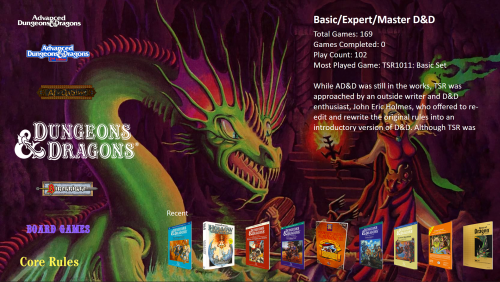
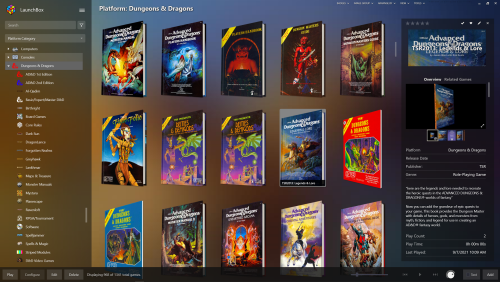
About This File
Version 5.0.0 of the D&D Manuals & Modules Platform
Addendum 1: Scroll down for directions on how to use the new LaunchBox Reader with this D&D Platform.
Addendum 2: Click HERE for a new script created to assist in renaming your PDFs to the D&D Platform's file naming convention.
The latest version of the D&D M&M Platform which includes the following changes:
-
Renamed the Dungeons & Dragons Platform to D&D Classic Editions (***see instructions below***).
- This is the main reason for the revision 5.0.0 release.
- This rename of the Platform will likely require a reinstallation of the data found within the archive.
- This is a reorganization of sorts as the Platform Category is named Dungeons & Dragons while the Platforms contained within indicate each D&D Edition.
- Classic Editions contains Original, BECMI (Basic, Expert, Companion, Master, & Immortal), AD&D 1st edition, and AD&D 2nd Edition.
- This allows for the future expansion of the Platform Category with 3rd and 4th Editions.
- The updated pack includes icons/images for both the D&D Classic Editions Platform and the Dungeons & Dragons Platform Category.
- An update to 5th Edition will be released in the near future with similar changes as those listed below.
-
Renamed 9 items for improved consistency with the original titles, including:
- TSR3102 - Birthright - Official Game Adventure - BR1 - Sword and Crown.
- TSR3117 - Birthright - Accessory - BR3 - The Book of Magecraft.
- TSR3123 - Birthright - Domain Sourcebook - Player's Secrets of Khourane.
- TSR9279 - Greyhawk Adventures - Official Game Adventure - WGA1 - Falcon's Revenge. (Added a dash after WGA1).
- TSR9281 - Forgotten Realms - Official Game Adventure - FRA1 - The Horde - Storm Riders.
- TSR9290 - Forgotten Realms - Official Game Adventure - FRA2 - The Horde - Black Courser.
- TSR9395 - DragonLance - Official Game Adventure - DLT1 - New Tales - The Land Reborn.
- TSR9439 - Ravenloft - Official Game Adventure - Adam's Wrath. (Removed RE1 series designation).
- TSR9448 - Official Game Adventure - Temple, Tower, & Tomb. (Added a comma after Tower)
-
Added Wiki links to ALL items. Now every item offers the ability to further investigate the title with online documentation.
- Many items redirect to Wikipedia, if a source for that item exists there, but there are several other websites used in order to produce the best collection of related information.
- Other sites include: RPGGeek, forgottenrealms.fandom.com, dungeonsanddragons.fandom.com, ravenloft.fandom.com, dragonlance.fandom.com, diablo.fandom.com, BoardgameGeek, etc.
-
Added a new item!
- TSR1106 - The Classic Dungeons & Dragons Game - 2nd Printing.
- This is an alternate cover produced for TSR1106 - The Classic Dungeons & Dragons Game.
- This brings the total items for the D&D Classic Editions to 992.
-
Moved or copied data in certain custom filters to more permanent categories in the main metadata.
- Category ---> Genre
- Format ---> Release Type
- Series ---> Series
- Rule Set ---> Play Mode
- Thanks to @dukdukgoos and @Dragonsys for these suggestions.
-
Added Player Character Level Suggestion for all adventure modules into the RATING field within the metadata
- This assists in finding collections of modules geared towards specific character levels.
-
Renamed the Basic/Expert/Master D&D playlist to D&D Original/BECMI
- This is the proper designation for anything that is not AD&D.
- BECMI = Basic, Expert, Companion, Master, & Immortal.
-
Minor image updates:
- TSR1021 - Set 4 - Master Rules - Box Spine and Box 3D images updated with corrected text.
- TSR1017 - Set 5 - Immortals Rules - Box Spine and Box 3D images updated with corrected text.
***If you already have a prior installation of this Platform, you should probably remove some of the previous D&D files from the earlier versions BEFORE installing this new one as the Platform rename could likely cause duplicates and/or confusion. You should end up with a D&D hierarchy that looks like this:
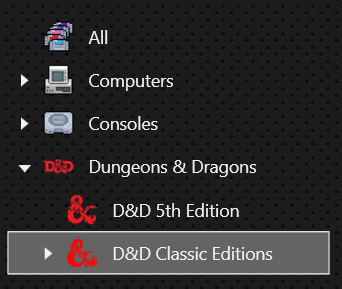
To do this, delete the following files:
..\LaunchBox\Images\Dungeons & Dragons (delete the whole folder)
..\LaunchBox\Data\Platforms\Dungeons & Dragons.xml
..\LaunchBox\Data\Playlists\Basic_Expert_Master D&D.xml
Overwrite any other files when prompted.
Thanks so much to websites like TSRArchive, RPGGeek, DriveThruRPG, eBay, and Worthpoint which without these amazing sites, none of this would be possible. I must remind everyone, however, that NO PDFs or Software are included with this platform. This retrospective image and data compilation is for the preservation, enjoyment, and appreciation of the mythology, artwork, history, development, and universe that is D&D.
Addendum: Directions on how to use the new LaunchBox Reader with the D&D Platform.

Here are the settings I used to get the D&D PDFs working with the new LaunchBox Reader:
TOOLS --> MANAGE --> EMULATORS --> ADD
EMULATOR NAME: LaunchBox Reader
APPLICATION PATH: System\Software\LaunchBox Reader\LaunchBox.Reader.exe
PARAMETERS: -theme dark -fixed-margin none -fit height -layout spread -fullscreen

Select everything but software using the filter menu.
do CTRL+A so select all the PDFs.
do CTRL+E to Bulk Edit the items.
change the emulator setting to LaunchBox Reader.

---------------------------------------------------------------------------------------------------------------------------
INSTALLATION INSTRUCTIONS
- For a new installation, just extract the LaunchBox folder in the archive into the same folder where your LaunchBox installation exists.
- ***See Important note above for those with a prior installation.
- This should update everything properly. However, there may be playlists and images with defunct filenames left over from any previous D&D installations. Delete these, if desired.
- Be sure to clear your image Cache in LaunchBox and BigBox to see the newest images.
-
The paths to the Game/PDF files are all now set to Z:\ in the D&D Classic Editions.xml, since I am currently using a network drive that contains my files.
You can change this to your path by doing the following:
- Navigate to your \LaunchBox\Data\Platforms folder and open the D&D Classic Editions.xml file in TEXT Editor program (such as Notepad++).
-
Find/Replace Z:\ with yourpath\ - You can use a RELATIVE (no specific drive letter) path such as ..\D&D\ or an ABSOLUTE path such as C:\DnD\

-
I've included a couple D&D Classic Editions XML files in the DnD RAR archive that already have this step done for you.
- Just rename the file of your choice to D&D Classic Editions.xml
- Be sure to back up your existing D&D Classic Editions.xml before overwriting.

Setting Up the D&D Platform after copying:
-
Using your PC's Explorer/file system:
- Place your D&D PDFs in a folder that is at the same level as your LaunchBox directory (I use a network drive mapped to z:/D&D). See the image above on how to change that.
- Use FATMATCH or a similar program to rename your PDFs so they are similar to the image filenames: https://emumovies.com/files/file/227-fatmatch-file-renamer/
-
Selecting Platform Categories should make the D&D Platform automatically appear. If it doesn't, you can do the following:
Within the LaunchBox Application- Add a new Platform by selecting TOOLS ==> IMPORT ==> ROM Files
- Select the folder where you've stored your PDFs. In my case it's c:/D&D
-
If you use a folder named D&D that's at the same level as your LaunchBox folder, you'll only need to scan in a few files. This is just to get the Platform to show up.
- The relative paths for the PDFs are already set to ..\D&D\ in the LaunchBox D&D Classic Editions XML.
- If you store your PDFs in a different named folder or at a different level then you'll have to rescan all the files. It's easier just to rename the directory.
- You can also FIND/REPLACE the ..\D&D\ path in the Dungeons & Dragons XML with your path.
- For example, if your D&D PDFs folder is c:\Emulators\Dungeons & Dragons, you would need to set the <ApplicationPath>..\D&D\ for every game in the XML to <ApplicationPath>..\Emulators\Dungeons & Dragons\
- I have done this installation numerous times on different PCs to test. If you need help, please ask. I am not responsible if you mess up your LaunchBox installation
In order to attach a D&D playlist to the D&D Classic Editions Platform, perform the following steps within LaunchBox:
- On the left drop-down menu select Playlists. This should allow you to see all the D&D Playlists I've created.
- Right-click on a playlist and select EDIT.
- Click the Parents tab
- Uncheck the ROOT checkbox
- Check the box next to D&D Classic Editions
To get the D&D 3D images to show up do the following:
- Select the D&D Classic Editions menu item in LaunchBox
- Navigate to TOOL ==> VIEW ==> IMAGE GROUP ==> 3D BOXES
To have the PDFs Launch with the PDF reader of your choice:
- In LaunchBox, select ALL images that pertain to PDFs
- Right-click on one of the images and select EDIT. The BULK Edit window will pop up.
- Select EMULATOR from the Field and change the value to either Adobe Acrobat or Rocket Launcher
-
In order to launch your PDFs, you can set up Adobe Acrobat (or some other PDF Reader) as an emulator in LaunchBox.
- Click on the 3 horizontal lines near the top left then navigate to TOOLS ==> MANAGE ==> EMULATORS
-
Click ADD then add Adobe Acrobat as a new emulator as seen in this image.
-
Add D&D Classic Editions as an associated Platform for the Adobe Acrobat emulator.


To have the background image in LaunchBox be the same as the Box-Front image, perform the following steps:
- Navigate to TOOLS ==> OPTIONS
- Click on Background Priorities and check the BOX-FRONT checkbox.
- Set the Default Background to Use Blown Up Art
-
To get all D&D screenshot images to display for previewing, check the BOX-FRONT, BOX-BACK, BOX-3D, and BOX-SPINE checkboxes in SCREENSHOT Priorities.

If you are missing artwork for the Video Games Playlist, do the following in LaunchBox:
- Open the D&D Video Games Playlist
- do CTRL+A to select all items in the playlist.
- Click the Main Menu (the 3 horizontal lines) near the upper left-hand corner.
- Select Download Metadata and Media.
- The D&D Video Games Playlist is by no means complete for every console and arcade title out there. It presently contains mostly PC games. If you have an extensive library, add any and all games you'd like to the playlist.
If you want to add a description to the main D&D Platform, do the following in LaunchBox:
- Open the D&D Classic Editions Platform Notes text file provided here: LaunchBox D&D Platform Notes.txt.
- Right-Click on the D&D Classic Editions Platform and select EDIT.
- Click on the Notes tab.
- Copy then Paste the text from the D&D Classic Editions Platform Notes into the NOTES text box.
- Click OK
- Do the same for the D&D Platform Category.
---------------------------------------------------------------------------------------------------------------------------
Installing and Running the D&D Software Applications.
The D&D collection contains 5 PC CD-ROMs which require special handling to get working.
If you want to set up these PC CD-ROMS to work with the Dungeons & Dragons LaunchBox System, you can set them up through Rocket Launcher or through LaunchBox.
Both methods are described below. If you need help, please don't hesitate to ask. There are seemingly a lot of steps but all of them are fairly easy.
This tutorial is for running ONLY the following 4 programs*:
TSR2176 - Core Rules - CD-ROM 2.0
TSR11543 - AD&D Core Rules 2.0 Expansion
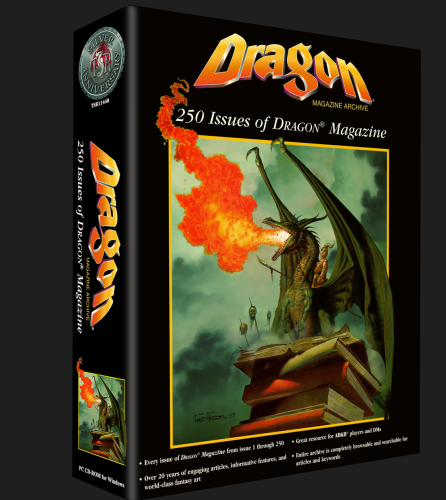
TSR11448 - Dragon Magazine Archive - 250 Issues of Dragon Magazine - CD-ROM
TSR11451 - Forgotten Realms - Interactive Atlas
You can find some updates to these software applications at https://web.archive.org/web/20110322093635/http:/www.wizards.com/dnd/article.asp?x=dnd/ex20020218a
Create 1 ISO from 5 ISOs for the Dragon Magazine Archive program
-
The Dragon Magazine Archive usually has 5 ISOs associated with the program. To avoid mounting all those ISOs, you can easily turn these 5 ISOs into 1 by doing the following:
- Mount each ISO separately in Windows 10/11 by right-clicking and selecting MOUNT from the menu.
-
Extract/copy all the files from each disc into one new folder on your hard drive.
- The first disc has all the installation files while the other 4 just have the Dragon Magazine PDFs located in the Mags folder
-
Download, install ImgBurn, and follow the simple GUI directions to create 1 new fully contained ISO.
- Name the new ISO TSR11448 - Dragon Magazine Archive - 250 Issues of Dragon Magazine - CD-ROM and place it in your D&D ISOs folder.


D&D PC Software Setup Using Rocket Launcher
1. Install Core Rules 2.0 (and Core Rules 2.0 Expansion) onto the drive you choose - i.e. C:\D&D\AD&D Core Rules 2.0 folder.
- The main executable for this program will then be found in C:\D&D\AD&D Core Rules 2.0\Program\tsrp3.exe
-
The BAT files should be put inside this same folder
- C:\D&D\AD&D Core Rules 2.0\Program\AD&D Core Rules 2.0 - CD Mount.bat
- C:\D&D\AD&D Core Rules 2.0\Program\AD&D Core Rules 2.0 - CD Unmount.bat
-
You can further suppress any visible CMD windows from popping up by creating shortcuts to these BAT files inside the same folder, then setting the shortcuts to minimized in the properties.

2. EXTRACT the DUNGEONS & DRAGONS.ini file from the RocketLauncher\Modules\PCLauncher folder in the RAR archive and place it into the same Rocket Launcher folder found at (drive Letter)\RocketLauncher\Modules\PCLauncher .
- Edit any and all folder paths in the INI file to the path where you installed the program on your device.
- Wherever you decide to put the BAT/LNK files, you must change the paths in the Dungeons & Dragons.ini file to point to these BAT/LNK files (see image below).
3. The Rocket Launcher Dungeons & Dragons.ini file then should contain a code block like this one for EVERY added CD-ROM. Notice the reference to the LNK shortcut files and not the BAT files.
[TSR11543 - AD&D Core Rules 2.0 Expansion]
Application=..\..\D&D\AD&D Core Rules 2.0\Program\tsrp3.exe
ExitMethod=Process Close Application
PreLaunch=..\..\D&D\AD&D Core Rules 2.0\Program\Core Rules 2.0 Expansion - CD Mount.lnk
PostExit=..\..\D&D\AD&D Core Rules 2.0\Program\Core Rules 2.0 Expansion - CD Unmount.lnk
PostExitSleep=5000
4. Place the NirCmd program in the same folder as your BAT files as it helps with changing resolutions on the fly - http://www.nirsoft.net/utils/nircmd.html
- This is only if you want AD&D Core Rules 2.0 and Core Rules Expansion to show in full-screen. It also works fine as a small windowed screen with a black background.
- In the Core Rules 2.0 Expansion - CD Mount.bat file you can see where the ISO file and the NIRCMD.EXE are referenced:
 @echo off
 PowerShell Mount-DiskImage -ImagePath  \"C:\D&D\D&D ISOs\TSR11543 - AD&D Core Rules 2.0 Expansion.iso\"
 nircmd.exe setdisplay 800 600 32
This should then successfully and very discreetly launch the Core Rules 2.0 Expansion application without any interfering windows or popups.
Upon exit, the program should shutdown and unmount the ISO from the virtual drive.
Follow the same steps for the other 2 programs:
TSR11448 - Dragon Magazine Archive - 250 Issues of Dragon Magazine - CD-ROM
TSR11451 - Forgotten Realms - Interactive Atlas
D&D PC Software Setup Using LaunchBox
- For this tutorial, we will use TSR11448 - Dragon Magazine Archive.
- Extract the BAT files from the archive. They can be found at the root of the RocketLauncher folder.
-
Put them in the same location as your D&D PDF files.
- You can further suppress any visible CMD windows from popping up by creating SHORTCUTS (LNK files) to these BAT files inside the same folder, then setting the shortcuts to minimized in their properties.
- Core Rules 2.0 - CD Mount and Unmount BATs are are copies of Core Rules 2.0 Expansion - CD Mount and Unmount BATs, just named differently to correspond to the associated application.
-
You may need to edit the BAT files so the paths correspond with the location where your ISO files exist. My ISOs are located in D:\D&D\D&D ISOs. Use Notepad++ for this.
@echo off PowerShell Dismount-DiskImage \"D:\D&D\D&D ISOs\TSR11448 - Dragon Magazine Archive - 250 Issues of Dragon Magazine - CD-ROM.ISO\" -
You will now need to install the Dragon Magazine Archive software into any folder of your choice. I use my main D&D PDF folder for all these software installations.
- Mount the ISO you created in step 5 in Windows 10/11 by right-clicking and selecting MOUNT from the menu.
- Once the software is installed, make sure it runs properly.
- Create a shortcut (LNK file) for the main program file and place it in your main D&D PDF folder.
- Rename the shortcut to TSR11448 - Dragon Magazine Archive - 250 Issues of Dragon Magazine - CD-ROM.lnk
-
Click on Additional Apps in this same editor and ADD 2 items
- The first item should point to the main ISO image file.
-
Check the box that says Automatically Run Before Main Application.
- The second item points to the Dragon Magazine Archive - CD Unmount.LNK file.
-
Check the box that says Automatically Run After Main Application.
- The program should now mount the disc and run from LaunchBox. It should also dismount the disc once the program is exited.
-
IMPORTANT NOTE: The TSR2176 - Core Rules - CD-ROM 2.0 and TSR11543 - AD&D Core Rules 2.0 Expansion have different EXE files to launch the program.
- TSR2176 - Core Rules - CD-ROM 2.0 uses EVERMORE.EXE
- TSR11543 - AD&D Core Rules 2.0 Expansion uses TSRP3.EXE
- If you install the Expansion software, the EVERMORE.EXE file gets deleted and only TSRP3.EXE will remain.
- If the Core Rules Expansion is installed, point both programs and BAT files to use TSRP3.EXE


*SPECIAL NOTE: The above methods WILL NOT work for TSR2167 - Core Rules - CD-ROM because it is a Windows 3.1 program. To install this program, you will need to use this DOSBox tutorial:
TSR2167 - Core Rules - CD-ROM Installation Instructions
These same installation instructions can also be found in the readme.txt file inside the RocketLauncher folder within the D&D RAR archive. Supporting media files can be found there too.
Edited by malarrya
Version Update/Change Log
What's New in Version 1.2.0 See changelog
Released
The latest updates to this Dungeon & Dragons Platform include the following
- Added new playlists
- Added descriptions to all playlists
- Added new images to various playlists.
- Some minor corrections in the various file descriptions.
In order to attach a playlist to the main Dungeons & Dragons Platform, perform the following steps within LaunchBox:
- On the left drop-down menu select Playlists
- Right-click on the a playlist and select EDIT.
- Click the Parents tab
- Check the box next to Dungeons & Dragons
There is no need to place the Box-Front image into the Fanart-Background folder. To have the background image in LaunchBox be the same as the Box-Front image, perform the following steps:
- Click the Main Menu (the 3 horizontal lines) in the upper left-hand corner.
- Navigate to TOOL --> OPTIONS
- Click on Background Priorities and check the BOX-FRONT checkbox.
- Set the Default Background to Use Blown Up Art
If you are missing artwork for the Video Games Playlist, do the following in LaunchBox:
- Open the D&D Video Games Playlist
- do CTRL+A to select all items in the playlist.
- Click the Main Menu (the 3 horizontal lines) in the upper left-hand corner.
- Select Download Metadata and Media.
The D&D Video Games Playlist is by no means complete for every console and arcade title out there. It presently contains mostly PC games. If you have an extensive library, add any and all games you'd like to the playlist.
If you want to add a description to the main D&D Platform, do the following in LaunchBox:
- Right-Click on the Dungeons & Dragons Platform and select EDIT.
- Click on the Notes tab.
- Paste the below description:
Dungeons & Dragons (abbreviated as D&D) is a fantasy tabletop role-playing game (RPG) originally designed by Gary Gygax and Dave Arneson. It was first published in 1974 by Tactical Studies Rules, Inc. (TSR). The game has been published by Wizards of the Coast (now a subsidiary of Hasbro) since 1997. It was derived from miniature wargames with a variation of Chainmail serving as the initial rule system. D&D's publication is commonly recognized as the beginning of modern role-playing games and the role-playing game industry.
D&D departs from traditional wargaming and allows each player to create their own character to play instead of a military formation. These characters embark upon imaginary adventures within a fantasy setting. A Dungeon Master serves as the game's referee and storyteller while maintaining the setting in which the adventures occur, and playing the role of the inhabitants. The characters form a party that interacts with the setting's inhabitants, and each other. Together they solve dilemmas, engage in battles, and gather treasure and knowledge. In the process the characters earn experience points in order to rise in levels, and become increasingly powerful over a series of sessions.
The early success of Dungeons & Dragons led to a proliferation of similar game systems. Despite the competition, D&D has remained as the market leader in the role-playing game industry. In 1977, the game was split into two branches: the relatively rules-light game system of basic Dungeons & Dragons and the more structured, rules-heavy game system of Advanced Dungeons & Dragons (abbreviated as AD&D). AD&D 2nd Edition was published in 1989. In 2000, a new system was released as Dungeons & Dragons 3rd edition; a revised version 3.5 was released in June 2003. These rules formed the basis of the d20 System which is available under the Open Game License (OGL) for use by other publishers. D&D 4th edition was released in June 2008. The 5th edition, the most recent, was released during the second half of 2014.
As of 2004, Dungeons & Dragons remained the best-known and best-selling role-playing game, with an estimated 20 million people having played the game and more than US$1 billion in book and equipment sales. The game has been supplemented by many pre-made adventures as well as commercial campaign settings suitable for use by regular gaming groups. Dungeons & Dragons is known beyond the game for other D&D-branded products, references in popular culture, and some of the controversies that have surrounded it, particularly a moral panic in the 1980s falsely linking it to Satanism and suicide. The game has won multiple awards and has been translated into many languages beyond the original English.
--------------------------------------------------------------------------------------------------------------------------------------------
Uploaded The FULL Dungeons & Dragons Manuals & Modules LaunchBox Bolt-On file.
- Simply extract the archive to your Launchbox folder!
- No need to get it from the MEGA site any longer!
-
Includes the necessary Rocket Launcher files for connecting the D&D platform with Rocket Launcher.
- This is in case you want to use Soda PDF Reader and Rocket Launcher with the D&D Platform but not necessary to run the D&D platform.
-
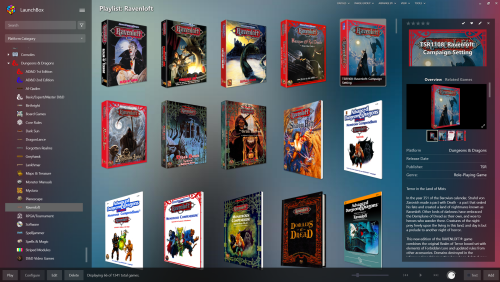
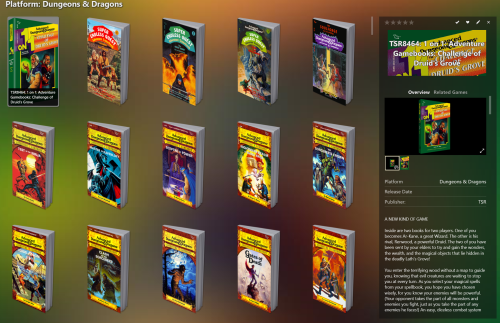
Copy and Paste the files from the ..Images/Dungeons & Dragons/Box - Front folder into the Fanart - Background folder for the full D&D Platform layout/effect as seen in the screenshots.
- This was done to keep the uploaded RAR file smaller.