Jump to content
LaunchBox Community Forums

4 Screenshots

About This File

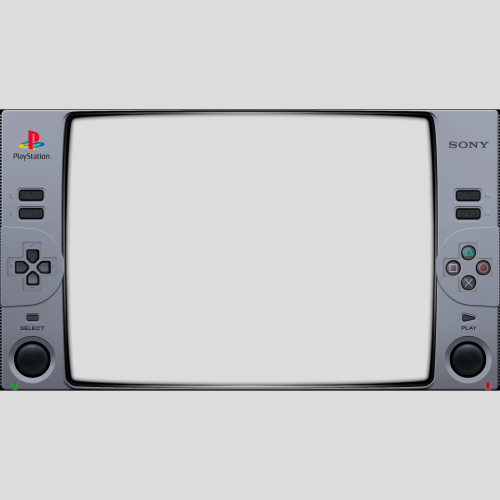
What I have here is a small collection of Duckstation overlays/bezels that I find appealing to look at while playing my PS1 games.

Place all files inside your overlays folder and they should show up in your overlays selection in the "post-processing" section in the Duckstation settings.

***IMPORTANT NOTE*** If your trying to add the files from this download to your Android device, you'll probably need to do it by using your PC connected to your Android device via USB C cable. You'll need to access the

"[storage]/Android/data/com.github.stenzek.duckstation/files/resources/overlays" file path from your PC and place the files in there. That's the only way I know of to bypass the Android protected system folders. 

All credit for the "PS1_Overlay" should go to the original creator of the overlay, Fercho. Thanks to him I was able to use his animated overlay he created for the Retroarch and make a static image for this overlay.

This is his original animated overlay for the PS1 - Retroarch: https://forums.launchbox-app.com/files/file/3477-playstation-1-animated-overlay-for-retroarch/

FYI, I personally am using the "PS1_Overlay" with the "ntsc/ntsc-adaptive-lite" and "CRTLottes2" shaders and it looks amazing with those two and fits perfectly.

The "PSonereflections" image I got from Retroarch's overlays and created the .yml file needed by Duckstation to use.

The other two I found on a reddit post by "danytyler" and created the .yml file for both of those as well. 

I take no credit for actually making the .png files, I only want to share these overlays for the people using the Duckstation emulator since there are very few pre-made overlays for the platform.

I personally think the "ntsc/ntsc-adaptive-lite" shader looks best with all four overlays because it adds the fuzzy glow old CRT TVs use to produce, but if your going to add a CRT shader that adds scanlines to it, I would go with the "dolphinfx/crt/CRT-Hyllian" for the "PSonereflections" overlay. As for the other three, the "CRT-NewPixie" or "CRTLottes2" adds a curvature to better fit those overlays. These are just my personal suggestions because they are pre-installed into Duckstation when you download it.

Enjoy!

Edited by The_Ironclad_Lad


What's New in Version 1.0.0   See changelog

Released

No changelog available for this version.

  • Like 3
  • Game On 2

User Feedback

Recommended Comments

bundangdon

Posted

Works great! Thank you for sharing this

  • Like 1
The_Ironclad_Lad

Posted

16 hours ago, bundangdon said:

Works great! Thank you for sharing this

Glad I could help! There seems to be so few pre-made Duckstation Overlays. Thought I'd just share mine with everyone.

X1pheR

Posted

These look very nice but I'm unable to try them out. How do you copy them to the overlays folder? In the settings it says to copy them to [storage]/Android/data/com.github.stenzek.duckstation/files/resources/overlays but for the life of me I cannot access the overlays folder because it is part of the Android protected system folder.

  • Like 1
The_Ironclad_Lad

Posted (edited)

38 minutes ago, X1pheR said:

These look very nice but I'm unable to try them out. How do you copy them to the overlays folder? In the settings it says to copy them to [storage]/Android/data/com.github.stenzek.duckstation/files/resources/overlays but for the life of me I cannot access the overlays folder because it is part of the Android protected system folder.

I'm not quite sure about that. I know about the Android protected system folders but I've never experienced that for myself. You've got the right file path ([storage]/Android/data/com.github.stenzek.duckstation/files/resources/overlays), that's exactly where I put my files but I didn't have an issue putting them in there. The only thing I did differently was that I accessed those files using my PC with a USB C cable between my PC and my AYN Thor. Not sure if that matters or not but I'll try to look up and see if there are any tips on how to access those folders.

UPDATE: So from what I found out I guess using a PC connected to your Android device via USB C cable seems to be the easiest way to add the files from my overlays download to your overlays folder in the Android protected folders. I guess I just got lucky because that's what I did from the start when I was making these files for myself. Hope that helps.

Edited by The_Ironclad_Lad

Join the conversation

You can post now and register later. If you have an account, sign in now to post with your account.

Guest
Unfortunately, your content contains terms that we do not allow. Please edit your content to remove the highlighted words below.
Add a comment...

×   Pasted as rich text.   Paste as plain text instead

  Only 75 emoji are allowed.

×   Your link has been automatically embedded.   Display as a link instead

×   Your previous content has been restored.   Clear editor

×   You cannot paste images directly. Upload or insert images from URL.

×
×
  • Create New...