
About This File
Hi, here's my latest tool;
🎬 Videos to Images Clipper – Extract Screenshots from Your Videos with Ease
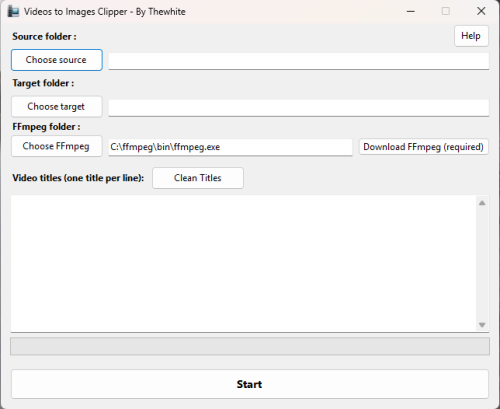
Videos to Images Clipper is a lightweight and user-friendly Windows application designed to extract high-quality screenshots from video files. It automatically captures images at key moments - First image, 25%, 50%, and 75% of the video's duration or a specific frame.
This tool is especially useful for LaunchBox users who want to generate screenshot quickly and efficiently from their game videos.
✨ Key Features
-
📸 Automatic Screenshot Extraction
Captures images at ¼, ½, and ¾ of each video. -
📂 Batch Processing
Processes multiple videos based on a list of titles. -
🔎 Smart Title Matching
Matches video filenames with titles entered by the user. -
🧹 Clean Titles from LaunchBox
Extracts and cleans titles from copied tables from the LaunchBox Audit window. -
🌐 Recursive Folder Scanning
Searches for videos in all subfolders of the selected source directory. -
🧰 Automatic FFmpeg Integration
Detects FFmpeg on your system or downloads it directly within the application.
🛠️ Supported Video Formats
- mp4, m4v, mkv, avi, mov.
📖 How to Use
-
Select the Source Folder
Click Source and choose the directory containing your videos. Subfolders are included automatically. -
Select the Destination Folder
Click Destination to specify where the extracted images will be saved. -
Enter or Paste Titles
Paste game titles into the textbox, one per line.
You can copy data directly from the LaunchBox Audit window. -
Clean the Titles
Click Clean Titles to remove headers and keep only the relevant titles. -
Install or Locate FFmpeg
If FFmpeg is not detected, click Download or browse to its installation folder. -
Start the Extraction
Click Start to generate screenshots at 25%, 50%, and 75% of each matching video. -
Once finished, you can move the images to the platform's image folder (Screenshot - Gameplay). Run a platform audit to detect the new images.


🖼️ Output Example
For a video named:
Assassin's Creed.mp4
The application generates:
Assassin_s Creed-01.jpg
Assassin_s Creed-02.jpg
Assassin_s Creed-03.jpg
💻 System Requirements
-
Windows 10 or Windows 11
-
.NET Desktop Runtime 6.0 or later
-
FFmpeg (automatically detected or downloadable within the application)
🚀 Feedback and Contributions
Feedback, suggestions, and bug reports are welcome! Feel free to share your experience and ideas to improve the software.
Thank you for trying Videos to Images Clipper!

Edited by thewhite
update info for v1.3
What's New in Version 1.3.0 See changelog
Released
Added a checkbox to process all videos from the source folder.
Small fixe.

