
About This File
The Game Scraper for LaunchBox
The Game Scraper helps fill in missing metadata, artwork, trailers, play times, and useful custom fields for your LaunchBox games.
It is especially helpful for PC games that were added manually instead of imported from Steam, but it can also help with console, handheld, arcade, and mixed libraries by using sources like Steam, IGDB, SteamGridDB, MobyGames, ScreenScraper, YouTube, and HowLongToBeat.
This guide is organized by how much control you want.
-
Basic user: you just want metadata, images, and videos with the least amount of setup.
-
Intermediate user: you want to tune the main Batch Settings tab and choose where your data comes from.
-
Advanced user: you want full control with the Custom Workbench.
The Game Scraper has come a long way since being a Steam metadata/media downloader. Its complexity has ballooned, making it very difficult for me to test everything. If you run into a problem, please message me first. If you like what this does and use it, please provide a 5-star review!
Install The Plugin
-
Close LaunchBox.
-
Extract The Game Scraper into your LaunchBox
Pluginsfolder. -
Reopen LaunchBox.
-
Select one or more games.
-
Right-click and choose The Game Scraper.
Files That Come With The Plugin
These are the normal files you may see in the plugin folder.
-
TheGameScraper.dll- The main plugin file. LaunchBox loads this to add The Game Scraper to the right-click menu. -
DiscoveryData.json- Built-in mapping data used to normalize Discovery Tags and player-perspective labels from Steam and IGDB source terms. -
SteamKit2.dll- Support file used for deeper Steam lookup features. -
ZstdSharp.dll- Support file included with the current SteamKit2 package. Keep it if it was included in your download. -
WindowsShortcutFactory.dll- Support file for shortcut/path handling and Better PC Game Importer-style PC game cleanup. -
yt-dlp.exe- Required for YouTube video searching and downloading. -
ffmpeg.exe- Required for video merging and video format handling. -
deno.exe- Used by the video tools for some YouTube challenge handling. Keep it if it was included in your download. -
TheGameScraper.pdb- Optional. Only useful for debugging.
Files The Plugin Creates
The plugin also creates a few files and folders while you use it.
-
config.json- Stores saved settings, source choices, credentials, overwrite choices, video options, and Custom Workbench routes. -
TheGameScraper.log- The main troubleshooting log. It records what the plugin tried, downloaded, skipped, and sent to the Fixer.
Basic User: Just Get Metadata, Images, And Videos
Use this path if you want the plugin to clean up your games without thinking about every source and every field.
This is the best first run for most people.
Basic API Setup
For the best Auto experience, add your IGDB and SteamGridDB credentials before running a batch.
Steam does not need an API key, but IGDB and SteamGridDB do.
-
SteamGridDB API key: needed for SteamGridDB artwork.
-
IGDB Client ID and Secret: needed for IGDB metadata, keywords, themes, videos, and player perspective.
This matters because Auto mode can use Steam first for PC games, then use IGDB and SteamGridDB to fill gaps or handle non-Steam games.
If you are scraping mostly PC games that Steam can easily identify, you can try Auto without these. If you are scraping console, handheld, arcade, retro, non-Steam PC games, or a mixed library, you should add IGDB and SteamGridDB first.
Where To Get The Keys
-
SteamGridDB API key: get it from your SteamGridDB API preferences page:
https://www.steamgriddb.com/profile/preferences/api -
IGDB Client ID and Secret: follow IGDB's official setup guide:
https://api-docs.igdb.com/#account-creation
Quick IGDB Credential Steps
-
Sign in or create a Twitch account.
-
Enable two-factor authentication on the Twitch account.
-
Open the Twitch Developer Portal from the IGDB setup guide.
-
Register an application.
-
Set the application type to Confidential.
-
Use
localhostfor the OAuth Redirect URL if you do not have another redirect URL. -
Create a new client secret.
-
Copy the Client ID and Client Secret into The Game Scraper.
After entering credentials, use Check API Status. The status lines under each provider tell you whether the plugin sees what it needs.
Best Simple Setup
-
Select a small group of games in LaunchBox.
-
Right-click and open The Game Scraper.
-
Stay on Batch Settings.
-
Add your IGDB Client ID and Secret if you plan to use IGDB.
-
Add your SteamGridDB API key if you plan to use SteamGridDB artwork.
-
Click Check API Status.
-
Set Primary Metadata Source to Auto.
-
Turn on Enable Metadata & Image Scraping.
-
Turn on Download Videos if you want trailers.
-
Set video Source to Steam for the easiest Auto workflow.
-
Leave overwrite options off for your first run.
-
Click START BATCH.
-
If the Fixer appears, review the games it could not confidently match.
For a simple first run:
Auto + IGDB + SteamGridDB + Steam videos is the easiest starting point.
Auto mode follows this workflow:
-
For PC/Steam-style games, it starts with Steam for metadata, standard images, and Steam videos.
-
If Steam cannot confidently identify the game, it can check IGDB when IGDB credentials are configured.
-
If Steam identifies the game but some details are missing, IGDB can safely fill gaps when the IGDB match is verified.
-
If Steam artwork is missing, SteamGridDB can fill standard artwork when a SteamGridDB API key is configured.
-
If a Steam video is not found, Auto can fall back to YouTube.
-
For non-Steam games, console games, arcade games, handheld games, and retro platforms, Auto uses IGDB for metadata, SteamGridDB for standard artwork when configured, and YouTube for videos.
What Basic Mode Can Add
The plugin can fill in:
-
Title, developer, publisher, notes, series, release date, rating, play mode, genres, and community rating.
-
Box/front cover, banner/header, fanart background, clear logo, and gameplay screenshots.
-
Trailers from Steam or YouTube.
-
HowLongToBeat play times.
-
Discovery Tags and Player Perspective custom fields.
-
Installed status for PC games, if you enable that option.
Intermediate User: Customize The Main Tab
Use this path if you want more control, but you still want the normal batch screen to do most of the work.
The main Batch Settings tab is where you choose the main source, video behavior, overwrite behavior, API keys, and extra options.
What Changes When You Pick A Source Instead Of Auto
When you choose a source directly, the plugin stops using Auto's full fallback chain and follows the source you picked.
Steam
-
Metadata comes from Steam.
-
Fields filled from Steam can include Title, Developer, Publisher, Release Date, Genres, Notes/Description, Play Mode, Controller Support, Community Rating, and Discovery Tags from Steam tags when Discovery Tags are enabled.
-
Images come from Steam's standard store/library artwork: Box - Front from the portrait library image, Clear Logo, Fanart - Background from the Steam hero image, Banner from the Steam header image, and up to 5 Screenshot - Gameplay images.
-
Image sizes are usually consistent because Steam uses fixed artwork types. The portrait box art uses Steam's
library_600x900_2ximage, the hero is the widelibrary_heroimage, the banner is the smaller Steam header image, and screenshots use Steam's full screenshot URLs. -
Videos come from Steam when Steam video downloading is selected.
IGDB
-
Metadata comes from IGDB.
-
Fields filled from IGDB can include Title, Developer, Publisher, Notes/Description, Series, Age Rating, Wikipedia URL, Video URL, Release Type, Release Date, Community Rating, Genres, Play Mode, Discovery Tags from IGDB themes/keywords when Discovery Tags are enabled, and the Player Perspective custom field.
-
Images come from IGDB when Override Steam Images with SGDB is off: Box - Front from the IGDB cover, Fanart - Background from the first IGDB artwork image, and up to 5 Screenshot - Gameplay images.
-
IGDB image sizes are different from Steam. Covers use IGDB's
cover_bigsize, artwork uses IGDB's1080psize, and screenshots use IGDB'sscreenshot_hugesize. -
IGDB does not provide the same standard logo/banner set that Steam does in the normal main-tab workflow. Turn on Override Steam Images with SGDB if you want SGDB to fill standard artwork instead.
-
Videos use the IGDB-linked YouTube video first when IGDB has one, then fall back to a YouTube search.
MobyGames
-
Metadata comes from MobyGames.
-
Fields filled from MobyGames can include Title, Developer, Publisher, Notes/Description, Series, Age Rating, Region, Release Type, Max Players, Release Date, Community Rating, Genres, Play Mode, and Alternate Names when MobyGames has them.
-
Images come from MobyGames media candidates for the normal LaunchBox categories: Box - Front, Clear Logo, Fanart - Background, Banner, and up to 5 Screenshot - Gameplay images when those items are available.
-
Image sizes vary because MobyGames media is submitted per game, platform, and region. The plugin prefers better regional matches and larger images when it has choices.
-
Videos still use the normal video setting, such as YouTube, if video downloading is enabled.
ScreenScraper
-
Metadata comes from ScreenScraper.
-
Fields filled from ScreenScraper can include Title, Developer, Publisher, Notes/Description, Series, Age Rating, Region, Release Type, Max Players, Release Date, Community Rating, Genres, Play Mode, and Alternate Names when ScreenScraper has them.
-
Images come from ScreenScraper media candidates for the normal LaunchBox categories: Box - Front, Clear Logo, Fanart - Background, Banner, and up to 5 Screenshot - Gameplay images when those items are available.
-
Image sizes and styles vary by platform, region, and language. Your ScreenScraper region and language settings help decide which version is chosen.
-
Videos come from ScreenScraper's normalized video when ScreenScraper video downloading is selected.
SteamGridDB Override
-
This is not a metadata source. It only changes the standard artwork pass.
-
When enabled, SGDB can replace the normal source artwork with Box - Front, Fanart - Background, and Clear Logo from SteamGridDB.
-
SGDB artwork is usually cleaner and more uniform than older provider media, but it does not fill every LaunchBox image category from the main tab.
Manual
-
Manual mode is for games you already know need human help.
-
Instead of trying to choose a match automatically, the plugin sends the game to the Fixer so you can pick the correct result, paste a supported source URL or ID, or enter a better search term.
-
Use this when Auto keeps finding the wrong game, when a title has many versions, or when you already have the exact Steam, IGDB, SteamGridDB, MobyGames, ScreenScraper, HowLongToBeat, or YouTube page you want to use.
Main Tab Options Explained
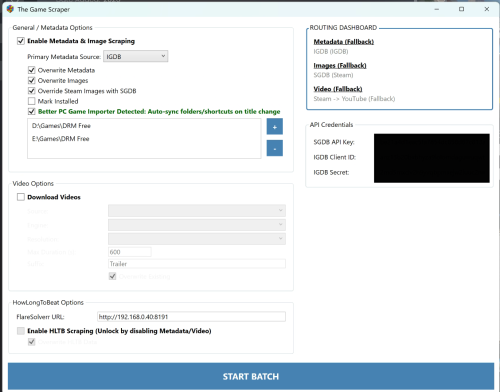
Enable Metadata & Image Scraping
Turns on the normal metadata and image pass.
Overwrite Metadata
Allows the plugin to replace existing text fields in LaunchBox. Leave this off if you only want to fill blanks.
Overwrite Images
Allows the plugin to replace existing image files. Leave this off if you want to keep your current artwork.
Override Steam Images with SGDB
Uses SteamGridDB for standard image categories when possible. This is useful when you prefer SteamGridDB artwork styles or want better artwork than Steam provides.
Mark Installed
Marks selected PC games as installed after scraping. Non-PC games are skipped for this option.
Discovery Tags
Adds a custom field with useful tags from Steam and IGDB. These can help you build LaunchBox playlists around themes, features, or style, and are integral to the Discovery Curation Center plugin.
Better PC Game Importer Sync
If Better PC Game Importer is installed, this can help keep renamed PC game folders, shortcuts, and LaunchBox paths in sync after cleanup.
Video Options
Download Videos
Turns on trailer downloading.
Source: Steam
Best for a simple PC setup. Steam videos come directly from the Steam Store when available.
Source: YouTube
Useful when Steam does not have a trailer or when you want YouTube results. YouTube matching is careful and may skip games when it is not confident.
For older games, try changing the YouTube suffix from trailer to gameplay if trailers are hard to find.
Source: ScreenScraper
Useful for retro games when ScreenScraper has a direct normalized game video.
Resolution
Chooses the video height requested for YouTube or Steam downloads.
Max Duration
Used for YouTube searches so long videos, reviews, and playthroughs are avoided. Videos exceeding this length will be ignored.
Overwrite Existing
Allows existing videos to be replaced.
HowLongToBeat Options
Turn on Enable HLTB Scraping if you want LaunchBox custom fields for:
-
HLTB - Main Story -
HLTB - Main + Extra -
HLTB - Completionist -
HLTB - Co-Op -
HLTB - Vs. -
Length Category
Length Category is created from the best available main play time. If Main Story is missing, the plugin tries Co-Op, then Vs.
The length categories are:
-
Quick (< 5h) -
Standard (5-15h) -
Extended (15-30h) -
Long (30-60h) -
Massive (60h+)
These categories can help you build playlists like quick games, long games, or massive games.
FlareSolverr is optional. Normal HowLongToBeat use does not require it, but you can enter a FlareSolverr URL as a fallback if HowLongToBeat blocks normal access in the future.
Other API Credentials
Some sources work without keys. Others need your own credentials.
IGDB and SteamGridDB are covered in the Basic setup above because they are useful for Auto mode. Add these other credentials only when you use the related features:
-
MobyGames API key: needed for MobyGames metadata and images.
-
ScreenScraper user and password: needed for ScreenScraper metadata, media, and account quota checks.
Use Check API Status after entering credentials. The status lines under each provider tell you whether the plugin sees what it needs.
The Fixer
The Fixer opens when The Game Scraper cannot confidently match or download something.
That is a good thing. It means the plugin is asking before it puts questionable data into your library.
The Fixer can help with:
-
Metadata with no match.
-
Low-confidence matches.
-
Missing artwork.
-
Ambiguous HowLongToBeat results.
-
Missing videos.
-
Other scraping problems.
Depending on the tab, you can:
-
Pick from possible matches.
-
Paste a Steam, IGDB, SteamGridDB, MobyGames, ScreenScraper, HowLongToBeat, or YouTube URL when supported.
-
Type a better title or search term.
-
Skip the row.
-
Retry selected rows.
-
Purge scraper-added data for rows in that tab.
Purge is meant for scraper-added data. It does not wipe your game title, platform, launch path, emulator, favorites, play stats, or normal LaunchBox-owned settings.
Advanced User: Custom Workbench
Use Custom Workbench when you want to choose the source for each kind of data instead of choosing one main source for the whole scan.
This is for users who want control over the final library look and are comfortable deciding where each field should come from.
Example Workbench setup:
-
Metadata from IGDB.
-
Ratings from Steam.
-
Box art from SteamGridDB.
-
Screenshots from MobyGames.
-
Retro logos or title screens from ScreenScraper.
Custom Workbench is for metadata and image routing. Videos and HowLongToBeat are controlled from the normal Batch Settings sections, not from Workbench source rows.
How Custom Workbench Works
-
Open The Game Scraper.
-
Choose Custom Workbench.
-
Pick a Default Source if you want to quickly set many rows.
-
Review the Metadata rows.
-
Review the Images rows.
-
Set any row you do not want to Skip.
-
Set overwrite options carefully.
-
Click START BATCH.
Each row uses the source you choose for that row. If you route a field to one source and that source does not have the data, the plugin will not quietly swap to a different source for that field.
That makes the Workbench predictable. It also means you should choose sources intentionally.
Workbench Metadata Rows
Depending on your configured credentials, the Workbench can route metadata such as:
-
Title
-
Description
-
Developer
-
Publisher
-
Release Date
-
Genre
-
Play Modes
-
Series
-
Community Rating
-
Discovery Tags
-
Player Perspective
Workbench Image Rows
Depending on your configured credentials, the Workbench can route images such as:
-
Box / Cover
-
Box - Back
-
Box - Spine
-
Box - 3D
-
Cart - Front
-
Cart - Back
-
Cart - 3D
-
Disc
-
Banner
-
Hero / Fanart Background
-
Logo
-
Icon
-
Screenshots
-
Screenshot - Title Screen
-
Advertisement Flyer
-
Bezel
-
Arcade Marquee
-
Arcade Cabinet
-
Arcade Control Panel
-
Arcade Circuit Board
-
Manual
The Workbench shows a short source summary for each row so you can see what kind of media that source usually provides.
Screenshot Limit
The Workbench can download multiple screenshots. Use Screenshot Limit when you want to cap how many screenshots are downloaded per game.
Leave it blank if you want the Workbench to download everything the selected source provides for that row.
When To Use Each Advanced Source
Steam
Best for PC store metadata, Steam tags, official artwork, banners, logos, and screenshots.
IGDB
Best for broad game metadata across many platforms, especially non-PC games.
SteamGridDB
Best for polished artwork, alternate covers, grids, heroes, logos, and artwork rescue passes.
MobyGames
Best for platform-aware metadata, release context, covers, screenshots, and physical media scans.
ScreenScraper
Best for retro and arcade media, regional artwork, cartridges, discs, wheels/logos, title screens, flyers, manuals, and arcade/retro image categories.
Advanced Advice
Use Auto for broad cleanup. Use Custom Workbench for targeted passes.
For example, you might run Auto first to fill the basics, then run Custom Workbench later only for box backs, cartridge art, manuals, or alternate logos.
Be careful with overwrite options. The Workbench is powerful, and overwrite settings apply to the rows you route.
Troubleshooting
A Game Went To The Fixer
The plugin was not confident enough to choose automatically. Pick the right match, paste a direct URL, enter a better title, or skip it.
YouTube Videos Do Not Download
Make sure deno, yt-dlp, and ffmpeg are up to date. Also include a cookies file in your plugin root. If it still fails, check the log.
YouTube is not a games database. We rely entirely on search to match. The plugin is designed to search for the game and platform, when it is not a PC game, then the suffix in the settings. For instance, Metal Gear Solid Sony PlayStation Trailer. This will likely not get you the correct result since trailers were not really a thing back then. Changing the suffix to Gameplay will likely get you something, but you will need to play around with it. YouTube is meant as a source of last resort. The plugin will actively try to verify and reject videos that do not match to prevent false positives. When in doubt, use Manual mode and supply the URL directly.
A Source Does Not Appear
Some sources only appear after you enter the required credentials. Add the credentials, check API status, close and reopen the plugin if needed, and try again.
Existing Images Or Data Did Not Change
Check the overwrite options. With overwrite off, the plugin usually tries to preserve what you already have.
HowLongToBeat Stops Working
HLTB access can change over time. The plugin uses normal direct access first. If that fails and you have a FlareSolverr URL configured, it can try that as a fallback.
Large Fixer Queues Feel Slow
Large batches can create large review queues. Work through one tab at a time, use paging, and avoid huge purge operations unless you are ready to wait.
Something Looks Strange
Open the full log from the summary window or check TheGameScraper.log in the plugin folder. The log shows what source was used, what was skipped, and why something went to the Fixer.
Good First Runs
PC Steam Cleanup
-
Mode: Auto
-
IGDB credentials: Added
-
SteamGridDB API key: Added
-
Metadata and images: On
-
Videos: On
-
Video source: Steam
-
Overwrite metadata: Off
-
Overwrite images: Off
-
Overwrite video: Off
PC Artwork Upgrade
-
Mode: Auto or Steam
-
Metadata and images: On
-
Override Steam Images with SGDB: On
-
SteamGridDB API key: Added
-
Overwrite images: On only if you want to replace existing artwork
Retro Metadata And Media
-
Mode: Auto, IGDB, MobyGames, or ScreenScraper
-
Add credentials for the source you want
-
Metadata and images: On
-
Videos: Optional
-
Use the Fixer for uncertain matches
Advanced Physical Media Pass
-
Mode: Custom Workbench
-
Route box backs, spines, carts, discs, flyers, manuals, or title screens to MobyGames or ScreenScraper
-
Set unrelated rows to Skip
-
Use overwrite carefully
Quick Source Cheat Sheet
| Source | Best For | Needs Credentials |
|---|---|---|
| Steam | PC metadata, Steam artwork, Steam trailers | No |
| IGDB | Console, handheld, arcade, retro, non-Steam metadata | Yes |
| SteamGridDB | High-quality artwork upgrades | Yes |
| MobyGames | Platform-aware metadata, covers, screenshots | Yes |
| ScreenScraper | Retro and arcade media, regional art, direct retro videos | Yes |
| YouTube | Trailer fallback and manual video help | No API key, but video tools are needed |
| HowLongToBeat | Play-time custom fields | No |
| Manual | Send games to the Fixer so you can choose or paste the right match yourself | Depends on the source you choose |
Final Recommendation
If you are new, start with Auto and a small batch.
If you want to tune the normal experience, stay on Batch Settings and adjust sources, videos, overwrite options, and credentials.
If you want full control, use Custom Workbench for focused passes after your library already has the basics.
Edited by spiritedusual
Updated readme
What's New in Version 3.1.2 See changelog
Released
When scanning for ScreenScraper or MobyGames media the plugin now verified media files directly on the drive instead of relying on Launchbox to provide a path.


Recommended Comments
Join the conversation
You can post now and register later. If you have an account, sign in now to post with your account.