.thumb.png.c9faf450e4d2b690a819048b18173f61.png)


About This File
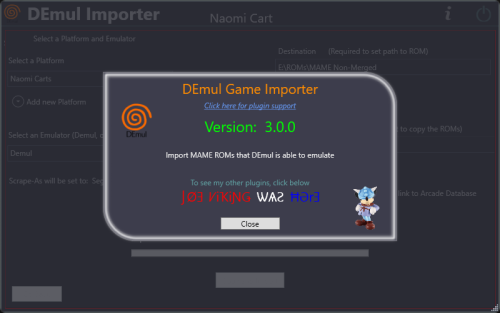
Import games for use with Demul (Sega * Emulator).
Purpose:
This purpose of this plugin is to import only the MAME machines that can be emulated in Demul. A sort of MAME machine ‘filtered’ importer to supplement LaunchBox’s Import Tool.
Why:
LaunchBox can already import these machines (games) for you using the built-in Tools - Import - MAME Arcade Full Set. All you need to do is un-check the skip games unplayable in MAME checkbox. The concern is this results in over 6000 additional entries imported (even more if you uncheck any other boxes and include clones). And as in most cases, more is NOT always better. Alternatively you can also simply drag-and-drop the roms into LaunchBox. Which is great when you already have them sorted out.
Included Systems:
The list of machines included for this plugin was generated by running the command “demule.exe –listroms” using Demul v0.7 (Apr 28, 2018). The systems included are Naomi, Naomi 2, Atomiswave, Hikaru, Gaelco, Cave3rd (CV1000) and System SP. (Sega Dreamcast, though emulated, is not included in the list. [It’s not a MAME machine])
Naomi and Naomi 2 are each broken into 2 separate systems: Cartridge System (rom only) and GDROM (chd).
Requirements:
- LaunchBox v13.19 or newer
- DEmul already set up as an emulator in LaunchBox
What this plugin will do:
- Import games for a selected system.
- Import into an existing Platform or create a new one.
- When creating a new Platform, assigns “Scrape as” per the associated system.
- Attempt to automatically detect/select your Demul emulator. (Required to exist as an emulator)
- (optional) Copy ROMs to a new location for the games you’re importing.
What this plugin won’t do:
- Add DEmul as a new emulator.
-
Add the required command line to the emulator (**see below).Feature added v3.0 - ‘Bulk’ import into separate Platforms.
- Add metadata and media to the imported games.
- If copying ROMs (optional), only the games main rom file is copied. It will not look for nor copy any required BIOS, Device or chd files.
Installing the plugin:
After downloading the zip file, extract the contents of the zip into your \LaunchBox\Plugins\ folder.
e.g. D:\LaunchBox\Plugins\DemulImporter\
If updating from a version prior to 3.0, "DemulGames.xml" is no longer needed and can be deleted from the plugins folder.
Using the plugin:
Click Tools and select Demul game Importer
- Select a system
- This will populate a list of all the games for that system.
-
(optional) Check View Parent ROMs Only
- When checked, only the parents ROMs will be imported
-
When you select a game, a "globe" and the ROMs filename will appear
- Click the globe to navigate to the Arcade Database for the selected game
- Click Import Games
-
Select a platform to import the games into
- You can select an existing platform from the dropdown list or click on Add New Platform to create a new one.
-
Select an emulator
- The plugin will attempt to automatically select your DEmul emulator. If it isn’t already selected, look for it in the dropdown list.
-
Select the folder where your ROMs are located (or will be if you select Copy)
- This is required to set each games Application Path
-
(optional) Check Copy ROMs to another location
- Browse to the folder [Source Folder] where they’re located.
-
(optional) Check Add Additional App with link to Arcade Database (New v3.0)
- The Additional App will be a hyperlink to the Arcade Database for that game
- Select Import (or Copy and Import) to complete the process
NOTES:
**Default Command-Line Parameters
System      Command Line Parameter
Naomi         -run=naomi -rom=
System SP     -run=naomi -rom=
Gaelco        -run=gaelco -rom=
Atomiswave    -run=awave -rom=
Hikaru        -run=hikaru -rom=
Cave          -run=cave3rd -rom=
Medalusion    -run=alien -rom=
Once import is completed, simply select the newly imported games and click Tools, Download Metadata and Media....
Information on getting these systems to run in Demul can be found here: https://forums.launchbox-app.com/topic/30622-sega-naomi-demul-in-launchbox/
After importing into a newly created platform, be sure to Edit the platform and check "Disable ROM Auto-Import".
Disclaimer:
I personally only have a few of these games on my cab. So I’m not very familiar with the systems mentioned here. Also, I have no idea if DEmul is even “the best” emulator for these systems.
What's New in Version 3.0.0 See changelog
Released
Improvement: Available games are now taken directly from DEmul (vs. a pre-defined list from 2018).
New feature: Added clickable hyperlink to Arcade Database for the selected game
New feature: Added (option) When importing, add an Additional App that links to the game on Arcade Database
Improvement: When/if re-importing, [also] checks Additional Apps for games already existing (eliminate duplicates)
New feature: Adds the command-line parameters for the system being imported to the DEmul emulator, under Associated Platforms.

