
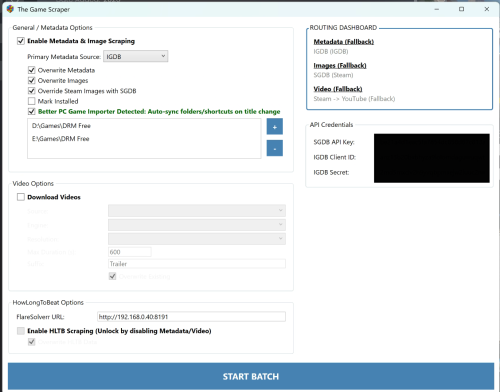
About This File
The Game Scraper for LaunchBox
Steam metadata, artwork, trailers, IGDB metadata, SteamGridDB artwork, YouTube videos, HowLongToBeat custom fields, and bulk cleanup tools for LaunchBox.
The Game Scraper is a LaunchBox plugin built to fill in missing metadata and media for PC games and mixed libraries. It can scrape game details, artwork, trailers, tags, player perspective data, HowLongToBeat play times, and more while giving you tools to review anything it cannot confidently match.
Why This Exists
LaunchBox is great at organizing games, but PC game metadata can be limited depending on how the game was added.
LaunchBox will not pull metadata or media from stores like Steam unless the game was imported from that store. That means manually imported PC games will only get metadata and media from the LaunchBox Games Database and, if configured, EmuMovies.
The Game Scraper started as a way to get Steam metadata and media for PC games that were manually imported into LaunchBox and not imported from any store.
Since then, it has grown into a larger scraping workbench. It can still do the simple Steam cleanup job, but it can also use IGDB, SteamGridDB, YouTube, and HowLongToBeat to fill gaps, improve artwork, download trailers, add custom fields, and help clean up large libraries without forcing you to fix every game one by one.
Quick Start For PC / Steam Scraping
If all you want is Steam metadata and Steam media for PC games, you can keep it simple.
- Select one or more PC games in LaunchBox.
- Right-click and choose The Game Scraper.
- Set the scraper mode to Auto.
- Enable metadata.
- If you want trailers, enable videos and set the video source to Steam.
- Start the batch.
- Review anything that gets sent to the Fixer.
In Auto mode, PC platforms are prioritized through Steam. The plugin attempts to identify the game, pull Steam metadata and Steam media, and update the selected LaunchBox fields.
For most users who only want PC game scraping from Steam, the easiest starting point is:
Auto mode + Videos set to Steam.
This will get you most Steam fields, images, and trailers from the title’s Steam store page.
This quick-start setup is intended for Steam scraping only. More advanced sources such as IGDB, SteamGridDB, YouTube, and HowLongToBeat are covered below.
What It Can Update
The Game Scraper can update or add the following.
Items marked with * require an API key or extra dependency.
| Metadata | Media | Tags & Custom Fields |
|---|---|---|
| Title | Box / front cover | Steam tags |
| Developer | Banner / header images | IGDB keywords* |
| Publisher | Hero / fanart backgrounds | IGDB themes* |
| Notes / description | Clear logos | Discovery Tags custom field |
| Series | Gameplay screenshots | Player Perspective custom field* |
| Release date / year | Steam Store trailers | HowLongToBeat play time custom fields |
| Genres | YouTube trailers* | Length Category custom field |
| Play modes | Installed status, if enabled | |
| Ratings | ||
| Community rating |
* Dependency notes:
- IGDB keywords, IGDB themes, and Player Perspective require IGDB credentials.
- SteamGridDB artwork requires a SteamGridDB API key.
-
YouTube trailers require
yt-dlp.exeandffmpeg.exe. -
aria2c.execan optionally speed up video downloads. -
deno.exeis not required to launch the plugin, but is included to helpyt-dlphandle YouTube extraction more reliably when needed. - HowLongToBeat does not require FlareSolverr for normal use, but FlareSolverr can be used as a fallback.
Main Sources
Steam
Steam is the primary source for PC game scraping.
It can provide store metadata, descriptions, developers, publishers, release dates, genres, Steam tags, ratings, screenshots, header images, official videos, and other Steam-linked media.
For PC games, Steam is usually the best first source because it provides the store data LaunchBox does not pull unless the game was imported from Steam.
IGDB
IGDB is used for console, handheld, arcade, retro computer, and non-Steam metadata.
It can also help fill missing details for PC games when Steam does not provide everything you want or when the title is not on Steam.
IGDB keywords and themes are treated as Discovery Tags by the plugin.
Player Perspective is written as a LaunchBox custom field.
IGDB requires a free Twitch developer application so you can get a Client ID and Client Secret.
IGDB API setup:
SteamGridDB
SteamGridDB is used for high-quality artwork.
It is especially useful when Steam or IGDB artwork is missing, low quality, or not the style you want. It can help find better covers, heroes, logos, grids, and other community-sourced assets.
SteamGridDB requires an API key.
YouTube
YouTube is used for trailers when a Steam video is not available or when you choose YouTube as the video source.
The plugin searches for likely trailer matches, filters out obvious bad candidates such as reviews, longplays, reactions, unrelated videos, and overly long content, and skips items when it is not confident enough.
YouTube video downloading uses yt-dlp and ffmpeg. aria2c can optionally speed up downloads, and deno.exe is included to help yt-dlp handle YouTube extraction more reliably when needed.
When using YouTube, you can choose the suffix the plugin adds to the search. For older games, terms like gameplay or longplay may work better than trailer.
Because YouTube is not a games database, matching can be difficult. False positives are possible, but newer updates are designed to reduce them. Titles that cannot be confidently identified can be sent to the Fixer.
HowLongToBeat
HowLongToBeat is used to populate LaunchBox custom fields for play time data.
It can add custom fields for:
- Main Story
- Main + Extra
- Completionist
- Co-Op
- Vs.
- Length Category
Length categories can be used to build dynamic playlists.
Example categories:
- Quick: under 5 hours
- Standard: 5-15 hours
- Extended: 15-30 hours
- Long: 30-60 hours
- Massive: over 60 hours
Previous versions used FlareSolverr for HowLongToBeat. The current version uses direct scraping and does not require FlareSolverr for normal use. FlareSolverr support remains available only as a fallback option in case future HowLongToBeat changes affect scraping reliability.
To set up FlareSolverr as a fallback, simply put your FlareSolverr URL in the FlareSolverr box.
Scrape Modes
Auto
The recommended mode for most users.
PC platforms prioritize Steam. Console, handheld, arcade, and retro platforms prioritize IGDB. When possible, the plugin can use other sources to fill in missing fields.
Steam
Forces Steam as the primary source.
Best for PC games and Steam-linked titles.
IGDB
Forces IGDB as the primary source.
Best for console, handheld, arcade, and non-Steam games.
Manual
Skips automatic identification and sends games to manual review.
Use this when you already know the automatic match is likely to be difficult.
Custom Workbench
Lets you choose different sources for different types of data.
Example:
| Field | Source |
| Metadata | IGDB |
| Artwork | SteamGridDB |
| Videos | YouTube |
| Play Times | HLTB |
Custom Workbench is useful when you want very specific control, such as Steam videos, SteamGridDB artwork, IGDB metadata, and HLTB play times in the same pass.
The Fixer
When the plugin cannot confidently match something, it sends the item to the Fixer instead of silently guessing. The Fixer appears after the scan has finished.
The Fixer helps with:
- Metadata with no match found
- Low-confidence metadata matches
- Missing artwork
- Ambiguous HLTB matches
- Missing videos
- Other scraping issues
Depending on the issue, you can:
- Pick from possible matches
- Paste a Steam, IGDB, SteamGridDB, HLTB, or YouTube URL
- Enter a custom search term
- Skip the item
- Retry the batch
- Purge scraper-generated content for selected rows
This is meant to keep automation fast without forcing bad matches into your library.
Video Downloading
The plugin can download trailers from the Steam Store or YouTube.
Steam videos are recommended for the simplest PC scraping setup because they come directly from the Steam Store when available.
YouTube can be used when Steam does not have a trailer or when you specifically want YouTube as the video source. YouTube matching is intentionally conservative because YouTube does not provide a perfect one-to-one game matching system. It is recommended to utilize the suffix setting when downloading from youtube. Using "Gameplay" instead of the default "Trailer" helps with older games.
For YouTube, the plugin uses yt-dlp and ffmpeg to download and process videos. aria2c can optionally be used as an external downloader for faster downloads. deno.exe is included as a helper for yt-dlp when YouTube extraction needs it.
The plugin attempts to reject bad YouTube matches such as:
- Reviews
- Reactions
- Let’s Plays
- Walkthroughs
- Longplays
- Unrelated videos
- Videos that are too long
If a video cannot be found, the game can be sent to the Fixer where you can paste a direct YouTube URL or try a better search term.
Included Files And Dependencies
These are the files included with the plugin archive. Most users should leave them together in the plugin folder.
-
TheGameScraper.dll- Required - Main LaunchBox plugin. Adds the right-click The Game Scraper menu item and runs the metadata, image, video, HLTB, Fixer, and Custom Workbench logic. -
SteamKit2.dll- Required - Managed dependency used for Steam AppInfo, metadata, tags, and Steam asset discovery. -
DiscoveryData.json- Required if Discovery Tags are enabled - Local vocabulary and mapping file used for Discovery Tags and Player Perspective. -
yt-dlp.exe- Required for videos - Downloads Steam and YouTube videos. Required when video downloading is enabled. -
ffmpeg.exe- Required for videos - Used byyt-dlpto merge, convert, and process video/audio streams. Required when video downloading is enabled. -
aria2c.exe- Optional - Speeds up video downloads as an external downloader. The plugin can fall back without it. -
deno.exe- Optional / recommended for YouTube reliability - Not required to launch the plugin, but included becauseyt-dlpmay need an external JavaScript runtime for some YouTube extraction cases. -
TheGameScraper.pdb- Optional / developer file - Debug symbols. Not required for normal use, but helpful for crash reports and stack traces.
User-Provided API Keys And Optional Integrations
These are not required to launch the plugin, but they enable extra features.
-
SteamGridDB API key
Required for SteamGridDB artwork.
Get it here: SteamGridDB API Preferences -
IGDB Client ID and Client Secret
Required for IGDB metadata, IGDB keywords, IGDB themes, player perspective, and platform-aware console scraping.
Setup guide: IGDB API Getting Started -
cookies.txt
Optional for YouTube videos that require cookies, such as restricted or age-gated content. -
FlareSolverr URL
Optional HLTB fallback only. It is not required for normal HowLongToBeat scraping.
Generated Local Files
These files may appear after using the plugin, but they are not files you need to include in a release archive.
-
config.json- Generated / local settings - Stores plugin settings, API keys, overwrite flags, video settings, HLTB URL, and other local options. Do not upload or share this file publicly if it contains your API keys. -
TheGameScraper.log- Generated / troubleshooting - Runtime log. Safe to delete when LaunchBox is closed; the plugin will recreate it.
Installation
- Close LaunchBox.
-
Extract the archive into your LaunchBox
Pluginsdirectory. - Reopen LaunchBox.
- Select one or more games.
- Right-click and choose The Game Scraper.
Recommended First Run
For your first test, try a small batch of manually imported PC games.
Recommended simple Steam-only settings:
- Mode: Auto
- Metadata: enabled
- Videos: enabled if you want trailers
- Video source: Steam
- Overwrite: leave off unless you specifically want existing data replaced
Once you are comfortable with the Steam results, you can start enabling more advanced sources such as SteamGridDB, IGDB, YouTube, and HowLongToBeat.
Better PC Game Importer Integration
If you use Better PC Game Importer, The Game Scraper can integrate with it.
When enabled, it can help keep installed PC game folders, shortcuts, and LaunchBox paths in sync after a title is cleaned up or renamed. This is useful when imported PC games have messy folder names or shortcut names and you want the library to stay consistent.
Thanks
Thanks to mo50cal for helping catch poor YouTube matching with false positives. The feedback and logs helped improve the matching logic and reduce bad video results.
Edited by spiritedusual
Updated readme
What's New in Version 2.9 See changelog
Released
No changelog available for this version.


Recommended Comments
Join the conversation
You can post now and register later. If you have an account, sign in now to post with your account.