

superrob3000
-
Posts
312 -
Joined
-
Days Won
4
Content Type
Profiles
Forums
Articles
Downloads
Gallery
Blogs
Everything posted by superrob3000
-

Version 9.0.0
846 downloads
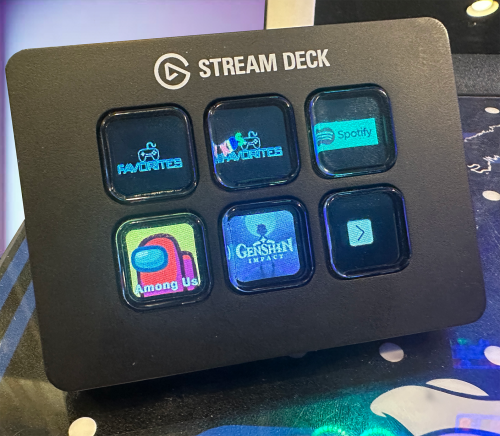
This plugin adds a command line interface to LaunchBox/BigBox for launching games via Stream Deck or having platform and playlist shortcuts. Marquee(s)* and LEDBlinky get updated automatically. Launching games on a remote PC is also supported. *All Marquees will be updated when using either LaunchBox or BigBox if you are using the ThirdScreen Plugin. If you're using the default BigBox marquee handling, then your single marquee will be updated when using BigBox only. Installation: *** Before installing, if you are using the ThirdScreen plugin please make sure you are using the latest version. Download CLI_Launcher.zip to your PC. Right click on the zip file and extract all files. Close LaunchBox/BigBox and copy the Plugins and ThirdParty folders to your LaunchBox directory. Usage (simple game shortcuts): Right click on a game in LaunchBox and choose "CLI Launcher->Create Windows Shortcut". A dialogue will open to allow you to choose the name and location of the game shortcut. When ready, click "Save" to create the shortcut. To create windows shortcuts for a batch of games at once: Select multiple games, right-click and choose "CLI Launcher->Create Windows Shortcuts". Usage (advanced shortcuts and Stream Deck): The currently supported commands are listed below. These can be run from a Stream Deck, from AHK scripts, or directly from the command line. To run a command from a Stream Deck, open the Stream Deck app and drag the Open action onto one of your buttons. Then on the App/File line, enter the commands as shown below including any required parameters. For example: Game Shortcuts (launch command): (works with both LaunchBox and BigBox) "<path_to_launchbox>\ThirdParty\CLI_Launcher\CLI_Launcher.exe" launch "<platform_name>" "<game_name>" For example, to launch Street Fighter Alpha 2 from the Arcade platform: "C:\Users\Administrator\LaunchBox\ThirdParty\CLI_Launcher\CLI_Launcher.exe" launch "arcade" "Street Fighter Alpha 2" New in v7.0.0 (launch_by_id command): To launch a game using its game id instead of platform name/game title you can use the launch_by_id command. For example: "C:\Users\Administrator\LaunchBox\ThirdParty\CLI_Launcher\CLI_Launcher.exe" launch_by_id "1e48ac15-55e2-47f7-a33e-486451a16def" New in v7.0.3 (launch_by_db_id command): To launch a game using its database id instead of platform name/game title you can use the launch_by_db_id command. For example: "C:\Users\Administrator\LaunchBox\ThirdParty\CLI_Launcher\CLI_Launcher.exe" launch_by_db_id "2532" New in v8.0.1: The option "-t=num_minutes" can be passed to the launch commands. The game will be launched and then automatically closed after the specified number of minutes. By default it will attempt to use the ESC key to exit the game, but for games where that won't work (e.g Windows games) then you can also pass "-altf4" to tell it to use Alt-F4 to exit instead. Platform Shortcuts (platform command): (added in v2.0.0 - only works with BigBox) "<path_to_launchbox>\ThirdParty\CLI_Launcher\CLI_Launcher.exe" platform "<platform_name>" For example, to navigate to the Arcade platform in BigBox: "C:\Users\Administrator\LaunchBox\ThirdParty\CLI_Launcher\CLI_Launcher.exe" platform "arcade" New in v8.0.1: The option "-all" can be passed to the platform command instead of a specific platform. This will take you to the platform/playlist root menu. Playlist Shortcuts (playlist command): (added in v2.0.0 - only works with BigBox) Run, "<path_to_launchbox>\ThirdParty\CLI_Launcher\CLI_Launcher.exe" playlist "<playlist_name>" For example, to navigate to the favorites playlist in BigBox: "C:\Users\Administrator\LaunchBox\ThirdParty\CLI_Launcher\CLI_Launcher.exe" playlist "favorites" Open Manual for Currently Selected Game (manual command): (added in v8.0.2 - works with BigBox and LaunchBox) Run, "<path_to_launchbox>\ThirdParty\CLI_Launcher\CLI_Launcher.exe" manual For example, to open the manual for the currently selected game: "C:\Users\Administrator\LaunchBox\ThirdParty\CLI_Launcher\CLI_Launcher.exe" manual Remote commands: To run a command on a different PC that has the plugin installed and is running LaunchBox or BigBox just add "remote_ip=<ip_of_remote_pc>". For example, to launch a game on a different PC with IP 192.168.168.238: "CLI_Launcher.exe" launch "arcade" "Street Fighter Alpha 2" "remote_ip=192.168.168.238" FAQs: Q. What if neither LaunchBox nor BigBox are open when the script runs? A. The command will get ignored if LaunchBox or BigBox is not open. As of version 8.0.0 you'll also get an error message when trying to run shortcuts without LaunchBox or BigBox being open. Q. What if a game is already open when the script runs? A. The command will just get ignored if a game is already open. Q. Why not just launch the emulator and/or game directly from the Stream Deck or script? A. Using CLI Launcher is much simpler and leverages all the work you've already done in setting up LaunchBox to properly launch the game. Also, if you were to run the emulator and/or game directly from a script, your Marquee(s) and LEDBlinky would not get updated for the game. Q. Instead of manually entering the command for a Stream Deck button, can I use the "Create Windows Shortcut" game menu item and then just point Stream Deck to that shortcut? A. Yes, but... Elgato's Stream Deck app has a quirk where if you use the file selector button to select a shortcut, it will jump straight to the executable that the shortcut points to and it will ignore any parameters that the shortcut was passing in. So to get it to work with a shortcut you have to just type out the full path to the shortcut (including the .lnk extension) on the App/File line instead of using the file selector button. Q. If I want to use remote commands, which port do I need to ensure is open? A. If you are having trouble with remote commands, ensure port 0xb0b0 is open in Windows Firewall on the remote PC. Q. Why would anyone want to launch a game on a remote PC? A. Dunno... but you can now.- 36 comments
- 3 reviews
-
- 10
-

-

-

-
- cli
- command line interface
- (and 5 more)
-
 My guess is that it should work fine on windows 7 but I've never tested it. However it will most likely crash at startup if you try to use it with Launchbox 9.7. It relies on some things (like rotating 3d box models for example) that weren't available in Launchbox back then.
 -
v3.0.0 is now available. @izzishor if you click the gear icon in the upper right, there is now an option to disable the check for a BigBox main screen conflict which was causing you trouble.
- 219 comments
-
- 2
-
-
-
- third screen
- platform marquee videos
- (and 3 more)
-
Ah, I see. That won't be possible with thirdscreen. It will only work if you launch the game from launchbox or bigbox. (Edit 12/17/2023: You can now use my "CLI Launcher" plugin to add stream deck shortcuts that launch games directly through LaunchBox/BigBox instead of RocketLauncher. ThirdScreen marquees and LED Blinky will get updated automatically.)
-
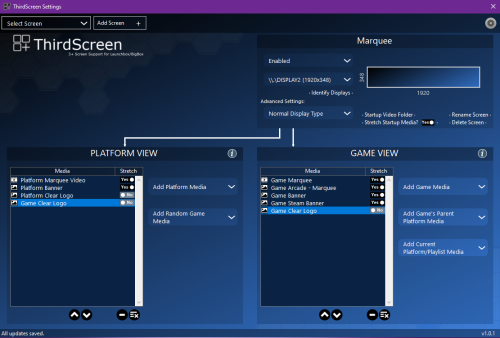
No scripts needed. Just follow the directions on the file description page. There is a GUI to add your additional screens and choose which art you want to display on each one.
-
Windows can get weird sometimes with display numbering. I'll add an option to bypass that check.
- 219 comments
-
- 1
-

-
- third screen
- platform marquee videos
- (and 3 more)
-
Not sure what you mean. This plugin does start with launchbox.
-
@Truest1 Everything looks correct in your pictures. If you want them to be fullscreen, then enable stretch for your clear logos in ThirdScreen settings. Or there is also an option to disable the image blur background. But if you are asking for the image blur to show through the black background of the png, then that's not possible with this plugin. It's just a limitation of having been written using Forms instead of WPF.
-
@Fry Sure, message me your github username and I'll grant you access to the repository.
- 219 comments
-
- 1
-
-
- third screen
- platform marquee videos
- (and 3 more)
-
@HiRez00 Those slot machine cabs look awesome. The plugin mutes audio for all videos playing on your marquee(s). I think that would be the desired behavior in most cases, but if/when I have time I'll add a settings option for it.
- 200 replies
-
- 1
-
-
- third screen
- platform marquee videos
- (and 3 more)
-
 Can you send me the log file that it generated (LaunchBox/Logs/RenameLog.txt)?
 -
Thanks for the suggestion. There are no plans to implement it at the moment, but I'll add it to my list of possible future features (either the option to pin specific media to specific screens or at a minimum make sure they don't show the same media if there are multiple available for a category).
-
This should already be supported. For normal media we get the paths from LaunchBox which already supports relative pathing within the LB folder or full paths if it's outside the LB folder. If you are referring to the special case of platform marquee videos, I believe I already handle those as relative as well (the media gets copied to a relative path within the LB folder when you import it).
-
@midd It uses the IDs of the physical ports, not the display numbers since Windows can and will renumber your screens. As long as you are leaving your screens plugged into the same ports it should be fine. Please click the gear icon in the upper right of the ThirdScreen settings page and enable logging. Then send me the ThirdScreen log (from the LaunchBox/Logs folder) after doing the following: 1. Start LB, and choose your displays in ThirdScreen settings. 2. Restart LB. If I understand correctly, it works after doing 1, but stops working after doing 2, correct?
-
All fixed with ThirdScreen v2.0.15. Even if you are not on beta releases you will need to install the new version of the plugin before LaunchBox version 13.3 is released to avoid any issues.
- 200 replies
-
- 1
-
-
- third screen
- platform marquee videos
- (and 3 more)
-
**** ANNOUNCEMENT *** The latest LaunchBox beta release (13.3-beta-1) causes an issue where the ThirdScreen settings page might crash and corrupt your ThirdScreen settings. The plugin itself appears to be working just fine though, so if you are on beta releases just hold off on trying to go into the ThirdScreen settings page until I release a fix. It would also be a good idea to make a backup of LaunchBox/Data/ThirdScreenSettings.xml. Edit: This has been resolved with version 2.0.15 of the plugin.
- 200 replies
-
- 2
-
-
- third screen
- platform marquee videos
- (and 3 more)
-
**** ANNOUNCEMENT *** The latest LaunchBox beta release (13.3-beta-1) causes an issue where the ThirdScreen settings page might crash and corrupt your ThirdScreen settings. The plugin itself appears to be working just fine though, so if you are on beta releases just hold off on trying to go into the ThirdScreen settings page until I release a fix. It would also be a good idea to make a backup of LaunchBox/Data/ThirdScreenSettings.xml. Edit: This has been resolved with version 2.0.15 of the plugin.
-
No I haven't been able to reproduce that on my end.
-
@drady in windows display settings just put your marquee(s) to the left of your main screen.
-
@DerSchlachter The bug with single quotes in ROM names has been fixed in v1.0.4.
-
@DerSchlachter Interesting, I just did some testing with Crash'n Burn and I see the same thing. My plugin treats ' as a special character and converts sequences of special chars to an underscore to match what LaunchBox does. However it looks like that's only true for game name format. For ROM names Launchbox is expecting the ' characters in the filename when in ROM name format. That's why the media cleanup tool removes them after doing the conversion. I'll do a bit more testing and put out a new version with that issue fixed.
-
v1.0.3 adds renaming of video files (which I forgot to add in the original version). @ci2own, @zugswang thanks for pointing that out.
-
@PaulyC WinForm scaling is the bane of my existence. Give v1.0.3 a try. It adds scroll bars, so you should be able to access the whole form.
-
No, if the media files have not been associated with any games in LB, then the plugin will not have enough info to rename them.
-
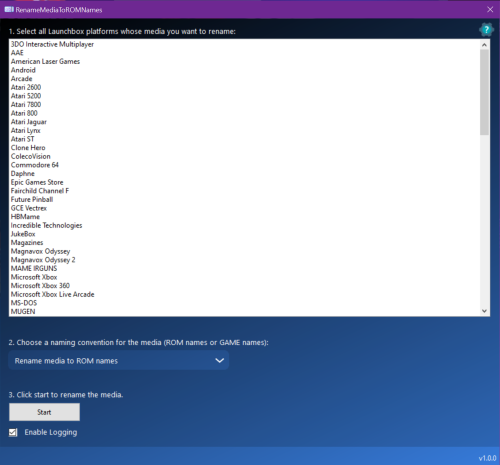
I coded this up for you guys. It will go in either direction (ROM names to Game names and vice versa). You can grab it here: