.thumb.png.9332e12cab6cec0213b9ffd456a9a968.png)



About This File
UPDATE: 2 11/01/26
-All missed inputs added to the images, inis and documentation updated
-Better instructions
-Additional help for the padDemul popup error
END OF UPDATE
UPDATE: 1 Using Demul with LaunchBox needs a specific setup. I've added some clear instructions on how to do so.
Furthermore, using the bat files provided in LaunchBox requires you to uncheck 'use an emulator'. Which is an easy job. However, doing that will restrict you from using the 'Running Script' which allows you to Exit the Emulator with Esc. Booo.
I want to be able to have per game controls AAAND Esc as exit when using LaunchBox.
So, again I have done just that. There are now some LB specific bat files that need be integrated into the 'Additional Apps' part for all 6 games. It's a quick job I promise. This allows the per game configs to be used while retaining the 'Esc to exit' functionality in the 'Running Script' of the emulator.
I have also added the control inputs to the documentation. This makes it easy if you for some reason need to set it yourself.
The LaunchBox side of this requires a bit of setup, so the whole procedure will be below.
ENF OF UPDATE
Get the Emulator here. Link may become out of date over time but you'll be in the right place for the new versions.
https://www.emu-france.com/?wpfb_dl=7038
With the release of the new Demul emulator specifically for Hikaru, a pre config is deserved. No messing with this one. It was complicated for me, but for you it's stupid easy.
Demul doesn't support per game control configs, which is a pain as these Arcade games require bespoke configs. Meaning you'll have to constantly change the defaults each time you change game. Boooo.
So, I have made some per game ini files with the correct controls set. Just figuring out the controls was a nightmare. Anyway, along with these per game ini files, I have made some .bat files to launch said games with their respective per game control ini file. Forcing per game controls into Demul. There are 2 versions. The bat files you can use standalone or anywhere else, and the ones that are LB specific. LB needs different ones as the Running Script needs to be active for Esc to be exit, and this can't be used if 'Use emulator' is checked, which is required for the normal bats to work and apply per game setting. Booo! Anyway, here are the bat examples, they are super simple.
Normal, general bat launcher that you can use standalone or anywhere else.
@echo off
cd /d "%~dp0.."
copy /Y "controls\padDemul_airtrix.ini" "padDemul.ini"
start "" demul.exe -run=hikaru -rom=airtrix
exit
LaunchBox Specific Bat
@echo off
cd /d "%~dp0.."
copy /Y "controls\padDemul_airtrix.ini" "padDemul.ini"
exit
INSTRUSCTIONS:
SETUP DEMUL WITH LAUNCHBOX
-Add emulator as normal, add application path to demul.exe as normal
-Check (turn on) 'Remove quotes' & 'Remove file extension and folder path' & 'Remove space before rom'
-Go to Associated Platforms and add Sega Hikaru as a platform (if not already there)
-In Default Command Line Perimeters IN THE ASSOCIATED PLATFORM you MUST ADD: -run=hikaru -rom=
-Go to Running Scripts and replace the one that's already there with this more reliable one:
SetKeyDelay, 0, 50
$Esc::Send !{F4}
That's the emulator done!
PER GAME CONTROLS AND LB BAT FILES INSTALL:
-Download and unzip the pre config files.
-Place 'lb bat launchers', 'bat launchers' and 'controls' folders into the root of your Demul folder.
-Right click on a Hikaru game, Edit, Metadata and Media
-Go to Additional Apps on the left and hit Add Application
-Name it whatever but I go with "Romname Per Game Controls"
-Hit browse next to Application Path
-Then select the .bat file for the game you are configuring FROM THE 'LB BAT LAUNCHERS' FOLDER PROVIDED that should be in the root of Demul, after you put it there.
-Leave Command line blank.
-Check (turn on) 'Auto Run Before Application' and 'Wait for Exit'
-Hit ok to save
-Repeat from step 3 for the other 5 games. You'll then have per game controls aaand esc as exit. Yaaaay!
If you aren't using LB, use the non LB bat launchers. These work standalone or with other front ends. But, Alt+F4 will be exit unless a solution is deployed.
Additional HELP:
Some users, particularly Steering Wheel users, have been reporting this error message.
Despite getting this message, users have been reporting everything still works when they close the popup. This may or may not be the case for you.
padDemul
Error! (HRESULT = 80070057)
|DirectInputDevice8 Create Effect FAILED
IF everything still works after closing this, you'll have to close it every time it pops up with whatever controller is causing the issue.
To get around this, you can use a basic AHK to close the popup automatically. Simply add it to the Running Script of the emulator, under the one already there.
WinWait, padDemul
WinClose
Keep in mind this will auto close ANY padDemul error popups. Be mindful if you are troubleshooting.
My Patreon Link if you wanna help out and for more goodies https://patreon.com/warpedpolygon
As is tradition, here is the documentation. There was some really tricky stuff despite being only 6 games.
|
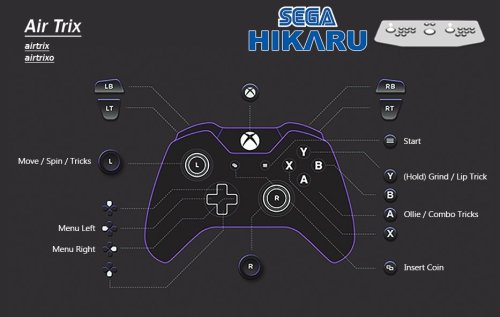
Air Trix airtrix airtrixo |
-The 'Roll' input is surplus to requirements when using a controller. It was barely functional on the OG cab, just looked cool. -Digital Up & Down is Ollie and Nollie (Grind). This confused the crap outa me until I looked at the owner's manual. -Configured in the Alternate Settings due to the regular one splitting the analog axis for some reason. Rather than just binding some inputs to the alt ones, all have been bound to alt settings to save confusion. -Calibrate in the test menu for the best analog coverage. HOW TO PLAY: This game has been setup to play like Tony Hawks. X/A is Ollie/Tricks, Grinds are Triangle/Y. There is no "nollie" despite the board making that motion on the OG cab. Standing on the nose is just Grind/Lip Trick. -Left Stick to move and spin -X/A is Ollie. Press this again multiple times while in the air to do combos. -Triangle/Y is Grind. You MUST be turning at the same time to do a grind. -Spinning you have 2 options: 1-Simply hold left or right when hit the lip and you'll automatically do a basic spin trick. 2-Ollie at the lip while holding left or right, to do a "better" spin trick than if you hadn't ollied at all. Doing Different Tricks: -When doing an "combo air" (no spinning) you can use left and right on the left stick, as well as ollie, to do tricks while in the air. Key To Getting Good -If you are still holding a spin direction on re-entry you'll slow down. Remember to let go of the stick before you go back in the ramp. -Combos can only be performed when not spinning. As long as you aren't holding a direction at the same time as doing an ollie, you'll be doing a 'combo air'. -However, you can still spin AND combo in the same air. As long as you let go of the direction, you can combo at any time. So, you can spin at the start of an air, let go of the stick and spam X/A to combo for the rest of the air. DEMUL CONTROL CONFIG. ONLY WHAT THE GAME USES WILL BE LISTED. THIS IS TO HELP IF YOU NEED TO MAP CONTROLS YOURSELF. JOY 1, Use "Alternative Settings": -Digital UP = Nollie / Stand on Nose (Grind) -Digital DOWN = Ollie / Tricks -Digital LEFT & RIGHT = Character Select / Menu Left & Right Analog 1 LEFT & RIGHT = Turn / Spin / Swing Boad Analog 2 LEFT & RIGHT = Roll (This input is not required for controller use. No need to map it) |
|
Planet Harriers pharrier |
-Nice and easy controls to configure. Nothing bizzare of annoying here. -Calibrate in the test menu for the best analog coverage. DEMUL CONTROL CONFIG. ONLY WHAT THE GAME USES WILL BE LISTED. THIS IS TO HELP IF YOU NEED TO MAP CONTROLS YOURSELF. JOY 1 -Analog 1 UP, DOWN, LEFT, RIGHT = Move (If you want inverted controls set up to down, down to up) -Digital LEFT = View 1 -Digital RIGHT = View 2 -PUSH 1 = Shoot -PUSH 2 = Lock-On -PUSH 3 = Bomb |
|
NASCAR Arcade sgnascar sgnascaro |
-So, most controls were easy to figure out...except gears. This ended up being looooong.... -Gears are bound to the JOY 2 slot of the configuration, despite being a 1 Player instance. Confusing to say the least. -Now more confusion. It's a 4 way H Gear system with a Neutral position, 5 inputs technically. This is set to the Up/Down/Left/Right digital inputs of the JOY 2 config. -Strange thing is Up is 3rd gear and Down is 4th gear, with Left and Right being inputs, just not on their own. 1st & 2nd gear are combination inputs.... FOR SOME GOD FORSAKEN REASON. 1st Gear = Digital Up/3rd Gear with DIGITAL LEFT at the same time. 2nd Gear = Digital Down/4th Gear with DIGITAL LEFT at the same time. What digital left actually is, is a mystery. It doesn't register as a gear on its own, only in combination with 3rd and 4th gear. It's a miracle I even caught this to be honest. Maybe on the OG cab the physical gear lever would pressed have multiple inputs when in 1st and 2nd. It's the only explanation I can think of. Aaanyway, I have macro these inputs to actually work thanks to the 'Alternative Settings'. These allow multiple inputs to be bound, helping me to get the gears in sequence on the face buttons. DEMUL CONTROL CONFIG. ONLY WHAT THE GAME USES WILL BE LISTED. THIS IS TO HELP IF YOU NEED TO MAP CONTROLS YOURSELF. Demul Gear Settings to Macro/Combine Stupid Shit Gear Inputs (xbox buttons, just for reference): MUST BE DONE IN JOY 2 CONFIGURATION -In 'normal config' (not Alternative) Digital UP = X Digital DOWN = B Digital LEFT = Y -In Alternative Settings Digital UP = A Digital DOWN = Y Digital LEFT = X This means the gear controls are as below. Just like a H transmission. X = 1st Y = 2nd A = 3rd B = 4th The rest of the controls you want to set in normal settings (not alt) IN JOY 1 -Analog 1 LEFT & RIGHT = Steering -Analog 1 UP = Accelerate -Analog 1 DOWN = Brake -Digital UP = View Change Despite this effort, the gears still aren't usable, unless you constantly hold the button for that gear. The age old issue of 'gears not sticking' has been around forever. This needs to be tackled at the emulation development level, or with something like joytokey. Now that I have identified them, perhaps someone can do something about it so we can have gears that stay in position. |
|
Star Wars: Racer Arcade swracer |
-Nice and easy to configure. -Nice and easy to play, this game AUTO ACCELERATES. Kid friendly. Braking is still manual. No option for manual acceleration at all. -Test Menu is fine at default. Calibration is correct out of the box! DEMUL CONTROL CONFIG. ONLY WHAT THE GAME USES WILL BE LISTED. THIS IS TO HELP IF YOU NEED TO MAP CONTROLS YOURSELF. JOY 1 -Analog 1 LEFT & RIGHT = Steering -Digital LEFT & RIGHT = Character Select / Menu Left & Right -PUSH 1 = Boost -PUSH 2 = Brake |
|
Cyber Troopers Virtual-On 4: Force von4 |
-Another one that is a 1 player game but has inputs bound to JOY 2 config slot. Yay! -All of the Right Stick controls are the same as the left in JOY 1, just in JOY 2. Because of course they are! -Mapped exactly the same as the original. Watch the tutorial as it takes some getting used to. DEMUL CONTROL CONFIG. ONLY WHAT THE GAME USES WILL BE LISTED. THIS IS TO HELP IF YOU NEED TO MAP CONTROLS YOURSELF. JOY 1 (Left in game stick, shoot, boost, P.I.B) -Digital UP, DOWN, LEFT, RIGHT = Move -PUSH 1 = Left Shoot -PUSH 2 = Left Boost -PUSH 3 = P.I.B / Command JOY 2 (Right in game stick, shoot and boost) -Digital UP, DOWN, LEFT, RIGHT = Move -PUSH 1 = Right Shoot -PUSH 2 = Right Boost |
|
Brave Firefighters braveff |
-This "light gun game" only supports mouse control with Demul. As far as I know. -Mouse controls are kinda hard coded to the emulator. So there's nothing really for me to provide. All the .bat does is launch the game with default controls. This is just fine for 1 player. -2 Players requires RAW input. This is done in various ways with demul, mainly DemulShooter, which at this time doesn't support this build of Demul. -Normally I provide some kind of RAW input support for 2 players, but, everyone has their preferred way with Demul. So, it's up to you -If you have a suggestion to provide something for 2 player Raw input, let me know! |
Edited by Warped Polygon
Update 2
What's New in Version 1.0.1 See changelog
Released
Update details at top!


Recommended Comments
Join the conversation
You can post now and register later. If you have an account, sign in now to post with your account.