
d66dle
-
Posts
66 -
Joined
-
Last visited
-
Days Won
3
Content Type
Profiles
Forums
Articles
Downloads
Gallery
Blogs
Everything posted by d66dle
-
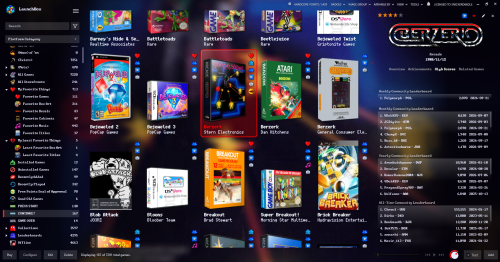
Better Old Default Cinematic View File Yet another Better Old Default, but even more cinematic, because the black rectangles are GONE, and the Background View has been further tweaked to emphasize the use of game fanarts and fancy wallpapers (mostly adjusted the vignette effect). This theme also exclusively utilizes fast box and list views. I figured it would be less confusing to go ahead and give this its own theme entry, rather than adding another version of Better Old Default Plus. I hope this is an aesthetic improvement, but it may not be for everyone, depending on your setup and visual settings. Text may also be harder to read at times, so take this into account. I've included screenshots of some of my settings to get the desired effect, such as setting background blur to 5 (10 also works, just less details visible). The blurring can help to obfuscate lower quality images. Additionally, the 'Dark Background' is meant to give a purple-ish hue to the background images, provided you have 'Colorize Background Fade' turned ON in LB Options > Features. You can also just use black to darken all backgrounds that way. TL;DR Notes on Installation - Extract the theme zip into LBThemes, as the theme folder should be in its own sub-folder. Optionally - Install any fonts included or linked in the Fonts (Optional) folder. I'd also recommend any pixel-style fonts available on sites like DaFont and itch.io. - In LB Options, choose a custom background from the Images\Backgrounds (Optional) folder to configure as your 'Custom Image' Background. (these were edited in GIMP and upscaled using ChaiNNer). CREDITS: Many elements from different themes have been sort of mashed together and tweaked over time in order to make this theme. Some of those theme creators include @Retrofrogg, @Mr. RetroLust, @Rincewind, and @faeran. ┬┴┤•_•)ノ├┬┴┬ Changes from 1.0.1 - drop shadows were added in various places (particularly under text) to potentially improve visibility a bit, but mostly for the subtle depth effect. - the last played/most played/random buttons in Platform Details were recolored a bit to look less out of place. - alternate versions of the GameDetailsView & PlatformFiltersDetailsView have been added as separate downloads: _TextColorful is used by default in this theme, so it has the rainbow look. But it may have some visibility issues with game backgrounds. _TextForeground uses only the foreground color you specify in LB Options > Visuals > Main Window Theme > Colors. _TextGreenOnly also uses the foreground color specified in LB, but still uses the green text for a couple of fields to match the green play button (a middle ground option, more similar to Retrofrogg's Game Details). Submitter d66dle Submitted 09/28/2026 Category Custom Themes
-
Version 1.0.2
41 downloads
Yet another Better Old Default, but even more cinematic, because the black rectangles are GONE, and the Background View has been further tweaked to emphasize the use of game fanarts and fancy wallpapers (mostly adjusted the vignette effect). This theme also exclusively utilizes fast box and list views. I figured it would be less confusing to go ahead and give this its own theme entry, rather than adding another version of Better Old Default Plus. I hope this is an aesthetic improvement, but it may not be for everyone, depending on your setup and visual settings. Text may also be harder to read at times, so take this into account. I've included screenshots of some of my settings to get the desired effect, such as setting background blur to 5 (10 also works, just less details visible). The blurring can help to obfuscate lower quality images. Additionally, the 'Dark Background' is meant to give a purple-ish hue to the background images, provided you have 'Colorize Background Fade' turned ON in LB Options > Features. You can also just use black to darken all backgrounds that way. TL;DR Notes on Installation - Extract the theme zip into LBThemes, as the theme folder should be in its own sub-folder. Optionally - Install any fonts included or linked in the Fonts (Optional) folder. I'd also recommend any pixel-style fonts available on sites like DaFont and itch.io. - In LB Options, choose a custom background from the Images\Backgrounds (Optional) folder to configure as your 'Custom Image' Background. (these were edited in GIMP and upscaled using ChaiNNer). CREDITS: Many elements from different themes have been sort of mashed together and tweaked over time in order to make this theme. Some of those theme creators include @Retrofrogg, @Mr. RetroLust, @Rincewind, and @faeran. ┬┴┤•_•)ノ├┬┴┬ Changes from 1.0.1 - drop shadows were added in various places (particularly under text) to potentially improve visibility a bit, but mostly for the subtle depth effect. - the last played/most played/random buttons in Platform Details were recolored a bit to look less out of place. - alternate versions of the GameDetailsView & PlatformFiltersDetailsView have been added as separate downloads: _TextColorful is used by default in this theme, so it has the rainbow look. But it may have some visibility issues with game backgrounds. _TextForeground uses only the foreground color you specify in LB Options > Visuals > Main Window Theme > Colors. _TextGreenOnly also uses the foreground color specified in LB, but still uses the green text for a couple of fields to match the green play button (a middle ground option, more similar to Retrofrogg's Game Details).- 1 comment
- 1 review
-
- 4
-

-

-
- lb theme
- launchbox theme
- (and 1 more)
-
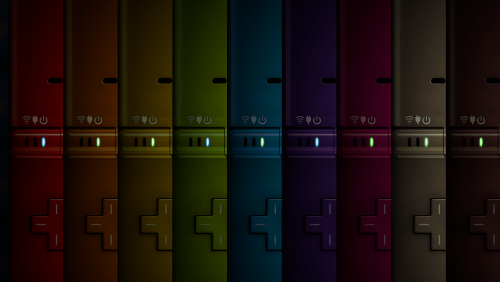
Lights Out! Nintendo DSi Bezels for Retroarch View File After I finally got DSiWare games working, I felt the need for some color variation... I use these specifically for DSi, but they can also be used for DS games, since my version uses the same screen dimensions as the Nintendo DS bezel in Mr. RetroLust's Lights Out! Retroarch Bezels. Mine are named to fit alongside these. Admittedly, they are also a little bit shiner than the original DS bezel. I tried to make every color variation I could think of to match all possible DS screen colors/shaders, making a grand total of 43 bezels to choose from. Use many/all of them if you like, or use just one for all games. XCF template is included as well. CREDIT: @Mr. RetroLust for the original DS bezel, which I used as a base to make my own. Submitter d66dle Submitted 09/06/2026 Category Platform Bezels/Overlays
-
Version 1.0.0
51 downloads
After I finally got DSiWare games working, I felt the need for some color variation... I use these specifically for DSi, but they can also be used for DS games, since my version uses the same screen dimensions as the Nintendo DS bezel in Mr. RetroLust's Lights Out! Retroarch Bezels. Mine are named to fit alongside these. Admittedly, they are also a little bit shiner than the original DS bezel. I tried to make every color variation I could think of to match all possible DS screen colors/shaders, making a grand total of 43 bezels to choose from. Use many/all of them if you like, or use just one for all games. XCF template is included as well. CREDIT: @Mr. RetroLust for the original DS bezel, which I used as a base to make my own. -
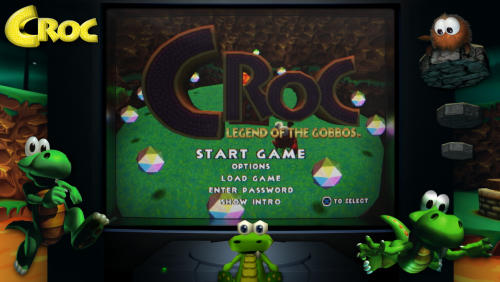
Lights Out! Croc PS1 Bezels for Retroarch View File My other favorite PS1 character Croc needed a custom bezel (or seven) alongside Crash Bandicoot. Not as many Croc PNGs laying around, unfortunately. I don't know if I'll make more, but Mr.RetroLust's bezels are fun to decorate. CREDIT: original PS1 bezel made by @Mr. RetroLust Submitter d66dle Submitted 08/31/2026 Category Platform Bezels/Overlays
-
Version 1.0.0
1 download
My other favorite PS1 character Croc needed a custom bezel (or seven) alongside Crash Bandicoot. Not as many Croc PNGs laying around, unfortunately. I don't know if I'll make more, but Mr.RetroLust's bezels are fun to decorate. CREDIT: original PS1 bezel made by @Mr. RetroLust -
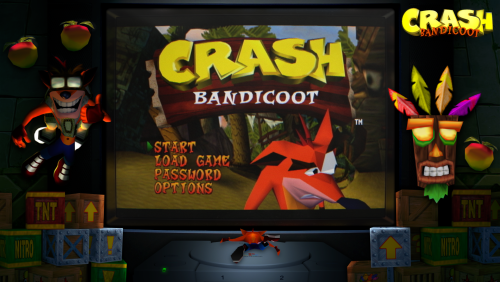
Lights Out! Crash Bandicoot PS1 Bezels for Retroarch View File I felt my PS1 Crash Bandicoot games needed some pizzazz, so I decorated Mr. RetroLust's PS1 bezel from Lights Out! Retroarch Bezels I've included multiple versions, but I finally settled on the last one 'Bezel_90s_Panasonic_Collection_Crash4b' as my main bezel for ps1 crash games. I think it's the most cohesive version, but maybe the others could fit someone's tastes better. Some are more 'busy' than others. (⊙.☉)7 (see previews in screenshots) throw them into wherever you keep your RA overlays, usually somewhere in retroarch/overlays CREDITS: Mr. RetroLust for their PS1 bezel, which I edited to my liking, and also sites like PNGwing for the transparent images. Submitter d66dle Submitted 08/31/2026 Category Platform Bezels/Overlays
-
Version 1.0.0
11 downloads
I felt my PS1 Crash Bandicoot games needed some pizzazz, so I decorated Mr. RetroLust's PS1 bezel from Lights Out! Retroarch Bezels I've included multiple versions, but I finally settled on the last one 'Bezel_90s_Panasonic_Collection_Crash4b' as my main bezel for ps1 crash games. I think it's the most cohesive version, but maybe the others could fit someone's tastes better. Some are more 'busy' than others. (⊙.☉)7 (see previews in screenshots) throw them into wherever you keep your RA overlays, usually somewhere in retroarch/overlays CREDITS: Mr. RetroLust for their PS1 bezel, which I edited to my liking, and also sites like PNGwing for the transparent images.-
- 1
-
-
- lights out
- retrolust
- (and 3 more)
-
Show Us Your LaunchBox! Celebrating 13 Years Together
d66dle replied to AstroBob's topic in Community Corner
The progress feature in Launchbox got me more interested in RetroAchievements, and as a result I went a little nutty using the RA website as a template to come up with various playlists, so that I can organize games by theme, setting, exclusives, and greatest hits and whatnot. Still a work in progress, but I like what I've got going so far ◉‿◉ (I don't have a lot of achievement points yet, but I'll get there...) More recently, I started organizing by 'favorite' and 'least favorite' things in games like favorite box art, music, and titles. Because some games have really funny titles!
- 41 replies
-
- 10
-
-

-
 I see. I think I fixed the path that was causing the missmatch. If you happen to download the newest version, feel free to let me know if it's still broken 😅
 -
Really? Odd that it works on my end, but I will check that out in my next version very shortly here. Thank you for the heads up!
- 4 comments
-
- 1
-
-
- startup theme
- retrolust
- (and 2 more)
-
StageBox But It's Neon Deluxe - Mo' Platforms View File This is a modification of faeran's StageBox Startup Theme to be more Lights-Out/NeonDeluxe-ish. I also readjusted the filling of the TV image so it's not so stretchy looking. I kinda like how it turned out, so share it I must! (┛ಠ_ಠ)┛ CREDITS: faeren and Mr.RetroLust for both of their respective startup themes, which I have sort of mashed together here. Changes from 1.0.5 - renamed for clarity - now multiple background variants are provided. These are in StageBox But It's Neon Deluxe\Images. By default the 'original' images are used, which are from an older version but fixed to match the new version visually. Also '_template' is included with an XCF template to allow for either making your own backgrounds, or using the base image on its own as a more plain background. How To Use Alternates: Copy BG.png and BGExit.png from the desired 'alt' folder, paste, and overwrite the existing ones (see image in screenshots). Note: replacing the images may require temporarily changing startup theme in Launchbox Tools > Options, and then switching back to this theme (to prevent errors while overwriting). - otherwise, the theme is the same as the last version, just with extra backgrounds made from collected wallpapers ಠ_ರೃ Submitter d66dle Submitted 08/14/2026 Category Startup Themes
-
Version 1.0.6
75 downloads
This is a modification of faeran's StageBox Startup Theme to be more Lights-Out/NeonDeluxe-ish. I also readjusted the filling of the TV image so it's not so stretchy looking. I kinda like how it turned out, so share it I must! (┛ಠ_ಠ)┛ CREDITS: faeren and Mr.RetroLust for both of their respective startup themes, which I have sort of mashed together here. Changes from 1.0.6 Well, I figured out how to get per-platform backgrounds working... and platform logos. And fonts. Yee-haw I'm evolving New version's changes are: - custom per-platform backgrounds that I threw together to match the neon theme, plus some alternate backgrounds in the folders named 'Alts' that can be used for specific platforms, playlists, and/or your default background. Simply rename, for example, 'Arcade1' to 'Arcade' and copy/paste into the parent folder. If a platform/playlist is not present, the theme will simply fallback to the 'Default'. - any background can now be used in place of these without having to edit in the TV thing in, because this is now an overlay on top of the background. A little easier for customization, I think. - the theme now displays platform logos on the bottom left, as well as the game logo on the top right. - the theme now uses 'Windows Command Prompt' font, which you may need to install from the Fonts folder. - added XCF templates for the background, should anyone want to make their own in this style. They're pretty simple to make, since it's just overlaying the device/console on top of a blurred wallpaper image. 'BGNeon' is for the backgrounds, and 'BGTemp' is for the blurry TV overlay, which I figured I may as well toss in there. Note: I only did backgrounds for the platforms I have in my own build, but I would (ideally) like to add as many as I can in future updates, especially as I add more platforms to my build. Another Note: I'm not sure how to get platforms to work that have an '&' sign in them, such as Game & Watch, so I put those in a &-sign-breaks-these folder for now. (థ౪థᴖ)- 4 comments
-
- 5
-
-
- startup theme
- retrolust
- (and 2 more)
-
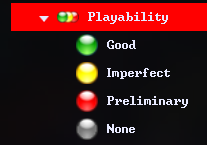
Arcade Status/Playability Badges 🟢 Playlists 🟡 Icons 🔴 View File A possibly useful media pack containing the following: - Data Folder - 4 playlists for Arcade Status Good, Imperfect, Preliminary, and None - Images Folder - 3 Badge override icons to accompany the custom badge plugins - Images Folder - An "Arcade Playability" category icon - Images Folder - 4 Arcade Status Icons to accompany the playlists - Plugins Folder - 3 custom badges that show for their respective good/imperfect/preliminary arcade status How to Use: Inside the zip, it is mostly extracting into your Launchbox directory (folders Data and Plugins can be extracted from the zip without tampering) One folder under Images\Media Packs\Platform Icons\ will be extracted as "Icon_Pack_Name" which I would suggest you rename to your desired icon pack, such as "Legacy Conversion Icon Pack" Finally, you'll need to create the platform category so it shows with the provided icon. To do this, right click while in Platform Category View to create one. The "Unique Name" should be the same as that of the category icon. "Nested Name" and "Sort Title" can be whatever you like. And that's all ಠ_ರೃ Submitter d66dle Submitted 08/13/2026 Category Custom Badges
-
Version 1.0.0
9 downloads
A possibly useful media pack containing the following: - Data Folder - 4 playlists for Arcade Status Good, Imperfect, Preliminary, and None - Images Folder - 3 Badge override icons to accompany the custom badge plugins - Images Folder - An "Arcade Playability" category icon - Images Folder - 4 Arcade Status Icons to accompany the playlists - Plugins Folder - 3 custom badges that show for their respective good/imperfect/preliminary arcade status How to Use: Inside the zip, it is mostly extracting into your Launchbox directory (folders Data and Plugins can be extracted from the zip without tampering) One folder under Images\Media Packs\Platform Icons\ will be extracted as "Icon_Pack_Name" which I would suggest you rename to your desired icon pack, such as "Legacy Conversion Icon Pack" Finally, you'll need to create the platform category so it shows with the provided icon. To do this, right click while in Platform Category View to create one. The "Unique Name" should be the same as that of the category icon. "Nested Name" and "Sort Title" can be whatever you like. And that's all ಠ_ರೃ -
Lights Out! WASM-4 Handheld Overlays for Retroarch View File I needed a LightsOut-esque bezel for WASM-4 in particular, so I tried to find a generic handheld image and slap as WASM logo on it... This ModRetro "Chromatic" device here seemed promising. Only black this time, but black goes with everything! I included non-WASM / blank ones as well to be able to use with other generic handhelds. CREDITS: The wooden background I used is from a Mr. RetroLust bezel. The WASM-4 logo I got from Duimon's WASM-4 bezel. A mashing of two ideas, if you will... ( ゚皿゚)ノ Submitter d66dle Submitted 08/11/2026 Category Platform Bezels/Overlays
-
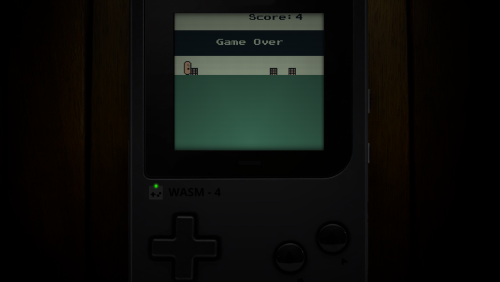
Version 1.0.0
6 downloads
I needed a LightsOut-esque bezel for WASM-4 in particular, so I tried to find a generic handheld image and slap as WASM logo on it... This ModRetro "Chromatic" device here seemed promising. Only black this time, but black goes with everything! I included non-WASM / blank ones as well to be able to use with other generic handhelds. CREDITS: The wooden background I used is from a Mr. RetroLust bezel. The WASM-4 logo I got from Duimon's WASM-4 bezel. A mashing of two ideas, if you will... ( ゚皿゚)ノ -
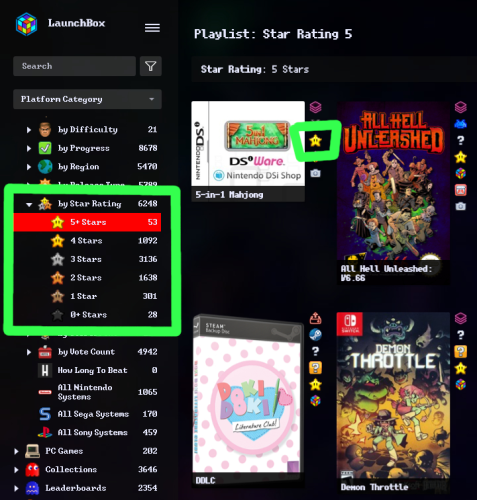 I could share from my data folder (My Parents xaml), if you're interested in the categories themselves? I just make them up as I think of different ways to organize my games. If you mean how to create them in general, I just left click while in the "Platform Category" view, mouse over Add and then click New Category, then you can name it in the "Details" tab and place it where you like in the "Parents" tab. Does this screenshot help? I do apologize if I'm not understanding what you are asking exactly. Parents.xml
 -
Do you mean the icons? Because I have shared a bunch of those in this file (should be in the folder "Platform Categories" inside the zip), and a lot of those come from random internet sources and googling, though sometimes I'll edit or recolor the source image using GIMP.
-
Sure! When you extract the zip, the Data and Plugins folders can go into your root "Launchbox" directory. Inside the Images folder, you'll see two sub-folders: I would put the images in the "Badges" folder into "Launchox/Images/Media Packs/Overrides/Badges" And then the two folders inside "Platform Icons" can both go into "Launchbox/Images/Media Packs/Platform Icons/Legacy Conversion Icon Pack" (or whichever media pack you want to use for platform icons) I hope that helps... If so, I should probably add it to the description so it's less confusing where everything goes 😅
-
Star Rating Badges ⭐ Playlists ⭐ Icons View File Small media pack for Star Ratings. Included is: - 2 badge plugins + badge icons (star rating 4 and 5) - 6 playlists + icons (star rating 0-5) - 1 category icon (star ratings) The badges help to see at a glance what games are rated more highly. Disclaimer: The images are only recolored by me. I yanked the original star icon form the internet, somewhere... ⭐◟(•‿•)◞⭐ Submitter d66dle Submitted 08/06/2026 Category Custom Badges
-
Version 1.0.0
14 downloads
Small media pack for Star Ratings. Included is: - 2 badge plugins + badge icons (star rating 4 and 5) - 6 playlists + icons (star rating 0-5) - 1 category icon (star ratings) The badges help to see at a glance what games are rated more highly. How To Use: When you extract the zip, the Data and Plugins folders can go into your root "Launchbox" directory. Inside the Images folder, you'll see two sub-folders: I would put the images in the "Badges" folder into "Launchox/Images/Media Packs/Overrides/Badges" And then the two folders inside "Platform Icons" can both go into "Launchbox/Images/Media Packs/Platform Icons/Legacy Conversion Icon Pack" (or whichever media pack you use for platform icons) Disclaimer: The images are only recolored by me. I yanked the original star icon form the internet, somewhere... ⭐◟(•‿•)◞⭐ -
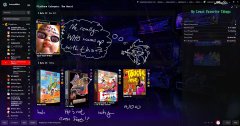 I have also begun a 'least favorite' category to accompany the previous. WHy? Well, it's funny to enjoy the things I despise in games, no?
 -
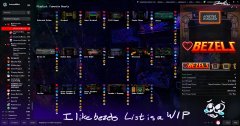 I have begun my list of favorite bezels, which is very small so far, a WIP
 -
DAE still have problems scrolling with the mouse wheel using custom Launchbox themes? I've now forgotten which beta in this round it started, but the scrollbar seems to get stuck whenever the image grid isn't sorted by the default 'Title'. I think someone else mentioned a similar problem. I'm just confirming it's still an issue for me at least 😅 (using a modified version of Default Plus) That said, the new Arrange By scrollbar is a handy workaround when scrolling with the mouse wheel doesn't work, as I can still click & drag where I need to go. So that newer feature is much appreciated!



