

Tsik
-
Posts
120 -
Joined
-
Last visited
Content Type
Profiles
Forums
Articles
Downloads
Gallery
Blogs
Everything posted by Tsik
-
That's true, I fell a lot of times in that id-1 hole in the past. The other way for avoiding the "id-1" change and also to the save games I think is to 1st add the games to ScummVM as normal as you importing them (making sure you use the same scummvm.ini file of course) and in addition to that (as I do in my own setup) I use a [id_name].scummvm file (a txt file with the id text inside and changed the extension to .scummvm) "as the rom" files instead of just the game folder, but all that are a bit more... you know... later stuff. First I'm trying to help setting-up the basis as LaunchBox is intended to do ( *in a portable fashion) and then "build" from there. 😉
-
Its ok, just leave everything else for now and lets concentrate just to the steps I show you (I now they are baby steps but trust me on this). Will wait for confirmation on the above steps and continue with more custom stuff. Cheers 🙂
-
Perhaps it looks weird but ScummVM can identify the game from its database id just by pointing the game folder to the scummvm.exe although it is not yet imported into the gui. Are you with me till now? No worries if you have to be AFK but it is essential that we are in the same pace just to get the same results. 🙂
-
Continuing... Now if you right-click the game from within LaunchBox choosing 'Open ScummVM': You should get the empty gui ScummVM (correct?):

-
Don't worry if there is anything wrong we will find the issue. 😄
-
Ok what ever it is, please try to follow: 1st install ScummVM fresh from with in LaunchBox: 2nd Lets Import Monkey Island into launchbox I put it in LaunchBox\Games\ScummVM: Till this stage you must be able to run the game from within LaunchBox. (correct?) No customizing anything yet (pretty straight forward)
-
I am not sure what you mean by that... perhaps that the location of the ini file differs from standalone (by double clicking scummvm.exe) to the path seeing the from Global Options as you returning from the game to the gui (Ctrl+F5) ?
-
First of all just for the sake of this "debugging" lets use full file paths e.g. C:\Users\ronem\Launchbox\etc." as your Details section screenshot and not relative such as "..\LaunchBox\etc" and "\LaunchBox\etc." just for keeping things straight and point everything to the right "targets". Later after everything works you will return to the relative side of things. After doing the above: Check the file properties of the actual scummvm.ini file (right-click > properties) check and apply the 'unblock' box (if exists) down at the bottom to give the file write permissions and re-paste the console window because you got a "WARNING: Unable to write configuration file:..' in the console, which by the way it looks like it is creating it from the beginning as fresh [Creating configuration file: ..\LaunchBox\Emulators\ScummVM\scummvm.ini] If you open "the working as expected" scummvm.exe (outside of launchBox) and navigate to 'Global Options' > Paths' where it says the ini path is? After that we can try and do a fresh start (if you agree of course) from the beginning (keeping the working ini as a backup) with step by step guide. We can try to edit something very obvious to an option such as change only the themeat first and check if that is loading correctly then change the options only for Monkey Island and repeat... 🙂
-
Ok lets see, I assume that you have installed ScummVM from within LaunchBox and that is the ONLY ScummVM installed in your system. If that is correct then Is the problem occurs only with that particular game, only for that mixed AdLib/MIDI mode setting? (If you happen to have any others does those games work as expected)? What happens if you right-click your game (from LaunchBox) and select 'Open ScummVm', does the gui show all the games with their individual options correctly ? You said: "i launch the game directly from SCUMMVM", is that same "..\LaunchBox\Emulators\ScummVM\scummvm.exe" or is it another? If you use the exact "..\LaunchBox\Emulators\ScummVM\scummvm.ini" file there is no-need to use the '--custom=...' argument I suppose that you already checked the %AppData%\Roaming\ScummVM path for any additional inis. (just to put that out of the equation) The next step is to open the working scummvm.exe (outside of launchBox) and navigate to 'Global Options' > Paths' and read the 'ScummVM Config Path' where the correct ini path is. I tried to reproduce your exact installation and everything works as expected. If I use the '--custom=...' argument to another ini the options from that ini load fine BUT ONLY as the game is active, meaning that if I right-click the game and select 'Open ScummVm', the gui is empty. As a last step I would suggest you run the game normally make sure the checkbox 'Attempt to hide the console window...' (from the Emulator edit window) is unchecked and as your game launches use Alt+Enter to go in window mode and copy/paste the text from the console window below to take a look... 🙂
-
Yes, that's also another thing to keep in mind... which I have to admit I never used, so I didn't took into consideration. Thanks 😁
-
If I may add to the above perhaps you can show us the location of your scummvm.ini file because the default place is where ScummVm looks/creates its files automatically is "C:\Users\[UserName]\AppData\Roaming\ScummVM" if you are pointing to anywhere else you might want to delete that folder and check again.
-
Hello, if you want to use a specific scummvm.ini file place the below command into the emulators Default Command-Line Parameters --config="path_to_your_scummvm.ini" -p %romfile% --auto-detect --no-console Hope it Helps. 🙂
-

Version 13.26. CPU on 15% while Launchbox is idle (Windows 10)
Tsik replied to Wally's topic in Troubleshooting
Can anyone explain why some of us have 2 sub-processes running while others have 4? The 'CefSharp.BrowserSubprocess' has something to do with Chromium (in third party folder) and perhaps it is supposed to be active at certain occasions (start-up or when viewing manuals is my guess). @WallyPerhaps by checking your custom/extra plug-ins (if you have any other than those LaunchBox comes with), the other thing that probably consumes cpu usage/Ram is the theme, the music player, the auto-import process, the save management, the game progress automation (not so sure about that). Apart from that I don't know what else we as users can do to "debug". I post below a screenshot from my other PC Intel(R) Core(TM) i5-6500 CPU @ 3.20GHz, RAM 8,00 GB, AMD Radeon (TM) R7 370 Series (2 GB) The same goes here as well: New Installation (v13.26), No extra plugins, No games, No nothing. Installed in a internal SSD. The 2 'CefSharp.BrowserSubprocess' sub-processes stay there for ever... This time I've also disabled every automation options.
-
Version 13.26. CPU on 15% while Launchbox is idle (Windows 10)
Tsik replied to Wally's topic in Troubleshooting
Below is a screenshot from a new Installation (v13.26) with everything untouched just after installation. No extra plugins, No games, No nothing. Installed this time in a internal SSD.
-
Version 13.26. CPU on 15% while Launchbox is idle (Windows 10)
Tsik replied to Wally's topic in Troubleshooting
This seems normal (I guess?) Here is my screenshot : Although I don't know why there has to be 2 CefSharp.BrowserSubprocess running and 2 LaunchBox processes at the same time. I am in an super-potato pc with intel i3-3220 CPU @ 3.30GHz, RAM 4,00 GB, running LaunchBox from an external samsung SSD 870 QVO
-
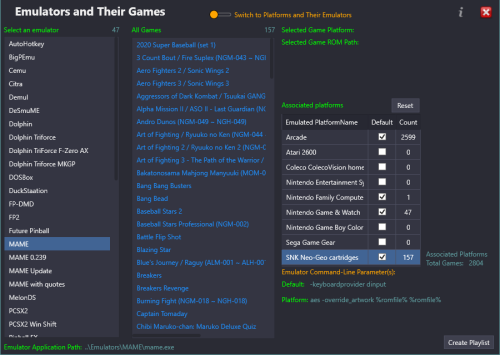 Thanks a lot, just using this and realizing that some of my platforms have no default emulators at all!! 😂 Problem found and solved with a couple of clicks. 😉
 -
How do add Hypseus-Singe emulator to Launchbox
Tsik replied to legolas119's topic in Troubleshooting
Just remove/delete the [emulator].exe file from the Emulation tab and disable it. (in your last screenshot). 🙂 As long as you use bat files there no need to have an emulator. The error says clearly that the emulator file you specified does not exist. (And it is not needed actually). Perhaps the path to emulator has changed, or something. Double check that using the bat outside of LaunchBox works with double click. 🙂 -
This specific game is a bit tricky to make it show-up correctly in MAME due to the "color overlay" that MAME uses to display the red and green color portions of the graphics. Its all a combination of the color overlay, the blending, and the correct placement of the elements in the view in the .lay file. That said its probably easier to share my version of the above artwork (invaders.zip) that supports two views Framed & Unframed and also a Glass on-off option under Video Options>Screen #0 for anyone that would like to use it as is or modified to his own needs. invaders.zip below is the lay file used in the above zip in-case some one wants it for reference: <!-- invaders.lay --> <mamelayout version="2"> <!-- Elements sector --> <element name="Artwork_1"> <image file="art1.png"/> </element> <element name="Logo_Art"> <image file="logo_art.png"/> </element> <element name="Backdrop"> <image file="backdrop.png" /> </element> <element name="Screen_Bezel"> <image file="vert_screen_bezel.png"/> </element> <element name="Screen_Glass_Bezel"> <image file="vert_glass_bezel.png"/> </element> <element name="Screen_Glass_Full"> <image file="vert_glass_full.png"/> </element> <element name="Screen_Mask"> <image file="vert_screen_mask.png"/> </element> <element name="Overlay"> <rect> <bounds left="0" top="0" right="224" bottom="260" /> <color red="1" green="1" blue="1" /> </rect> <rect> <bounds left="0" top="184" right="224" bottom="240" /> <color red="0.125" green="1" blue="0.125" /> </rect> <rect> <bounds left="16" top="240" right="134" bottom="260" /> <color red="0.125" green="1" blue="0.125" /> </rect> <rect> <bounds left="0" top="32" right="224" bottom="62" /> <color red="1" green="0.125" blue="0.125" /> </rect> </element> <!-- View sector --> <!-- View 1 --> <view name="Full"> <screen index="0"> <bounds x="478" y="0" width="966" height="1080"/> </screen> <element ref="Overlay" blend="multiply"> <bounds x="477" y="0" width="965" height="1080" /> </element> <element ref="Backdrop"> <bounds x="477" y="0" width="965" height="1080" /> <color alpha="0.3" /> </element> <collection name="Glass"> <element ref="Screen_Glass_Full"> <bounds x="478" y="0" width="966" height="1080"/> </element> </collection> <element ref="Screen_Mask" blend="multiply"> <bounds x="478" y="0" width="966" height="1080"/> </element> <element ref="Artwork_1"> <bounds x="0" y="0" width="1920" height="1080"/> </element> </view> <!-- View 2 --> <view name="Framed"> <screen index="0"> <bounds x="526" y="33" width="869" height="1005"/> </screen> <element ref="Overlay" blend="multiply"> <bounds x="526" y="33" width="869" height="1005"/> </element> <element ref="Backdrop"> <bounds x="526" y="33" width="869" height="1005"/> <color alpha="0.3" /> </element> <collection name="Glass"> <element ref="Screen_Glass_Bezel"> <bounds x="478" y="0" width="966" height="1080"/> </element> </collection> <element ref="Screen_Bezel"> <bounds x="478" y="0" width="966" height="1080"/> </element> <element ref="Logo_Art"> <bounds x="885" y="1048" width="150" height="30"/> </element> <element ref="Artwork_1"> <bounds x="0" y="0" width="1920" height="1080"/> </element> </view> </mamelayout> It is tested with MAME 0.285 and a modified raster.ini file as below # DIRECT3D POST-PROCESSING OPTIONS distortion 0.15 to fit the screen curve. Hope that is helpful. 😄
-
Asteroids mame bezel and overlay diagonal lines
Tsik replied to Miremare2025's topic in Troubleshooting
I use Paint.net just because I'm familiar with it.. Take a look in the image below and if you need more info/help I'll be happy to provide 😄 If you get familiar with the idea, you can place anything in any position in your screen area just by using the selection tool (or the wand) and read the numbers in the 1,2 & 3 positions at the bottom.
-
These are all tied together under the Game Progress so although I never tried to fiddle with it check out Options > Data > Game Progress Organization. You should be able to remove some of the values. Note that only lets you remove them if they are not currently in use.
-
Unfortunately the Fujisan emulator at this stage of its development (v1.1.4) not the best choice for use with LaunhBox for Atari-800 and its relatives. Although as standalone works pretty nice I haven't found any way to pass its cmd arguments through a command line in Windows-10 to the emulator itself and therefore not through LaunchBox either. I've being able to make the game start following the basic LaunhBox emulator import procedure just as any other emulator but I couldn't manage to change the system to a per-game/type nor any of its default settings through the use of commands. That being said I post below everything what I managed to pull-out till a point where the games are loading in full-screen but the supported systems are changing only from the emulator's menu. It seems though that it is supporting multiple configurations per system but I couldn't manage to make them work either. Fujisan v1.1.4 Default command arguments as they show-up in the console window: "atari800 -xl -pal -mapram -sound -dsprate 44100 -audio16 -volume 80 -xl-rev altirra -basic -hreadwrite" Recommended setting in the LaunchBox emulator edit window is the "Attempt to hide the console window" tick-box checked. And at the 'Running Autohotkey script' tab type: #NoEnv ;Below line is for going into fullscreen because if Its enabled from the emulator settings it outputs as double window and fullscrn at the same time (probably a bug) Sleep, 3000 send {F11} ;Below line is for quitting the emulator with 'Esc' $Esc:: { Process, Close, {{{StartupEXE}}} } It seems that it supports .rom, .bin, .car, .atr, .xex, .exe, and .com file types but I got the following warning in some games: 'Unsupported cartridge size: 16 KB - only 8KB standard cartridges are currently supported' so keep that in mind. The emulator keeps its settings and profile files in two places: In the Windows Registry under 'HKEY_CURRENT_USER\SOFTWARE\8bitrelics' and in 'C:\Users\[User_Name]\AppData\Roaming\8bitrelics' That's all folks!!! 😅 If anyone else has anything to correct or add to the above in the future please do.
-
MAME Software Lists Import Tool - plugin
Tsik commented on JoeViking245's file in Third-party Apps and Plugins
 @JoeViking245 Yes, I know! 😁 It also works if you delete the drive letter from lets say G:\Emulators\MAME\hash to just \Emulators\MAME\hash from the "Browse" window before clicking "Next" which is the method I'm using. I also tried to write-protect the file after the mod but it needs write privileges... (of course) 😐 Thanks for the effort.
 -
ePSXe configuration in the latest version – help needed.
Tsik replied to Mandarynek's topic in Troubleshooting
Okay, I just thought that even if you've already solved the problem, it's more likely that someone else will stumble upon this thread in the future, so I'd better post the basic configuration of ePSXe and how to use the emulator from version 2.0.18 onwards via LaunhBox, now that it supports CHD among other features. (The instructions below are tested on a Windows 10 x64 system, although the emulator is still in x32 bit.) We start in "standalone mode" emulator and then apply it to LaunhBox. 1st. Download the latest ePSXe emulator and get the Playstation BIOS files (legally!!). Unzip the contents of ePSXe_XXX.zip to a folder of your choice (preferably in ..\LaunchBox\Emulators\ePSXe). Place the BIOS files in the BIOS folder inside ..\ePSXe\bios and double-click on ePSXe.exe. From the main menu, go to File>Run ISO and select the directory where you have your games, whether in .iso or .chd format, it doesn't matter, because the emulator in this state excludes the file types .BIN, .CUE, .ISO, .CHD, .IMG, .CCD, .MDS, .PBP and .ECM. That's it, now your game should start in a window. If you want full screen, select it from the Configuration>Video>Full Screen Mode menu and make sure you have selected the correct desktop resolution of your monitor. LaunchBox Integration: At this point I'm assuming you've already imported your game files into LaunchBox and probably on a platform named something like "Sony Playstation". Now go to Tools>Emulator Manager and click on the Add... button. In the Emulator Name field type "ePSXe" and LauncBox will autofill the rest for you. Now, here is where some might get confused, until this version of LauncBox(13.25) and the ePSXe2018 some command line arguments (as @JoeViking245 said earlier) have changed, so in the Default Command Line Parameters field you should type -nogui -slowboot -loadiso even if the games are in .CHD format. (NO need for "%romfile%" as at the first screenshot at all) Then go to the Connected Platforms tab type in the platform for your games, e.g. "Sony Playstation" and check the Default Emulator checkbox next to it. Click OK and... That's it, End and have a good game... P.S. I haven't messed with anything other than the above settings and arguments, so I don't know anything more so far. If you need more information about plugins, settings or anything else, visit https://www.epsxe.com/help.php or read the epsxe.chm file that comes with the ePSXe download. P.S._2 Even in the epsxe.chm file (ePSXe2018 version), some of the command line arguments are outdated (it reads ePSXe 1.2.0), so keep that in mind. -
ePSXe configuration in the latest version – help needed.
Tsik replied to Mandarynek's topic in Troubleshooting
Hey Mandarynek have you solved your issue with ePSXe till now? I gave it a try and it is pretty straight forward using it with CHDs. If you still need help, I'll be happy to... Cheers! 🙂 -
Launchbox shows blank cover art despite full metadata downloads
Tsik replied to pman555's topic in Troubleshooting
In my personal opinion its totally up to you! Clear Logos or Arcade Cabinets or even Marquee images work fine. At the end of the day its about whats fits your liking and the best part is that you can change anything at anytime so you can experiment. 😄



.png.a7066b2a1da8650c4e2f05d777e1994f.png)
.png.ad357a3de5cd0e209707fa6a71abb8bd.png)


.png.57b23acbda5a7e75c540f779773aebb1.png)

.png.b39deea3d32d1e6690a0520e2778cef8.png)
