
.png.d63b88dc3d5c6db8803dfbd996ce65fc.png)
JoeViking245
-
Posts
5606 -
Joined
-
Last visited
-
Days Won
41
Content Type
Profiles
Forums
Articles
Downloads
Gallery
Blogs
Everything posted by JoeViking245
-
.thumb.png.c9faf450e4d2b690a819048b18173f61.png)
How to show arcade game vertical wheel screen on bootup
JoeViking245 replied to Symon's topic in Playlists & Playlist Media
It sounds like you just have the 1 platform (Arcade). So in your case you basically want to have your Default Startup View be All Games. System Menu < Options < Views < Default Startup View: All Games -
database disk image is malformed Error
JoeViking245 replied to TheMadMan007's topic in Troubleshooting
In that particular Feedback and Bug Reports thread, if you click "Continue Reading" it'll show you SOLUTION Run the following tool: Tools > Download > Force Update Games Database Metadata- 1 reply
-
- 1
-

-
Off hand, my guess is the [extra] period you have between unmute and bigbox. You can try putting the entire parameter "within quotes" (just like you have in the batch file). Or try removing that dot ('period'). But NOT the dot before ahk. If you end up going this route, create a shortcut to the batch file. Right click the shortcut and select Properties. Next to "Run", change it to Minimized. Click OK to save and close. Then point to the shortcut.
-
I would like to remove the rounded corner from the box art.
JoeViking245 replied to KingCronecker's topic in Troubleshooting
Would be best to put in a Feature Request so it doesn't get lost here. (Top of this page, under Help & Support) -
It does. But I thought you already put the BIOS (neogeo.zip) into the same folder as the ROMs. And make sure you're still working with SNK NeoGeo Carts and not SNK NeoGeo CD. Also, in most cases, you don't need to have the media type (i.e. -cart) in the command-line parameters. So here you could have just: -rompath %romlocation% neogeo For [future] Reference: Go here: http://adb.arcadeitalia.net/dettaglio_mame.php?game_name=neogeo Scroll down to and click on SHOW... That'll show what files are required for that system. Save the above link, change just the last part (neogeo) to the system you're working on next. (32x, neocd, etc.)

-
LaunchBox Games Database Image Viewer-Plus
JoeViking245 commented on JoeViking245's file in Third-party Apps and Plugins
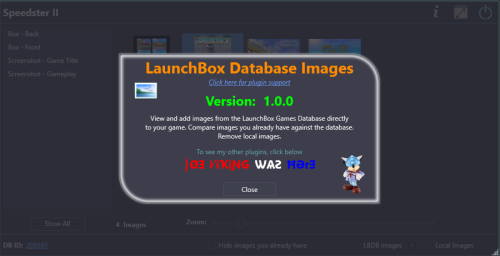 v1.3.3 Released New Feature: When viewing an image fullscreen, use Left/Right arrow keys to navigate through all images.
 -
I would like to remove the rounded corner from the box art.
JoeViking245 replied to KingCronecker's topic in Troubleshooting
No. You can remove the "OLD square corner". You just won't be able to use that [customized] theme. Again, you need to purchase a license to be able to use a custom theme. You can't modify the Default Theme because it will "fix" itself if changed. (hence needing to make a copy). As all was stated previously by Neil. You could try the Old Default theme (which I believe still comes with the free version) and see if that's better suited to your liking. -
I would like to remove the rounded corner from the box art.
JoeViking245 replied to KingCronecker's topic in Troubleshooting
You can practice it in theory by following along in the above posts. Main key point is, if using the Default theme, you need to make a copy of its folder and then edit the copy. That said, the free version of LaunchBox does not support custom themes. So to make the above 'practice' a reality, you would need to purchase a license. -
When it does freeze, if you press Alt+Tab and (while holding Alt) tab to Big Box, let go of Alt, does it then function as it should? If so, check your Keyboard Mappings to see if you have Esc mapped to more that item. Be sure to check in Keyboard Automation also.
-
Copying clones along with roms and finding out missing roms.
JoeViking245 replied to Opus132's topic in Noobs
If you indeed have a non-merged set (and not a merged set), you could use Tools - Scan - Scan for Removed ROMs. That'll bring up a message box with "the list". You can then highlight and copy the contents of that message box to a text file. Or wherever. But it's limited to showing only a certain amount. So if you have a ton of ROMs missing, you may need to do it in stages. And there it is. Also, MAME rarely changes ROM names. And usually when they do, it's actually a re-naming of a ROM. i.e. the game 1942 (1942.zip) When they had the Revision A ROM, it was named 1942.zip. Then when they came across Revision B, 1942.zip became 1942a.zip, and Rev. B became 1942.zip. With certain disorders comes great personal responsibility. If the Scan mentioned above doesn't fill the void enough, you may want to Request a Feature. (Top if this page under Help & Support)
-
I think 32X may also need 32x.zip. (It's been a while since I looked at it.) Start with checking both boxes, just like you do with Arcade. (In fact, you could just the one emulator. Up to you.) Then in the Associated Platform section, add to the beginning of the command-line parameters -rompath %romlocation%. This assumes any BIOS or other support files for that console are in with the console's ROMs. (as you indicated you did with SNK) See if that helps any.
-
Could it be you have Exit Game mapped in LaunchBox? (Tools < Options < GameControllers < Mappings) Or if in Big Box, Close the Active Window. (System Menu < Options < Controller Mappings)
-
Error importing rom files since updating to 13.21
JoeViking245 replied to LifeOfBAM's topic in Troubleshooting
K. Just wanted to clarify the actual message.
-
Error importing rom files since updating to 13.21
JoeViking245 replied to LifeOfBAM's topic in Troubleshooting
Umm... Sound precarious. Can you share a screenshot of that actual message? -
Are you able to run games directly from stand-alone "Retro station" (or did you mean RetroArch?)? That is, without trying to launch them via LaunchBox.
-
How do I close an Additional App (UCR) after a game quits?
JoeViking245 replied to bradbradbrad's topic in Troubleshooting
Get creative and have the batch file "tell itself to run the commands elevated". You don't need to run/execute this [example] batch file as Admin, but it will start "notepad.exe" elevated (as Admin). Adjust ONLY THE ONE LINE to meet your needs, accordingly. @if (0)==(0) echo off >nul 2>&1 "%__APPDIR__%net.exe" session &&goto __elevated__ set __args__=%* "%__APPDIR__%cscript.exe" //nologo //e:jscript "%~fs0" exit /b :__elevated__ :::::::: update below here ONLY :::::::: start "" notepad.exe :::::::: update above here ONLY :::::::: goto :eof @end new ActiveXObject('Shell.Application').ShellExecute('cmd.exe','/c ""'+WScript.ScriptFullName+'" '+new ActiveXObject('WScript.Shell').Environment('PROCESS')('__args__')+'"','','runas',1); Don't change anything except the line that starts with start. Change that line to execute whatever you need ran as Admin. Pro tip: Lines starting with :: (2 or more consecutive colons) are comments in a batch file. Alternately, you can add comments by starting the line with rem (short for "remark") and is not case seNSitiVe. -
Game missing from database (Towerborne on Windows)
JoeViking245 replied to 8d6FireDamage's topic in Troubleshooting
The LaunchBox Games Database is user supported. Forum support for the database is located here: LaunchBox Games Database - LaunchBox Community Forums Being as it is user supported; you can add it to the database by going here: LaunchBox Games Database and click on Add new Game.
-
Bulk Add/Remove Additional Applications
JoeViking245 commented on JoeViking245's file in Third-party Apps and Plugins
 Thanks for letting me know. V1.2.0 Fixed: Bulk Remove: Selecting Check All with no platform selected causes error. New Feature: Added * All 'platform'. Selecting this will show every Additional App. Deleting from this 'platform' is disabled. Being able to delete from the "* All" platform requires quite a bit more of a code rewrite. Based on all the positive reviews, I'm not sure it warrants the time that would be involved to do it.
 -
If that' the case (it works in MAME stand-alone) then remove -rompath %romlocation% from the Default Command-line Parameters.
-
Copying clones along with roms and finding out missing roms.
JoeViking245 replied to Opus132's topic in Noobs
Again, it scans the imported games you have and "verifies" each games' path_to_the_file. Chances are, you have a ton of games in your Arcade platform and you may never come across [to play] the missing ones. Going back to your original post... do you mean non-merged set? Because as stated, a merged set will create the issue you're seeing with "missing ROMs". Which really, isn't an "issue" with a merged set. Think of it as a false-positive. At this point, with your ROMs in their new location/drive, you could remove your existing platform then do a 'fresh' import on the ROMs [from the new location]. Combining the clones in with the parent ROMs as additional apps if you wish. -
Copying clones along with roms and finding out missing roms.
JoeViking245 replied to Opus132's topic in Noobs
It's the Additional Apps that get ignored. If you combined your ROMs during import, then the clones (depending on your region priorities) are what's in the Additional Apps. I can see this happening with a merged. But you indicated you have a non-merged set. Have to ask, are you positive it's a non-merged set [and not a merged set]? Did you check any of those 12 to see if they actually don't (or do still) launch? MAME ROMs in LaunchBox are handled a little differently than conventional ROMs. Especially with the possibility of users having non-merged, merged, or even split sets. With merged sets, the clone ROM files don't physically exist. This is why you can't (or rather, shouldn't) use Scan for Removed ROMs. Well, it looks at the path_to_the_ROM. Then it checks if that file physically exists. I'd verify that those 12 indicated games do indeed not launch. When (if) moving your MAME ROMs and using the File Management feature to reassign their location, they should still work. And the missing ROMs (in the case of MAME) may be misleading. -
The error indicates something is up with your license file. Email [email protected] and they can sort it out for you. Anytime an error code like that is tossed it's one of three situations: 1. The license is banned 2. The license has been altered (you tried to change details in the file, or the file has been corrupted). 3. You are using an Android license on PC or vice versa
-
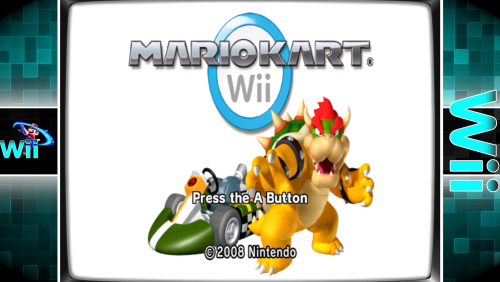 You're welcome. I don't really use shaders myself, so don't really know how [the more complex ones] work. The "Scanline" included in a super tiny .png file I got from MAME. You might be able to try some of the other ones they have (in their /artwork/ folder) and see if there's something better you like.
 -
Not that I've seen. You can have custom Startup screens per platform within your selected Startup Theme. But not for Shutdown screens. You can however customize the Shutdown screen (change it up to your liking) in your selected Theme. But is still a one-Shutdown-screen for all platforms.
-
To better help you, can you please share some screenshots of how it's setup in LaunchBox? Edit your MAME emulator and show screenshots of - the Main Details section - the Associated Platforms section Edit one of your Arcade games and show screenshots of - the main Metadata section - the Launching section - the Emulation section
.thumb.png.c9faf450e4d2b690a819048b18173f61.png)




