
NNEMO
-
Posts
49 -
Joined
-
Last visited
Content Type
Profiles
Forums
Articles
Downloads
Gallery
Blogs
Everything posted by NNEMO
-
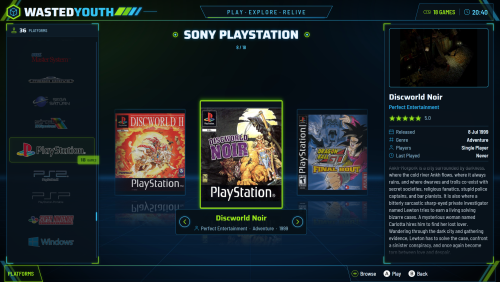 I am using your theme, love it. I had the theme modified with claude AI, green to white. I edited the buttons for my arcade green and red. I had the game scroll letter change set to only once per letter change. Im still having it modified for my arcade build, it is a white cabinet, and your theme looks amazing. I uploaded a photo of it.
 -
This looks great in Big Box, it is all well thought out and the game cover flow is one of the best ive seen. The screensaver is great, the game startup is great, the game pause is great. I am currently using this theme with edited colors white and blue and a few changes. Amazing work!
-
I dont believe launchbox lets you do this easily. I had to use Claude AI to make a .ahk script that plays the video first, then launches the game I only needed the video to play on some platforms, so i made a new platform and set the path for the .ahk file There is also a plugin, that lets you add the .ahk file to start before the video, another way to do that.
-
I highly recommend you make backups of your mame and store them safely somewhere for cases like this. Integrated graphics sounds like your main issue, and because any config change could issues, you could try to reinstall mame entirely, or troubleshoot individual files. I would recommend you usa Claude AI, and tell it your computer info and upload the file, tell it to choose the best settings for your computer. You would eventually find the issue. I asked Claude AI about your setup, and it gave suggestions. Make a backup first though. I don't see the ini file or a description of what "not running correctly" looks like, so I can't pinpoint it yet. Your hardware does point to a few common culprits, though. **HP EliteDesk Mini (integrated Intel graphics)** - Heavy shaders, high internal resolution, and the BGFX/HLSL effects in MAME can overwhelm it. Try `video d3d` or `video bgfx` with `bgfx_screen_chains default`, and turn off any CRT shader as a test. - Update the **Intel graphics driver** from Intel's site, not Windows Update. Old drivers cause black screens and crashes in emulators. - Check that the PC is on the **High Performance** power plan, since Minis throttle hard otherwise. **Samsung Odyssey (high refresh rate, often ultrawide)** - At **144/165/240Hz**, games can run too fast, stutter, or have messed-up sound when the emulator syncs to the monitor. Test with the monitor set to **60Hz** in Windows Display Settings. If that fixes it, keep `syncrefresh 0` and `throttle 1` in MAME, or use VRR. - On **ultrawide** screens, games can stretch. In MAME, set `keepaspect 1` and `unevenstretch 0`. In RetroArch, set Aspect Ratio to Core Provided. - Odyssey monitors can also apply **Game Mode or FreeSync** settings that conflict with exclusive fullscreen. Try `window 0` versus `window 1` (borderless) in MAME. **Ini file quick checks (if this is MAME)** - Remember the order in which MAME loads ini files: `mame.ini` → system/source ini (e.g. `neogeo.ini`) → `game.ini`. A setting in a later file overrides the earlier ones, so something in a game ini can undo your global fixes. - Make sure the file is named exactly the ROM's short name (e.g. `sf2.ini`), and that it's in the `ini` folder MAME actually reads. Running `mame -showconfig` shows the active paths. - Test by temporarily renaming the game's ini. If the game runs normally with defaults, the problem is in that file. To narrow it down, could you tell me: 1. Which game, and which emulator (MAME standalone, RetroArch, or something else)? 2. What actually happens: wrong speed, black screen, stretched image, crash, or bad sound? 3. Paste or attach the ini file contents.
-
I havnt setup this controller yet, but i will be doing it soon. I heard about issues with blutooth and usb dongle setup, so im going to set mine up on the usb 2.4ghz dongle on a usb 2.0. Hopefully u just bumped the dip switch that is on the controller for blutooth or 2.4ghz, and u can flip it to the other one to test. Ai says this. That message comes from **RetroArch**. It means RetroArch can't find a saved **autoconfig profile** for the exact ID your controller is reporting. The numbers `11720/12550` are that ID: 11720 is 8BitDo's vendor ID, and 12550 is the specific product and mode. Your manual setup probably saved the button binds somewhere RetroArch isn't checking, or the controller is now showing up with a different ID than when you set it up. **Likely causes** - **Your binds weren't saved as a controller profile.** Remapping under Port 1 Controls changes the binds for that session or config, but it doesn't create a profile tied to that controller ID. - **The controller's mode changed its ID.** The 8BitDo Ultimate reports a different ID depending on whether it's on the 2.4GHz dongle, Bluetooth, or USB cable, and on X-input versus D-input/Switch mode. Setting it up in one mode doesn't cover the others. - **The LaunchBox update reset or changed RetroArch.** LaunchBox may be launching a different RetroArch copy than the one you configured, or an update overwrote the config. - **Core or game overrides** are replacing your global binds. **Fixes, in order** 1. In RetroArch, go to **Online Updater → Update Controller Profiles**. This downloads the official 8BitDo profiles, which often fixes it by itself. 2. Put the controller in **X-input mode**. On most Ultimate dongles there's a switch, or you can hold a button combo at power-on. RetroArch always recognizes Xbox-style controllers. 3. If the message still appears, go to **Settings → Input → Port 1 Controls**, set your buttons, then choose **Save Controller Profile**. That ties the binds to this exact ID. 4. Turn on **Settings → Configuration → Save Configuration on Exit**, or use Main Menu → Configuration File → Save Current Configuration. 5. In LaunchBox, go to **Tools → Manage → Emulators → RetroArch** and confirm the path points to the RetroArch install you configured. 6. Update the controller's firmware with **8BitDo Ultimate Software**, since older firmware can report odd IDs. "Using fallback" usually still lets the controller work with default bindings, so if games play but buttons feel wrong, step 3 is the fix.
-
Its likely the roms on the pi are older versions, and launchbox is using the newer retroarch version which uses NEWER updated rom sets. I use the latest standalone Mame with matching romset "arcade games". I use standalone retroarch for other platforms like ps1, snes. Yeah i get that its more setup, but it makes customizing easier. Here is AI's response, it will help you. RetroArch itself works the same on both. The difference is which **core** each one uses, and that is almost always why arcade ROMs that work on a Pi fail on Windows. **Why it happens** Arcade ROMs aren't universal. Each MAME or FinalBurn version expects ROM sets from its own version, and a set built for one often fails on another. - RetroPie defaults to older, lightweight cores built for Pi hardware, mainly **lr-mame2003-plus** (based on MAME 0.78), **lr-mame2003**, and **lr-fbneo**. Most Pi ROM collections are built for these. - When you set up RetroArch for Arcade in LaunchBox, it usually gets assigned the **current MAME core** (0.27x+). That core rejects older sets or reports missing files, so the same ROMs fail on the PC. **The fix: match the core** 1. In RetroArch on the PC, go to Online Updater → Core Downloader and install the same core used on the Pi. You can check which one in RetroPie's runcommand menu, which appears when you press a button during game launch. 2. In LaunchBox, go to Tools → Manage → Emulators → RetroArch → **Associated Platforms**. Set Arcade to `mame2003_plus_libretro.dll` (or `fbneo_libretro.dll`) to match the Pi. 3. Relaunch a game. In most cases it now works without changing any ROMs. **Neo Geo specifics** - `neogeo.zip` (the BIOS) must sit **in the same folder as the Neo Geo ROMs** or in RetroArch's `system` folder. On the Pi it was probably next to the ROMs, so copy it over. - The BIOS has to match the core too. A `neogeo.zip` from a MAME 0.78 set may not work with a current FBNeo build, and the reverse is also true. - **FBNeo** is usually the most forgiving core for Neo Geo, so try it first. **If it still fails** - In RetroArch settings, turn on Logging → **Log Verbosity** and launch the game from LaunchBox. The log names the exact missing file or CRC mismatch. - Check that ROMs are still **zipped** and **unrenamed**. Arcade ROMs must keep their short names like `mslug.zip`, not "Metal Slug.zip". - Long term, the cleaner approach is to pick one core and rebuild the ROMs to that version's set with **ClrMamePro** or **RomVault**, using that core's DAT file. In short: use the same core on Windows that the Pi uses, keep `neogeo.zip` beside the ROMs, and most of these games should work immediately.
-
You can make some improvements to improve visuals, the options that stand out are integer and Anisotropic filtering at 16x. Here is AI's broad list. With a high-end PC, the biggest improvements come from upscaling 3D systems, adding CRT shaders to 2D games, and cutting input lag. **TV and Windows** - Turn on your TV's **Game Mode** (or set the input label to "PC") so the TV skips its own processing and lag drops. - If your TV and GPU support **VRR/G-Sync/FreeSync**, enable it. Older arcade games run at odd refresh rates like 57.5Hz or 59.18Hz, and VRR plays them smoothly without stutter. - Turn on **HDR** if your TV supports it. CRT shaders use the extra brightness to make up for the darkening from scanlines. **2D retro (RetroArch / MAME)** - **CRT shaders** make pixel art look like it did on a real tube. Good picks are *CRT-Guest-Advanced* and *CRT-Royale* in RetroArch, and the BGFX CRT shaders in MAME. A strong GPU runs them at 4K easily. - **Run-Ahead** in RetroArch removes 1 to 2 frames of lag, so games can feel more responsive than on original hardware. Set it per core, since it costs CPU. - **Integer scaling** keeps pixels sharp and even if you don't use a shader. **3D consoles (where your GPU earns its keep)** - **Internal resolution:** raise it to 4K or higher in Dolphin (GameCube/Wii), PCSX2 (PS2), DuckStation (PS1), PPSSPP (PSP), and Xenia/RPCS3 (360/PS3). - **Widescreen hacks and 60fps patches:** most of these emulators ship built-in patches that render games in true 16:9 and unlock 30fps games. - **PGXP** in DuckStation fixes the wobbly polygons PS1 games are known for. - **Texture packs:** community HD texture packs exist for Dolphin, PCSX2, and N64 (through Parallel/Mupen). - **Anisotropic filtering at 16x** gives sharper floors and roads with almost no performance cost. **Playability** - Use **Vulkan** when an emulator offers it. It usually has the lowest stutter and lag. - Enable **shader pre-compilation or async shaders** in Dolphin, Xenia, and RPCS3 to avoid stutter the first time effects appear. - Use wired controllers or a low-latency 2.4GHz dongle instead of Bluetooth. **BigBox** - Use a **4K theme** and download video snaps so the menu looks good on a large screen. - Set the startup and pause screens so Escape or a hotkey combo brings up BigBox's pause menu in-game, letting you save, load, or exit without a keyboard. Tune one system at a time and save the settings per core or per game. A shader that looks great on SNES can look wrong on a Game Boy game.
-
This is a really cool idea. Have you tried using Claude AI to duplicate the steam hrs played, just take a screenshot of what you want it to look like. Then upload a screenshot of where you want it specifically on your bigbox, then upload your theme files. I would just backup your theme, and let AI take a crack at it. Ive been using AI lately to modify some themes with great success.
-
I recommend you use Claude AI and tell it the info of where you have you launchbox folder C:, . installed and tell it what drive your 12tb hyperspin is example: G:, then tell it to help you setup launchbox to launch the games from that drive. Note: the more details you give it about your computer setup, the better. I asked it a similar question and this is what is said. The main idea: keep LaunchBox itself on your SSD, point it at the games on the 12TB drive, and tell it to leave the files where they are. **1. Lock the drive letter first** In Windows Disk Management, right-click the 12TB drive, choose "Change Drive Letter," and pick something fixed like **G:**. LaunchBox saves full paths to anything outside its own folder, so if the letter changes later, every game breaks. **2. Look at what's on the drive** Most of these prebuilt drives use the same layout: an `Emulators` folder, a `Roms` folder split by system, and sometimes a complete LaunchBox or HyperSpin setup already on it. Note the paths. You'll be pointing at those emulators and ROM folders rather than copying them. **3. Install LaunchBox on the SSD** Install it fresh on the SSD. Media (box art, videos) and the database load much faster from an SSD, and BigBox will feel snappier. **4. Import each system** - **Consoles:** Go to Tools → Import → ROM Files and pick a system's folder on G:. Choose the platform and the emulator, using the emulator already on the drive. When it asks what to do with the files, choose **"Leave them where they are."** Let it pull metadata and media from the LaunchBox Games Database. - **MAME:** Use Tools → Import → **MAME Full Set**. The romset has to match your MAME version. If the drive's set is older than the newest MAME, use the MAME build that came on the drive for that set. - **PC games:** Use Tools → Import → Windows/DOS games and point it at each executable. **5. Pace the scraping** Downloading media for a whole 12TB library can take hours and fill up your SSD. Start with images only (box front, screenshots, clear logos) and add videos for your favorite systems later. **6. Test, then set up BigBox** Launch one or two games per system. When one fails, the cause is usually the emulator path or a missing BIOS file, which belongs in that emulator's `bios`/`system` folder. Once everything launches, go to BigBox options to set controller mappings and autostart for the cabinet. A shortcut: if the drive already includes a configured LaunchBox folder, try running that `LaunchBox.exe` directly from G: first. It may already be fully set up, and you can keep your fresh install for just the systems you want.
-
Im assuming both arcades are windows, for file compatibility. Give claude AI the main config files of the lightgun HDD zipped. Then ask it if there will be any issues with copying and pasting these files onto your main arcade HDD so you can launch the games using Launchbox. Note: I asked claude AI a similar question and it said there would be issues. It already knows my setup, so that answer is more specific to me.

-
Do u got the subscription to emumovies? I have a subscription and i download all my images and videos from there, and it puts all the videos in the launchbox/videos folder. It basically downloads videos around 5mb per game.i find that doing a small amount of games at a time works best like 100-500 games. The files all have weird names, but im sure each game just points to that file in its media.
-
you got the standalone retroarch.exe and cores downloaded. You already added your SNK Neo Geo platform, and set your Rom folder path. You already added a emulator retroarch, and have it pointed at the standalone retroarch.exe 1. Close all the programs 2. Open launchbox Tools\Manage\Emulator\Retroarch in associated platforms, go to your Neo Geo, use the dropdown to select the core goliath. Note: It pops up for me on latest LB 14.0 3. Save, press OK. Note: Close LB, reopen it and you should see the dropdown goliath core STILL selected. Exit and reopen LB a few times to make sure it is saved. The missing dropdown issue happened to me with a PS1 core. If you are having issues with a blackscreen, the issue is you usually need to put the bios for that platform inside the "RetroArch\system" folder. Neo geo CD requires bios files.
-
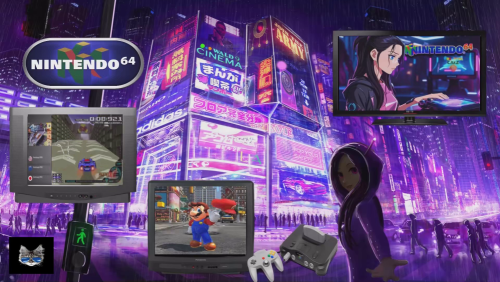 lol nice kool kat, do u have ur entire BB finished? Ive been working on mine BB theme, its a pretty basic one with vertical wheels.
 -
Bulk Add/Remove Additional Applications
NNEMO commented on JoeViking245's file in Third-party Apps and Plugins
 The first plugin i needed, to help with splash screen delays in BigBox. I added a black screen 5 second delay to each PS1 game with a .ahk file, automatically run before main application. This allows LEDBlinky to say the buttons before the PS1 start splash screen. Its a good work around for dialing in the startup screen timing while linking the emulator application to the Retroarch.exe
 -
sounds good, thank you monkus
-
Thank you quick response, I love win7, but there is alot of compatibility issues im having, Im not really sure whats going on. Should I just wipe the drive and install win 10? I have a large 30k game library i need to move, what is the best route for me to tak? plz help
-
I have launchbox installed on windows 7 and it worked ok, what OS are you using and recommend? I have been thinking of upgrading to windows 10, but what about windows 11?
-
dang -thanks
-
After having kids and friends play on my bigbox, when they search for a game that I favorited in the abcs, they say they can't find it. Then I'm like oh I favorited it so it's at the top. So my question is how can I keep games I favorited in the abcs and at the top of list?
-
In my Bigbox Menu, I have my selected item highlighted. But there is another random highlighted item, that stays static. How do i make it have only 1 highlight? Ive tried switching to diff themes but nothing works.
-
I had this issue, but i was using Joy2Key and had the joystick 1 set as "Arrow Down" So in my menu, it was skipping a line when I would press down, i deleted those joystick entries and i dont get double press.
-
Thanks guys, i was pulling hair trying to get pause menu to work. I did the above, emulator settings/pause menu/ and checked all 3 boxes and reset the default, and now its working Where can I get the game controls to show up now?
-
Who has the largest collection currently standing in Launchbox?
NNEMO replied to cleverest's topic in Collections and Builds
I think I got 23,000 games. I got main consoles like atari, sega, playstation +2, wii , wii u, 3ds , nintendo, and a few pc games, I'm adding 100 ps3 games, and xbox games. I got 17tb worth of games on 2tb OS and 2 8tb drives. I need a better pc to emulate ps3 but ehhhhh. I got a i5 and its no good for ps3. -
Not me, but I think it's a cool idea, I would just buy a laptop and hook it up to a portable charger lol
-
I didnt know there was an android version, Ive always just downloaded that android emulators app, bought it ofc. Please continue your work on the desktop version, there is still so much to do to. You gave it a shot, you never know until you try. Same thing with asking a question, you never know until you ask.