

skizzosjt
-
Posts
766 -
Joined
-
Last visited
-
Days Won
1
Content Type
Profiles
Forums
Articles
Downloads
Gallery
Blogs
Everything posted by skizzosjt
-
Yes, Retroarch was the emulator that lost focus at startup and needing to ALT+TAB as a result. I'm not sure of exact timeline of my testing I previously detailed because I did recently update Retroarch to newest stable release at time when I downloaded it, which I know is 1.16. nightly/dev version was at 1.17 but I went with stable release - I see 1.17 is now the stable release I will do some more testing because unfortunately for me, my memory is a little hazy on if I tested anything since this Retroarch upgrade. To be thorough on my end, I'll need to test some more on my up to date version of Retroarch. I can come back with some more feedback after I get that completed. I know when I made my first post I was def not on a recent version so I'll do my due diligence here for sure by testing with the recent release version.
-
no apology required. I figure so much that it's a lot of programs more or less trying to play a digital version of king of the hill to see who is in focus lol. thanks for taking the time to get back and offer more help.
-
this would, I think, deserve their attention. updating metadata is a standard feature even for the free version. so, it really should work regardless of how old of a version you are on. if what these posts suggest is you cannot update metadata, meaning your local metadata file will never be updated with revisions or new additions, then you're losing a function that was intended to work forever. scraping will be not fully working. if you have not already you should fill out a bug report. use the help and support > report a bug button at top of this page they did just recently revise the database, based on that coincidence, there is a possibility the recent changes have had a negative impact on older versions of LaunchBox. metadata comes from the database. with all that said, it's plausible this is a legit bug that needs to be addressed.
-
my initial suggestion was correct, you have more than one installation. the initial post shows your Retroarch as version 1.9.0 and this one is version 1.9.7. both of those are several years old - as old as 2020. you should consider if you want to iron out the confusion you made of multiple installations or if you should get rid of these old versions and install the newest version of Retroarch. the install instance that you linked with LaunchBox shows cores downloaded already....I wanted the same menu as you had in first post which is the Core download menu. but never the less, that all lines up as expected. cores in THIS instance of Retroarch align with your LaunchBox Associated Platform window. No surprises there. you can download the cores you need, but you still need to fix up you confusion between having multiple installs edit: If you need to figure out where that one is installed look at the application path in the Edit Emulator window.

-
Need to correct my previous comment here. I had to use this feature tonight, and it did not work as I remembered, I got this wrong. LaunchBox only gives you one of two options here. Either update no games to the new default emulator, or update ALL games to the new default emulator, meaning, even customized game entries using non-default emulators. This is a crummy experience, as I now have a boat load of customized stuff to resetup....boo...hiss. (naw, In reality I'll just use a backup file ) This means the only way to change only games using the default emulator to newer default emulator while also leaving custom game entries alone that are using a non-default emulator is to bulk edit. But this would rely on the user to know exactly which games to edit. If you have a lot of stuff customized, this makes such an approach not feasible, because no one is going to remember all of them. The only other idea I have off the top of my head to help with that is using custom fields. Which means you also need to remember to update those when you change them. You could make a custom field called "Emulator" or "Assigned Emulator" , or something like that. And then sort by that to see what you got and edit away accordingly. I'm starting to see why so many users have asked for being able to search and/or sort by emulator. That addition would take care of this situation as well!
-
tried a new experiment tonight with another test instance of Retroarch, but making it my default emulator for SNES. if you have no core assigned and no parameters in the extra command-line parameters field, or the game specific custom command-line parameters field, you can in fact include the core parameter, or any parameter at that, on the default command line parameters field. games launched and other features worked as expected like Startup and Shutdown screens. so, not a very practical way to do this, you would need to have a separate instance for every core since you can only declare one core in the default field. I kinda ran out of time when I testing the other day, I def should have tried this then as I was suspicious about right clicking onto just the emulator name rather than the core name was part of behavior I saw. that's on me for not being more thorough, but there's only so much time in a day lol. so I have good understanding now of how all this works and what I come out of it is I just want better communication to users about why the field acts like it's disabled for any normal situation of use. typical users will likely find it confusing or frustrating. though I realized this whole situation within like 5 mins of first using the program, i just kinda left it as a "it is what it is" situation without understanding why I had to use the extra command-line parameter field or couldn't make use of the default command-line parameter field. I wonder if other users did the same thing as me. at least now I know why and that just makes me more confident in using this program to it's full potential for my evolving use cases
-
go to a game that is using Retroarch right click on it and use the option to open Retroarch ("Open Retroarch...") now with this instance of Retroarch open, go to your core list post same pics from there. need to see EXACT same cores between what is being shown in Retroarch core menu and your Associated Platforms tab. ie if you have core A, B, and C in the Associated Platform tab, then we need to see what Retroarch says about core A, B, and C. make sure to have the Associated Platform image include the column about whether or not the core is missing
-
do you have more than one Retroarch installation? your Retroarch image shows for example you have downloaded nestopia_libreto but shows LB doesn't see it. also, your Retroarch image shows you did not download the Gamecube (Dolphin) core, yet LB shows it as installed (note there is no missing core file text in the field). makes me think you have multiple instances of Retroarch on your system. you should make sure everything is being directed to the proper instance and said instance has all the right cores installed and settings setup.
-
@DaveC1964 this is normal behavior. it will ask that for every system that has any entry (including additional versions), assigned to something different than the default emulator. this gives users the ability to change the default emulator for all entries that have the default emulator assigned, while still leaving further customized entries untouched. or if desired, change literally everything, even the customized stuff, to the default. for ex, I have several Mesen HD packs for NES games. Yet I use Retroarch nestopia core by default. if I go in and edit the Retroarch emulator, you don't even have to change anything, just click OK rather than the X or Cancel, it's going to ask those same questions but for Nintendo Entertainment System instead. This is because those games have Mesen as the default emulator rather than Retroarch. I have custom stuff for a handful of platforms, so I see this any and every time I edit Retroarch, even if you don't edit one of those customized platforms. LB auto populates a lot of fields when you type in "Retroarch" into the emulator name field (might not even have to type it in, just going into and out of that field once it's filled in may still do this auto populate thing IIRC). One of them would be listing out all of the various platforms in Associated Platforms and by default, selecting them as the default emulator. This process would explain why Dolphin was added as an Associated Platform, as well as why it gets default emulator checked. Seems you missed unchecking it at some point as you obviously removed the default check mark for many other platforms.
-
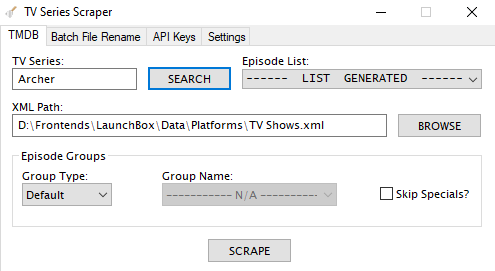 Doesn't look like I specifically mentioned AHK version compatibility. I can add more info in the post on that to clarify for future users, along with instructions for users to link an AHK exe to the .ahk file extension. (someone asked about it in the Third Party App & Plugin thread) I made an assumption here due to the community has been sharing V1 scripts for years and LaunchBox itself includes a V1 executable. So, yes, this is indeed written in V1 syntax and glad you realized the V2 vs V1 thing. (I'm sure V2 threw an error right away) Also really appreciate the confirmation it's running well without issues otherwise!
 -
I was doing it through a supplemental emulator in my list used for testing so I needed to go through the right click context menu and click on the specific core to launch. In this case when I remove the core, that core will no longer show up in the right click context menu. So, I have a suspicion now with your feedback if I did that with the main (default) emulator it would behave as you mention here. I think since I'm not able to click on a core through the right click menu, I try and instead click on "Retroarch TEST" as I named the emulator, nothing happens because I'm not really clicking on a selection that triggers a game launch. Probably makes sense it works like that. No Startup Screens pop up because I'm not engaging with LB properly to start the launch processes. I bet if made it the default emulator rather than an auxiliary one, as in I can use the normal Play button to start the game, Startup Screens should still pop up even though we know the game will fail to properly launch.
-
Thanks both of you! Nah actually I was thinking pretty similar to this user who made a rather similar report. But thanks to all this testing and both of your feedback, now I understand how it all works! https://bitbucket.org/jasondavidcarr/launchbox/issues/5519/112-mame-default-command-lines-on-details The difference there with MAME is it seems you can remove everything from the entry in the Associated Platforms line and it will then allow the default command-line parameter field to work per the expected order of precedence. With this new info in mind I think this is intended behavior, but, maybe can call it an oversight on not disabling the default field that is always ignored. Retroarch seems to require the core to be selected in the Associated Platforms (if it's not defined at the game level custom command-line parameter field that is) which therefore means there will always be an entry there and further means the Default Command-Line Parameter field is always ignored. If you try to remove the core association in Associated Platforms Retroarch will not even launch. I have startup screens on and those don't even start, gives the impression LB doesn't try to launch the game in that situation. I filled out a "trivial bug" report in hopes it can be improved upon. https://bitbucket.org/jasondavidcarr/launchbox/issues/8568/retroarch-default-command-line-parameter
-
Hey @sundogak, thanks for chiming in here! Can you give an example of what would work in the default command line parameter field for Retroarch? If there ever was a candidate for a default, the fullscreen parameter would be just that. it is redundant to have to put it in every core's specific field in my opinion. I tried a bunch of variations of this. Parameter sequences do not matter. For ex, this works via command prompt - but doesn't if transposed into LB default command line parameter field retroarch --appendconfig "retroarch_Mega_Bezel.cfg" --set-shader "MAME_Mega_Bezel.slangp" -f "D:\ROMS\MAME .261 Non-Merged\MAME 0.261 ROMs (non-merged)\1941.zip" -L "mame_libretro.dll" The -f parameter also doesn't work in the default command line parameter field. (I'm sure why the devs designed to auto fill it in the extra field instead) Fullscreen is certainly not core specific, yet, this parameter, along with literally anything else, doesn't work in the default field. I think I'm just ranting a bit here, because if I am correct with my suspicions, LB has a field we can enter stuff into that seems to do literally nothing to impact things one way or the other. That can be confusing to users. This is why I ask for an example of how to use this field. If I am not "getting it", I need to understand how the field was meant to be utilized. If it does in fact do nothing for Retroarch, it should be able to detect when Retroarch is the emulator and grey out the default field and users should not be allowed to enter things here to prevent confusion. Or if that is not feasible, a note beneath the field saying "This field is ignored for Retroarch - instead use Extra Command-Line Parameter field in Associated Platforms".
-
This field has never made sense to me, that is, only regarding Retroarch. Doesn't matter what I've ever entered here, from what I can tell, it's ignored. For any other emulator or script masquerading as an emulator, I can always make use of the Default Command-Line Parameters field. So, this situation seems to only apply to Retroarch For Retroarch, I always need to resort to use the "Extra Command-Line Parameters" field that is instead under the "Associated Platforms" tab. Here, commands actually work. I do take note that the fullscreen parameter gets auto-filled here. I just don't know why it needs to be here rather than the default With that said, can someone please explain to me how does a user make use of Default Command-Line Parameters field for Retroarch? I am lost on why things behave like they do regarding this situation.
-
I recently went through a setup with the bezel project. Done it several times over the years, but, I'm not sure if this is new behavior from them or Retroarch, or it has been like this the whole time and never noticed until now... but I notice when you setup a new system, each time it reverts Retroarch Overlays to OFF. You simply need to turn them back on. Settings > User Interface > On-Screen Overlay > Display Overlay > ON Do this with no content (game) loaded, it will be a GLOBAL change. So will get them back on for all cores/systems. Be sure to save the config file before exiting Retroarch, or loading any content Hopefully that is your issue, just a setting got flipped to off
-
that looks even better being a bit cheaper! that's a great deal for that card. good things come to those who wait and that is the proper cable needed to power it also. I see you know a bit about the PSU, yes those things are super powered at 980W which was really powerful at that point in time. But GPUs were not giant monsters back then like they are now and Apple only think to deliver 150W of auxiliary power. There are some pretty crazy smart people that figured out how to mod the PSU. Google for "Pixlas Mod" for an interesting read. That mod kinda scared me away because it's rather involved, which is why I always stuck with using power from the internal SATA ports if I needed more than more than what the native mini 6-pins could do. I say, take the path of least resistance and using all the native options will make the upgrade go as easy as possible. So I think you're taking a good approach to it all. I (unfortunately) don't actually do the arcade cabinet stuff....yet. I've been using this frontend stuff to run a HTPC in the living room. So I don't have any experience to share on a good display. My thoughts I have had on the topic are people standing at the cab likely will not be looking at the display straight on, so might be good idea to use IPS type vs a VA type panel. I normally like VA better for higher contrast ratio but they loose color accuracy when viewed at an angle. Some displays have stuff to mitigate that now. I always like rtings.com for a good source of info on TVs and monitors so I'd recommend checking out their reports and their forum or little question and answer area has enough people using it that you can likely get some good answers from their staff or community members
-
I wanted to test this before commenting, but whenever I have a game that exceeds the Startup Screen Delay the Startup Screen turns into a blank black screen and keeps waiting until the game window appears. That's why I thought using AHK was unnecessary. The Startup Screen behavior is different for you? For example, turn it down to a short duration like 1 sec and if game takes 10 secs to show, the last 9 secs are going to be blank black screen. If you turn it up all the way to 30 secs, and game take 35 secs to show, last 5 secs will be blank black screen, at least that's how I've noticed this feature behave for me. The transparency value in AHK is 0 - 255. 0 being 100% transparent, and 255 being 100% opaque. So you would want to switch that stuff around to do a fade in. Starting with 0 and adding to the value rather than subtract Joe has nice condensed example of fade in and fade out now! If my examples got changed from fade out to fade in, they get those couple things switched like this. TransValue := 0 Loop { WinSet, Transparent, %TransValue%, <WinTitle Here> TransValue := TransValue + 5 If (TransValue >= 255) Break Sleep, 100 } #Persistent TransValue := 0 SetTimer, ChangeTransValue, 100 ChangeTransValue: WinSet, Transparent, %TransValue%, <WinTitle Here> TransValue := TransValue + 5 If (TransValue >= 255) ExitApp
-
I got the DllCall to work, but it doesn't really "fade". It looks basically the same as closing a window via it's X button. It hides the window, but I found no way to adjust how quickly it does it. It disappears immediately. No matter what value I put in the fade duration parameter it looks the same. 0, 200, 17000, 200000, blank (no value), type in some random nonsense kfdsaklioiojklk0389, looks the same lol. I might be misunderstanding what the purpose of the DllCall is though? Now I feel like a boob about WinSet, Transparent though! I apparently totally glossed over that long ago and thought AHK could only change transparency of a single color value. That's why I end up resorting to Gdip. I had no idea there were native commands to change transparency value of an entire window consisting of many colors! This is a game changer for me! This works as I would have hoped it does. So happy JoeViking245 brought this up! I had something like this going last night. using a loop to change the transparent value each iteration. Adjusting the change of the value each iteration, or the speed of the loop will give you a different fade appearance, slower/faster/smoother/rigid steps kinda stuff. TransValue := 255 Loop { WinSet, Transparent, %TransValue%, <WinTitle Here> TransValue := TransValue - 5 If (TransValue <= 0) Break Sleep, 100 } A timer version of the above would be like this #Persistent TransValue := 255 SetTimer, ChangeTransValue, 100 ChangeTransValue: WinSet, Transparent, %TransValue%, <WinTitle Here> TransValue := TransValue - 5 If (TransValue <= 0) ExitApp
-
Promptly saving this script into my examples! Thanks for sharing JoeViking245!
-
Hi @bbweiners This is really an AHK related question, rather than XAML. If I understand right, the goal is to not have it flash back to Big Box due to the Startup Screen ending too soon? If that is the case, you should simply increase the delay for the Startup Screen. That makes it stay up for X secs (X being the value you set). If the game launches into exclusive fullscreen it takes over as fullscreen prior to X secs. Same tip it tells you on the Startup Screen window in LaunchBox. Goes up to 30 secs which should be enough time for any game to fully launch Before we dive into AHK talk, try cranking up the Startup Screen delay because this AHK stuff seems like an unnecessary approach You make more posts before I finished mine lol - well the question about fading in and out is a loaded question. You should look into the "Gdip" library and experiment around it. I unfortunately lost my examples I made of making images fade in or fade out so don't have anything to share. If you have RocketLauncher you can look at some of their scripts too because it's exactly how they accomplish their Fade In/Fade out screens, which is the RocketLauncher equivalent of Startup and Shutdown Screens. You can also use that library to make "perfect transparent images". Combining both of those functions is how RL employs their bezels. I figured out how to do both fade in/out and perfect transparent image, but couldn't figure out how to combine both functions simultaneously. That was also quite some time ago and my skills have improved so maybe I should revisit it sometime. You could just make the game/emulator window also AlwaysOnTop. You can have more than one window declared "AlwaysOnTop". Whichever is executed more recent will be at the top of the window stack. It would be a more straight forward method for the same goal
-
At one point I figured out how to scale the actual size of the check box using some transforming tags (I forget their exact name). When I was playing with making the check box itself bigger, I noticed the contents within it, the text, also scaled. Sounds like that could be connected to behavior I see and what you describe? Because as I think about it, the checkboxes themselves are scaling properly too when using various resolutions. Even though I did not put any scaling code into the checkboxes themselves. They are the same size no matter what resolution I pick. The only time I saw them change size is with additional code, the transforming bit I mentioned. Thanks for entertaining my curiosity questions here!
-
I would like to add onto my last post above. I recently wanted to make a hotkey using two face buttons and quickly realized I couldn't use the same method I had been employing. That is because I only made combo hotkeys using the triggers and a single face button. This worked because the left and right trigger both go to independent variables, being bLeftTrigger and bRightTrigger respectively. Along with the single face button I was using goes to wButtons. So in that example each button (or trigger) pressed to activate the hotkey is stored in it's own variable. But what happens if you want to use multiple buttons that all get stored to the same variable, in this case wButtons? You cannot have a single variable be different values simultaneously so I knew there was a different approach needed As I scratched my head I recalled AHK MsgBox options works by adding all of the various option's values when you need to use multiple options simultaneously. I wondered if it worked the same way here. So as I tested this, it did in fact turn out to be the right way to do this with xinput For ex, this will be pressing the Start button, and the X button together Start button value = 16 X button value = 16384 Add them together for a sum of 16400. Using that value, check wButtons, for ex... If (state.wButtons = 16400) This will be checking if both the Start button and X button are pressed simultaneously. The sum of all the various individual button combos is always a unique value so this is how xinput knows which buttons are pressed like this. All "face buttons" are going to the same wButtons variable. To be specific, that means, A, B, X, Y, Left Bumper, Right Bumper, Back/View, Start, Guide, Left Joystick click, Right Joystick click, and the D-pad directions. Any time you need to check a combo of those, you need to add their values together and check for that value. By contrast, only the left and right triggers, and the joystick axis go to their own individual variable.
-
Well, after a grind session on Sat I finally wrapped up all this font resizing and other customization business. Boy, it was not straight forward, and as I feared, required adding code rather than editing existing code. The theme clearly intended to use defaults with omission of the parameter and value anywhere. Went a step further and figured out that converter/ScaleConverter stuff. Figured if I'm gonna edit this, might as well do it right to match like how rest of theme can scale properly. Though, maybe someone can give me a hand here and explain why it seems like the only thing that is still confusing the heck out of me is why when I use scaling on OptionsCheckBoxMenuItemView it doesn't look right when I use a different resolution than the source resolution? (which I am using 4K for that) All other bits of text scale fine across all various options views. I just tried a random thought of removing the scaling from this view to see what would happen and it still scales, and does so appropriately??!! WHAT?! LOL I'M EVEN MORE CONFUSED NOW So that was literally my last goal to achieve, but I have no idea WHY it's working like this. If I use static values and no scaling on other bits of text, they as expected look too large/small when I use a different resolution. If you know what is going on here and can offer any explanation, I'd love to know what going on under the hood! Some images for reference. These first two show how scaling would be incorrect for checkboxes when I had scaling used on the font size Here it is correct - my desktop resolution at 3840x2160 (4K) Here it is incorrect - my desktop resolution down to 1920x1080 However, below now I have removed scaling the font size from the checkboxes, AND removed scaling the font size of the left hand side list too. As expected, the list looks incorrect being too large because I reduced my resolution from 4K down to 1080p. However, not as expected, the checkboxes did magically scale properly here. (compare to the first photo above - checkboxes look the same) How in the world does a static value scale like this when other static values don't?
-
TV Series Scraper
skizzosjt replied to skizzosjt's topic in Third-Party Applications and Plugins (Released)
Once you have the .ahk file downloaded you can put it where ever you want it live. But do take note a supplemental folder and config file will be created in the same spot. So maybe it's a good idea to put it in a folder named "TVDB Scraper" so it's related files aren't living in a folder with a bunch of other files and/or folders. But that's totally all up to you, it can work from any location. Once you have the .ahk file downloaded you will be able to simply double click it or open it any traditional way you would open a file. If that doesn't work out of the box, your issue is you likely don't have any executable assigned to .ahk file extensions and are getting asked what to use to run the file. You simply need to select an AHK executable to assign it at that point. Right click on any .ahk file Go to Open With > Choose Another App On the pop up window that appears, click on More Apps Scroll down to bottom of list and click on Look for another app on this PC Navigate to the AHK exe included with LaunchBox. It will be located in \LaunchBox\ThirdParty\AutoHotkey Select the AHK exe Now all .ahk files will use this AutoHotkey.exe executable to run. You can now simply double click all .ahk files to run them. Please let me know if you need any more assistance! -
you select multiple entries then bulk edit them. easy peasy! you don't need to edit each entry one at a time. select "startup screen - enabled" from the dropdown then a checkbox appears and you would want to check that checkbox I don't know if there is a way to make a default as you describe, but there is already a built in function to do what you want quickly and easily (the bulk editing option)





