.png.d63b88dc3d5c6db8803dfbd996ce65fc.png)
JoeViking245
-
Posts
5,516 -
Joined
-
Last visited
-
Days Won
41
Content Type
Profiles
Forums
Articles
Downloads
Gallery
Blogs
Everything posted by JoeViking245
-

-
.thumb.png.c9faf450e4d2b690a819048b18173f61.png)
Request for community help - Launch from top level "wheel" in Bigbox
JoeViking245 replied to JaysArcade's topic in Features
Well, I did say "If all goes well..." and it sounds like it did. That error is saying the change was already made (in not so few words). lol Glad it appears to be working for ya! -
Request for community help - Launch from top level "wheel" in Bigbox
JoeViking245 replied to JaysArcade's topic in Features
@JaysArcade I think this fixes the Attract Mode dilemma. -
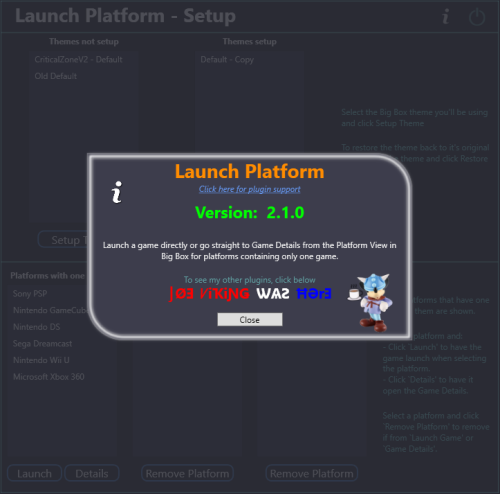
Launch Platforms View File This is a Big Box plugin that allows you to launch a game/application directly from the Platform Wheel View level. For use with platforms that only have one game/application. New in v2.0, now works in Hybrid views (if available). Hybrid Views are available in the Default theme in LaunchBox v13.22-beta-1 and newer. New in v2.1.0, (option) Set platform to go straight to the Game Details View (instead of directly launching the game). Example Use Case: You have a platform called "Music Box Alpha" which contains only one "game", the Music Box Alpha application. To launch it: Select the platform Select the [only] "game" Select "Play" (or press A on your controller to go to the games Details view). Using this plugin (once you've setup the Theme and added the platform via Launch Platform Setup in the Tools menu), to launch the application or go straight to the Game Details: Select the platform (That's it) Installing: Open the zip file and copy the contents into your ../LaunchBox/Plugins/ folder e.g. D:\LaunchBox\Plugins\LaunchPlatform\LaunchPlatform.dll If updating from a previous version, remove any existing .dll files first from the /LaunchPlatform/ subfolder. Setup: Click Tools and select Launch Platform Setup (You may first want to create a backup of the themes' folder you will be using for Big Box. You shouldn't need it, but never a bad idea.) Note: The Default theme is excluded. To use it, make a copy of the Default folder. e.g. /LaunchBox/Themes/Default - Copy/ In the Themes Not Setup list will be all your Big Box themes. (Excluding Default) Select the one you will be using use then click Setup Theme. This will now be listed in Themes Setup. At any time you can undo the changes made by selecting the setup Theme and click Restore Theme. Selecting platform(s) to Launch "the game": Select a Platform in the Platforms with one game List and click Launch . This will move it to the Platforms - Launch Game list. Selecting platform(s) to go directly to the Game Details View: Select a Platform in the Platforms with one game List and click Details . This will move it to the Platforms - Game Details list. Using: Start Big Box. If you just finished setting it up in LaunchBox, you can press Ctrl+B to switch to Big Box. Set the theme to the one you setup earlier (if it's not the current theme already). Scroll through your Platforms wheel until you find a platform you've added and select it. What's actually happening when you "Setup" a theme: (a behind the scenes look) @jayjay is the brains behind getting this to work, and I'm the one that threw it all together. So credit goes to where credit is due. (you decide ) If something's not working right, go ahead and post here and it'll get looked at. And possibly even get resolved. Submitter JoeViking245 Submitted 07/07/2020 Category Third-party Apps and Plugins
-
Version 2.1.0
300 downloads
This is a Big Box plugin that allows you to launch a game/application directly from the Platform Wheel View level. For use with platforms that only have one game/application. New in v2.0, now works in Hybrid views (if available). Hybrid Views are available in the Default theme in LaunchBox v13.22-beta-1 and newer. New in v2.1.0, (option) Set platform to go straight to the Game Details View (instead of directly launching the game). Example Use Case: You have a platform called "Music Box Alpha" which contains only one "game", the Music Box Alpha application. To launch it: Select the platform Select the [only] "game" Select "Play" (or press A on your controller to go to the games Details view). Using this plugin (once you've setup the Theme and added the platform via Launch Platform Setup in the Tools menu), to launch the application or go straight to the Game Details: Select the platform (That's it) Installing: Open the zip file and copy the contents into your ../LaunchBox/Plugins/ folder e.g. D:\LaunchBox\Plugins\LaunchPlatform\LaunchPlatform.dll If updating from a previous version, remove any existing .dll files first from the /LaunchPlatform/ subfolder. Setup: Click Tools and select Launch Platform Setup (You may first want to create a backup of the themes' folder you will be using for Big Box. You shouldn't need it, but never a bad idea.) Note: The Default theme is excluded. To use it, make a copy of the Default folder. e.g. /LaunchBox/Themes/Default - Copy/ In the Themes Not Setup list will be all your Big Box themes. (Excluding Default) Select the one you will be using use then click Setup Theme. This will now be listed in Themes Setup. At any time you can undo the changes made by selecting the setup Theme and click Restore Theme. Selecting platform(s) to Launch "the game": Select a Platform in the Platforms with one game List and click Launch . This will move it to the Platforms - Launch Game list. Selecting platform(s) to go directly to the Game Details View: Select a Platform in the Platforms with one game List and click Details . This will move it to the Platforms - Game Details list. Using: Start Big Box. If you just finished setting it up in LaunchBox, you can press Ctrl+B to switch to Big Box. Set the theme to the one you setup earlier (if it's not the current theme already). Scroll through your Platforms wheel until you find a platform you've added and select it. What's actually happening when you "Setup" a theme: (a behind the scenes look) @jayjay is the brains behind getting this to work, and I'm the one that threw it all together. So credit goes to where credit is due. (you decide ) If something's not working right, go ahead and post here and it'll get looked at. And possibly even get resolved. -
Chiming in... BitBucket is your absolute best place for feature requests (such as this).
-
That's just plain odd. Well, that and the fact Alt+Tabbing to MAME doesn't work. I don't know with which MAME release it changed, but check under Manage Emulators - MAME and see if LB-11 added-in/removed the custom command line "-keyboardprovider dinput". "added-in" vs "removed" depending if 0.206 is 'OK with it'. Next process-of-elimination I'd suggest is to install version 10 of LaunchBox (from inside the ../Updates/ folder) and see if it truly is a LB-11 thing. Though I suspect that it is Not.
-
Sounds like the MAME window isn't getting focus after being launched. Launch a game from LB, if the controls aren't working, instead of Ctrl+Alt+Del, hold Alt and then press Tab. Still holding Alt down, press Tab until you get to the MAME window, then let go of Alt. Do the controls now work? If so, Exit MAME (Esc) and try a different Arcade game and see if it works without having to do all that. Do you have MAME set to Window Mode? Start Out Maximized (not sure if this one matters)?
-
Sounds like you're using the Supermodel UI. The solution is to set-it-and-forget-it. And since you're using LaunchBox, you won't need the Supermodel ui. Get things setup through the ui so that everything works. Then don't ever run it again. Now make a backup (or two) of "Supermodel.ini" for future just-in-case. If you feel the need to change the resolution, edit the ini file with a text editor and search for XResolution = 1920 YResolution = 1080 and change the numbers to your liking. If later you need to make changes to the controller settings, use the command line option (as is Strongly recommended by the SuperModel3 team). [-config-inputs] The ui will make changes [to the ini] the instant you click something. No questions asked. Though I don't know why simply changing the resolution would screw the controllers up. Anyway, ditch the ui and let LaunchBox 'be your guide'.
-
Welcome to the forums. There's a bit going on in this thread, but when you get towards the end, I think you'll find what you're looking for.
-
Sounds like maybe LB/BB wasn't shut down properly. Simplest remedy is go to the Updates folder under LaunchBox and (re)run "LaunchBox-11.0-Setup.exe". They say all your game imports (etc) data will not be lost. But if you're concerned, make a backup of the Data folder first.
-
To be honest, I have never used the search feature in BB and didn't know about the "game wheel" (whatever, depending on your Theme view) it creates with the results. That is pretty Cool! I see also that if you go to the System View (press "Back") and select View Genres, select a specific Genre and then Search, it works as above. For the selected genre and search term. So to continue with your proof of concept, if you can use voice control to activate Search, "key-in" a search term/word(s) and "press Enter", you're well on your way. Next step is to create a User Control that has a textBox to input your search term (hmm.... I think there's a better word than "term"... anyway) and then a groupBox of groupBox(s) with radioButtons for Genre, Series, Ratings etc... (because you can only FilterType by one.. unless you can get && to work)..... Well, you probably know all that. The issue goes back to outputting the result into a 'filtered' [WheelGames]View. Damn! I was on a roll. lol But in the back of my mind, I'm convinced this can be done via a plugin with the resources available. Comes down to being smarter than the average bear by studying/earning the inner workings of C#/WPF/xaml's. And I'm sure it's right there just starring at us. My little cub eyes don't see it yet.?
-
Maybe "popup" was a bad choice of words. But my Plan B 'method' isn't really all that bad to do. As for the Search feature, be it a built-in BB User Control or one from a plugin, there really isn't much difference. Well, other than you'd be responsible for any 'adverse affects' rather than Jason. The keyboard's already available ... ../Themes/Default/KeyboardView.xaml. Just have to plug[-it-]in. Myself, I hate working with WPF (attribute it to just plain ignorance). Modifying's fine. Creating from scratch.... Ugh!! Give me a good ol' Windows Form "popup" any day. lol
-
That details screen for the emulator looks fine. Make sure you Game is pointing to a (correct) rom file. Best to use the Browse button rather than manually typing it in. The only way I was able to replicate that particular error was when I pointed it to a file not recognized by Citra. If it still doesn't load after verifying that, see if you can load it from the command prompt. Open the command prompt from your 'nightly-mingw' folder and type citra-qt.exe "D:\roms\Nintendo 3DS\Mario Kart 7-USA-Rev 1-Decrypted.3ds" (adjusting the folder/file_names accordingly and don't forget the quotes).
-
At the main prompt screen, type the following then press Enter. LOAD "*",8,1 ...... wait for it........See the thin dark blue [progress] bar on the bottom? Wait for it to get all the way to the left. Plan on a minute or 2. Now start playing.
-
Without looking to see if there's an API method, you could create your own xaml (WPF) popup where they could enter the search term (even add check boxes to search by genre, game [Title], Platform....) and then with the return value, use the above code. (just guessing. Not tested) ShowGames(FilterTypes.Title, "Final Flight") If I'm way off on that one, Plan B would be something like use IGame[] GetAllGames(), the parse (oof) by .Title == "Final Flight".
-
From the Dolphin GUI, right click a game and select Properties. In the User Config, add in [Controls] WiimoteProfile1 = Angry Birds "Angry Birds" being whatever the name of the controller profile you saved it as. Do that per game if they have "specific needs". Otherwise, I believe it will load your default settings. Not sure about the "menu", but to load load a Save State you can press (or assign a different button) {F1}, {F2}, {F3}.... depending on the save state number. And to save one, Hold {Shift} then press {F1}, or {F2}.... etc. I'm kinda thinking the whole point of launching directly to a game is to NOT have the GUI hanging around to get in the way. Make sure it's been setup and you may need to select Continuous Scanning (and maybe the box above it???).
-
See "USING TWO I-PACs TOGETHER:" https://www.arcadeworlduk.com/pages/IPAC-2-Code-Table.html Basically they need to be programmed separately (only one connected at a time) then you can plug both in.
-
I don't think I have ever even looked inside that file [DmdDevice.ini]. ? I guess that'd be the proper way to have it 'remember where it's supposed to be.' Nice find! Thanks!!
-
When you have a table up, try holding Alt and then press Tab (still holding Alt) and Tab until you get to the DMD then let go of alt. Assuming the DMD is there now (on top of the table) click the table once. Exit (Esc) the table then restart it. That's a problem I've seen in the past where the DMD [window] is there, just not on top. Usually when it's a newly downloaded table. Bringing it to the top, setting focus back to the table then exiting/restarting seems to fix it. (It remembers where it's supposed to be.) If it's not there at all, then it's something wonky in the setup. Either in the tables script, or in VPinMAME settings. Though, for the most part, you shouldn't ever have to mess with these. For VPinMAME, when you load the table, press F1 and see what you have checked for the DMD. If you an external DMD, more power to ya. Otherwise make sure it's not checked and the one above it is (don't remember what it says).
-
Are you using "citra-qt.exe" as you emulator executable?
-
Try a "$" in front of ESC $ESC::
-
If you manually press Alt+F4 does it exit properly? If so, try adding a "$" in front of Esc. $Esc:: { Send !{F4} }
-
Funny, I was just messing with this the other day. Some things I learned about doing this... The variable passed can be retrieved in the script in 2 different ways. "param in A_Args[1]" or %1%. (The latter being a little more direct approach.) Changing "1" to whichever argument you wish to retrieve. %0% will give you the total number of arguments that are available. This is important especially when using %platform% because if a platform has more than 1 word in it, it will be broken out into separate arguments. Example: Nintendo Entertainment System Using the custom command line %romfile% %platform% will give the following arguments results %0% = 4 %1% = the_name_of_the_game.zip %2% = Nintendo %3% = Entertainment %4% = System To get the full platform name in your script, use Loop %0% ;total # of available arguments { if (A_Index < 2) ;2 is the # of parameters you passed. Adjust accordingly Continue if (A_Index <= %0%) n .= %A_Index% " " } ; %n% = the [full] Platform Name For this to work, you MUST include the %romfile% parameter AND have the %platform% parameter as the last one. If you don't include %romfile% in your custom command line, it will automatically be 'inserted' as the last argument. Though as I think about it, you could adjust the loop to account for that. Also note, what %romfile%returns depends on what you have checked or not (No quotes, File Name only...).
-
Try this instead PluginHelper.LaunchBoxMainViewModel.RefreshData();
.thumb.png.c9faf450e4d2b690a819048b18173f61.png)