
.png.d63b88dc3d5c6db8803dfbd996ce65fc.png)
JoeViking245
-
Posts
5,565 -
Joined
-
Last visited
-
Days Won
41
Content Type
Profiles
Forums
Articles
Downloads
Gallery
Blogs
Everything posted by JoeViking245
-
.thumb.png.c9faf450e4d2b690a819048b18173f61.png)
Game matches to wii version instead of arcade
JoeViking245 replied to Eggbert's topic in Troubleshooting
No. Nothing to do with that. I was just about to post the same thing. I tried manually adding a game and (like you, before) it would only find the Wii version. Went to Tools < Download < Force Update Games Database Metadata... and (again, like you) this time it worked. -
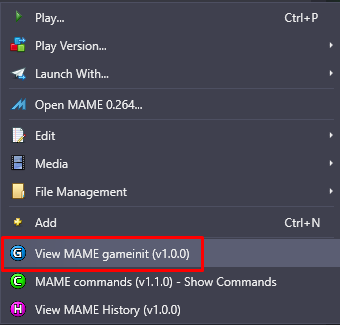
MAME gameinit.dll Viewer View File View game specific "Initialization(s)" and/or "Tip(s)" from MAME's gameinit.dat Inspired from MAME's built in feature in the main UI and via their in-game Tab menu. Not all MAME games require any initial setup to run, but some do. Currently, the DAT file contains 1439 entries. A badge will be displayed if there is an entry in gameinit.dat for that game. (See below for Enabling Badges) Currently only available in LaunchBox (not BigBox) Prerequisites Requires LaunchBox 13.3 or newer Installing Download and then open the plugin file using 7zip. if you don't use 7zip, first unblock the file (Right click, select Properties, and click Unblock) then open it as you normally would. Extract the main folder from inside the zip file into ..\LaunchBox\Plugins\ i.e. D:\LaunchBox\Plugins\MAMEgameinitDAT\ Start LaunchBox Included Files MAMEgameinit.dll /Data/gameinit.dat (v0.263 [latest available] - downloaded from https://www.progettosnaps.net/gameinit/) Using Right-click on a game and select View MAME gameinit. Updating gameinit.dat When loading the plugin, it will check the local version of gameinit.dat against what's available from https://www.progettosnaps.net/gameinit/. If a newer version is available, you will be given the option to Update the local copy. Updating will attempt to download and then replace the existing file. Enabling Badges To enable the badge, click Badges, Plugin Badges, MAME gameinit The Badge image can be changed by replacing the image ../LaunchBox/Images/Badges/MAMEgameinit.png As always, all thoughts, views, opinions, suggestions, comments and accolades are welcome. 😎 If you like this plugin, you may also enjoy some of my other MAME related plugins: View game specific commands from MAME's command.dat https://forums.launchbox-app.com/files/file/4913-view-game-specific-commands-from-mames-commanddat/ MAME History.xml Viewer https://forums.launchbox-app.com/files/file/5228-mame-historyxml-viewer/ MAME Hi-Score Display - A plugin for BigBox https://forums.launchbox-app.com/files/file/2173-mame-hi-score-display-a-plugin-for-bigbox/ MAME Software Lists Import Tool https://forums.launchbox-app.com/files/file/2080-mame-software-lists-import-tool-plugin/ See all my plugins here: https://forums.launchbox-app.com/profile/102158-joeviking245/content/?type=downloads_file Submitter JoeViking245 Submitted 12/30/2024 Category Third-party Apps and Plugins
-
Version 1.0.0
40 downloads
This plugin has been replaced with the MAMEdatsViewer plugin. Apologies for any inconvenience. See here for the new and improved all-in-one plugin here: View game specific "Initialization(s)" and/or "Tip(s)" from MAME's gameinit.dat Inspired from MAME's built in feature in the main UI and via their in-game Tab menu. Not all MAME games require any initial setup to run, but some do. Currently, the DAT file contains 1439 entries. A badge will be displayed if there is an entry in gameinit.dat for that game. (See below for Enabling Badges) Currently only available in LaunchBox (not BigBox) Prerequisites Requires LaunchBox 13.3 or newer Installing Download and then open the plugin file using 7zip. if you don't use 7zip, first unblock the file (Right click, select Properties, and click Unblock) then open it as you normally would. Extract the main folder from inside the zip file into ..\LaunchBox\Plugins\ i.e. D:\LaunchBox\Plugins\MAMEgameinitDAT\ Start LaunchBox Included Files MAMEgameinit.dll /Data/gameinit.dat (v0.263 [latest available] - downloaded from https://www.progettosnaps.net/gameinit/) Using Right-click on a game and select View MAME gameinit. Updating gameinit.dat When loading the plugin, it will check the local version of gameinit.dat against what's available from https://www.progettosnaps.net/gameinit/. If a newer version is available, you will be given the option to Update the local copy. Updating will attempt to download and then replace the existing file. Enabling Badges To enable the badge, click Badges, Plugin Badges, MAME gameinit The Badge image can be changed by replacing the image ../LaunchBox/Images/Badges/MAMEgameinit.png As always, all thoughts, views, opinions, suggestions, comments and accolades are welcome. 😎 If you like this plugin, you may also enjoy some of my other MAME related plugins: View game specific commands from MAME's command.dat https://forums.launchbox-app.com/files/file/4913-view-game-specific-commands-from-mames-commanddat/ MAME History.xml Viewer https://forums.launchbox-app.com/files/file/5228-mame-historyxml-viewer/ MAME Hi-Score Display - A plugin for BigBox https://forums.launchbox-app.com/files/file/2173-mame-hi-score-display-a-plugin-for-bigbox/ MAME Software Lists Import Tool https://forums.launchbox-app.com/files/file/2080-mame-software-lists-import-tool-plugin/ See all my plugins here: https://forums.launchbox-app.com/profile/102158-joeviking245/content/?type=downloads_file -
How Long To Beat (HLTB)
JoeViking245 commented on JoeViking245's file in Third-party Apps and Plugins
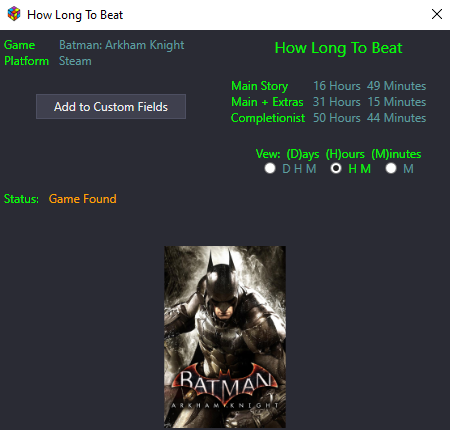 Version 2.2.4 released Hot Fix: Fixed calls to HLTB (again)
 -
May want to check this out / ask here:
-
Themes are not working on other computer
JoeViking245 replied to hyunchris's topic in Troubleshooting
Hopefully something in here will shed some light on the issue you're having. -
You might need to run the games in 'windowed mode' to get OBS to capture it.
-
Yes and no. MAME changed the default keys back in February (v0.263). So, if you're installing/running an older version of MAME, they'd be correct. But for newer versions, they'd [of course] be incorrect. It seems that LaunchBox doesn't check those against the version of MAME you have. But using a save state for an Arcade game is kind of like cheating. Pausing too, for that matter.
-
Auto-Save, 'Manual'-Save and Quick-Save are separate Save States. The Error is trying to load a Quick-Save. (vs. creating one) Open MAME (mame.exe) and go to General Settings < Input Assignments < User Interface and look for Save State to see the assigned keys for saving and loading States. [The default] to create a Save State is F6. (To create a Quick-Save, it's Shift+F6.) [The default] to load a Save State is F7. (To load a Quick-Save, it's Shift+F7.) Here's the 3 different Save States "1" is a "manual" Save State. (I believe can be a number 1 through 9 [1 through 0?].) "auto" and "quick" are self-explanatory.

-
Sega Model 3 - Wii Remote Supermodel.ini File Request
JoeViking245 replied to jrusso4587's topic in Emulation
Did you try setting it up from the Windows Command Prompt using the parameter -config-inputs? You may need to use one of the other Input Systems (listed in the link). I don't have a Wii Remote, so not sure which one is needed (if any) or if it'll even work. You can read more about it here: Advanced Usage - Supermodel: A Sega Model 3 Arcade Emulator -
To be clear, RetroArch "names the save file same as the file name" that was sent to it. You probably won't like this because my guess is that RetroArch will now not be able to find/load the [renamed] save. If that's the case (RA can't find the save), I see 2 options (which both come down to personal preference). The obvious one, have the filename inside the zip the same as the zip. Don't zip up these tiny, single-file ROMs in the 1st place. (reduce/eliminate situations like this) Merry belated-Christmas and Happy New Year, right back at ch'ya.
-
Are you having LaunchBox unzip the file before sending it to RA? What's the name of the file inside of the zip?
-
You're welcome. Always glad to help when and if I can. 😎
-
Sure you can. When running MAME softlists', the default is to start it using the consoles' emulated keyboard. Here, MAME's UI commands don't work (i.e. F5 [or "P"] to pause emulation). To get out of the emulated keyboard mode, press SCRLOCK on your keyboard. Then... you can press F5 to pause MAME. Alternately, you can add in the command line parameter -ui_active. This will automatically enable MAME's UI keyboard functions. But if the system you're running requires its 'emulated' keyboard, you'll need to press SCRLOCK to get [back] into the emulated keyboard mode.
-
Un-check Forceful Pause?
-
It seems that, if you set one emulator up the way you had it before, that one will work for your softlists. If you create a new emulator (in LaunchBox, pointing to same mame.exe) and set it the way you have it now, that will work for Arcade. What I meant by "different topic" is, that it's getting off topic from this thread. But yes, there are probably quite a few other existing topics that go over setting up MAME for softlists. Some if using MAME's softlist ROMs and others for using non-MAME ROMs. But what you look for depends on the ROMs you're using.
-
Yeah, sending Alt+F4 will only close the emulator. And not trigger the Escape sequence you wrote. try this Run, C:\Users\Retro-pc\Desktop\LaunchBox\0-UTILS\0-myscripts\kill-Lichtknarre.ahk Process,Wait,Dolphin.exe While WinExist("ahk_exe Dolphin.exe") Sleep 700 $Esc:: { run "C:\Users\Retro-pc\Desktop\Lichtknarre.exe - Shortcut.lnk" WinClose, ahk_exe Dolphin.exe } 2Joy5:: If GetkeyState("Joy8") { run "C:\Users\Retro-pc\Desktop\Lichtknarre.exe - Shortcut.lnk" WinClose, ahk_exe Dolphin.exe }
-
Tell them not to change the Platforms' name. Add some checks-and-balances. if (specificPlatform == null) Or (worse case) use a try { } catch { }. Then process accordingly. Nothing is "convoluted" in programming. It's called expect-the-worst or being creative. If you have to add 10-20 more lines of code or create new ViewModel methods to handle the checks-and-balances, it's all part of the game (figuratively speaking).
-
Essentially, the platforms Name property is its unique identifier since there can be no duplicates of that property. So, the get that specific IPlatform, IPlatform specificPlatform = PluginHelper.DataManager.GetPlatformByName("Nintendo Entertainment System");
-
Checking/Un-checking "Remove quotes" and "Remove file extension.." has no effect on the Pause Screen. From what I understood, the only thing needed to be changed to get the Pause Screen(s) to work was to disable the Forceful Pause Screen Activation. If (somehow) your Arcade platform had no issues loading the ROMs with those un-checked, un-check them. If you're not using MAME's softlist ROMs for non-Arcade systems, then yes, those boxes need to be un-checked. (There are options to get a single instance of the MAME emulator in LaunchBox to play nicely between arcade ROMs, softlist ROMs and/or non-MAME ROMs. But that's a different topic.)
-
You can add a hotkey to your existing script to get the controller to work. Add it below your existing escape routine. 1Joy2:: If GetkeyState("Joy1") SendLevel, 1 Send {Esc} Return The above example uses a button combo. Press and hold button 1 (aka "Joy1", aka "A"), then press button 2 (aka 1Joy2, aka "B"). (As written, it won't work the other way around.) Setting SendLevel, 1 is required to be able to trigger the Escape sequence you already have in your code. Change the 1 and 2 respectively to whatever buttons you want. If you want to use only a single button press, remove the 2nd line. 🎄
-
Do all your other emulators use the same Escape hotkey sequence you show (restarting Lichtknarre)? If so, is your Dolphin Default Command-line Parameters -b -e?
-
Sounds like more work for me. lol That was the only thing I had changed in the script when it worked. So if you had changed anything else in the script or maybe transposed my change... "a lot of study". But no AI stuff. Glad you got it working!
-
Using Set WshShell = CreateObject("WScript.Shell") adds another layer to things. I tested with .Games(cGameName).Settings.Value("showwindmd")=False [or True] and it worked fine. Also DesktopMode is already declared up on line 75 (Batman). Though adding WshShell doesn't really hurt anything, it is one more 'layer'. To an external call (where an internal one already exists). Right click the DMD Click Show Window Border Mouse to the lower right corner until you see the double arrow Click and drag to resize Click the window to drag/move to where you want it Click and hold.. wiggle/shake it a little (weird, I know) Right click and click Show Window Border (to hide the border) Click the playfield then exit/restart the table
-
MAME 0.222 No Nag
JoeViking245 replied to MadK9's topic in Third-Party Applications and Plugins (Released)
It's possible because the version associated the above View Download is 4 and a half years old. You might try using a more current release.
.thumb.png.c9faf450e4d2b690a819048b18173f61.png)




