
d66dle
-
Posts
64 -
Joined
-
Last visited
-
Days Won
3
Content Type
Profiles
Forums
Articles
Downloads
Gallery
Blogs
Files posted by d66dle
-
Better Old Default Plus
By d66dle in Custom Themes
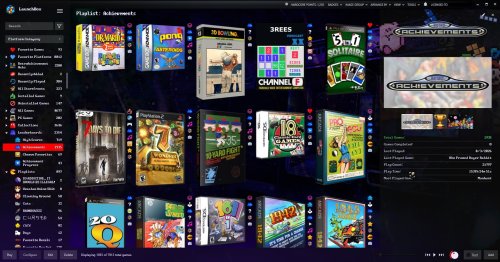
So, very similar to my other Better Old Default... With the following changes:
Platform/Game Details:
- less margins in details!
- new clickable custom links! (Based on Retrofrogg's GameDetailsView with the manual button)
- more simplistic subtitle format under clear logo titles
- RetroAchievements have been moved above the play button for more convenient viewing.
Box View:
- now based faeran's Default Plus version with the toggleable text button...
NOTE: it may or may not be slightly faster than the old (legacy) box view? And this way it doesn't require specific box spacing with the badges being further to the right. Previous box view is also included separately, if you prefer the old one without the text toggle.
- added optional bottom aligned box view
NOTE: this apparently only looks as intended with Dynamic Box Sizing turned OFF
Changes from 1.0.1
Platform Details:
- added last played / most played / random buttons from the default theme
- added Default Emulator and Games Beaten/Mastered fields (checkable fields in LB Options)
- colors and field order better mirror those of the game details
Game Details:
- play button now uses Windows Command Prompt font, a little easier to see the text/icons than the default
- High Scores and Related Games tabs now use larger font size for easier reading (with the WCP font I use, it was ultra tiny by default)
- added Playtime Commitment from the default theme
Box View:
- added a few more alt box alignment choices in downloads
NOTE: Fast Box view is soon to be added to this theme, so box alignment change will be possible with "Configure Layout"
CREDITS:
Since this is more of an amalgamation of existing themes, credit is due to those creators, such as @Retrofrogg, @Mr. RetroLust, @Rincewind, and @faeran.
✺◟(•‿•)◞✺
91 downloads
- lb theme
- launchbox theme
- (and 1 more)
-
Lights Out! Nintendo DSi Bezels for Retroarch
By d66dle in Platform Bezels/Overlays
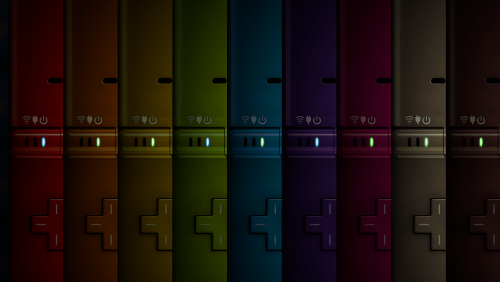
After I finally got DSiWare games working, I felt the need for some color variation... I use these specifically for DSi, but they can also be used for DS games, since my version uses the same screen dimensions as the Nintendo DS bezel in Mr. RetroLust's Lights Out! Retroarch Bezels. Mine are named to fit alongside these. Admittedly, they are also a little bit shiner than the original DS bezel.
I tried to make every color variation I could think of to match all possible DS screen colors/shaders, making a grand total of 43 bezels to choose from. Use many/all of them if you like, or use just one for all games. XCF template is included as well.
CREDIT: @Mr. RetroLust for the original DS bezel, which I used as a base to make my own.
25 downloads
(0 reviews)0 comments
Submitted
-
Lights Out! Croc PS1 Bezels for Retroarch
By d66dle in Platform Bezels/Overlays
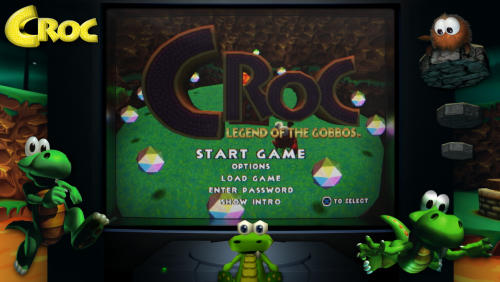
My other favorite PS1 character Croc needed a custom bezel (or seven) alongside Crash Bandicoot. Not as many Croc PNGs laying around, unfortunately.
I don't know if I'll make more, but Mr.RetroLust's bezels are fun to decorate.
CREDIT: original PS1 bezel made by @Mr. RetroLust
0 downloads
(0 reviews)0 comments
Submitted
-
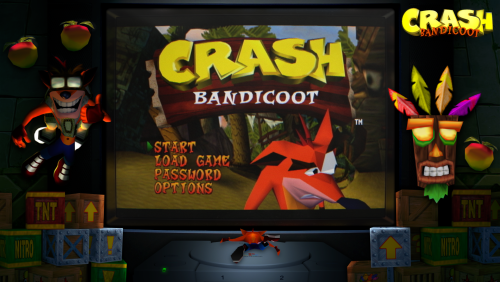
Lights Out! Crash Bandicoot PS1 Bezels for Retroarch
By d66dle in Platform Bezels/Overlays
I felt my PS1 Crash Bandicoot games needed some pizzazz, so I decorated Mr. RetroLust's PS1 bezel from Lights Out! Retroarch Bezels
I've included multiple versions, but I finally settled on the last one 'Bezel_90s_Panasonic_Collection_Crash4b' as my main bezel for ps1 crash games. I think it's the most cohesive version, but maybe the others could fit someone's tastes better. Some are more 'busy' than others. (⊙.☉)7 (see previews in screenshots)
throw them into wherever you keep your RA overlays, usually somewhere in retroarch/overlays
CREDITS: Mr. RetroLust for their PS1 bezel, which I edited to my liking, and also sites like PNGwing for the transparent images.
9 downloads
- lights out
- retrolust
- (and 3 more)
(0 reviews)0 comments
Updated
-
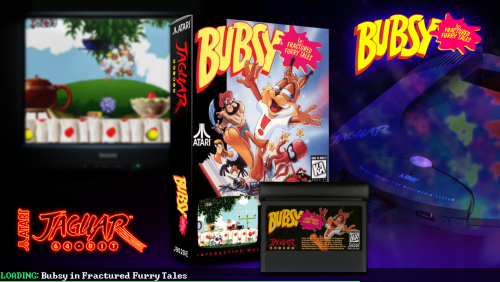
StageBox But It's Neon Deluxe - Mo' Platforms
By d66dle in Startup Themes
This is a modification of faeran's StageBox Startup Theme to be more Lights-Out/NeonDeluxe-ish.
I also readjusted the filling of the TV image so it's not so stretchy looking.
I kinda like how it turned out, so share it I must! (┛ಠ_ಠ)┛
CREDITS: faeren and Mr.RetroLust for both of their respective startup themes, which I have sort of mashed together here.
Changes from 1.0.6
Well, I figured out how to get per-platform backgrounds working... and platform logos. And fonts. Yee-haw I'm evolving
New version's changes are:
- custom per-platform backgrounds that I threw together to match the neon theme, plus some alternate backgrounds in the folders named 'Alts' that can be used for specific platforms, playlists, and/or your default background. Simply rename, for example, 'Arcade1' to 'Arcade' and copy/paste into the parent folder. If a platform/playlist is not present, the theme will simply fallback to the 'Default'.
- any background can now be used in place of these without having to edit in the TV thing in, because this is now an overlay on top of the background. A little easier for customization, I think.
- the theme now displays platform logos on the bottom left, as well as the game logo on the top right.
- the theme now uses 'Windows Command Prompt' font, which you may need to install from the Fonts folder.
- added XCF templates for the background, should anyone want to make their own in this style. They're pretty simple to make, since it's just overlaying the device/console on top of a blurred wallpaper image. 'BGNeon' is for the backgrounds, and 'BGTemp' is for the blurry TV overlay, which I figured I may as well toss in there.
Note: I only did backgrounds for the platforms I have in my own build, but I would (ideally) like to add as many as I can in future updates, especially as I add more platforms to my build.
Another Note: I'm not sure how to get platforms to work that have an '&' sign in them, such as Game & Watch, so I put those in a &-sign-breaks-these folder for now. (థ౪థᴖ)
65 downloads
- startup theme
- retrolust
- (and 2 more)
-
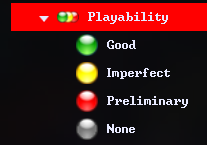
Arcade Status/Playability Badges 🟢 Playlists 🟡 Icons 🔴
By d66dle in Custom Badges
A possibly useful media pack containing the following:
- Data Folder - 4 playlists for Arcade Status Good, Imperfect, Preliminary, and None
- Images Folder - 3 Badge override icons to accompany the custom badge plugins
- Images Folder - An "Arcade Playability" category icon
- Images Folder - 4 Arcade Status Icons to accompany the playlists
- Plugins Folder - 3 custom badges that show for their respective good/imperfect/preliminary arcade status
How to Use:
Inside the zip, it is mostly extracting into your Launchbox directory (folders Data and Plugins can be extracted from the zip without tampering)
One folder under Images\Media Packs\Platform Icons\ will be extracted as "Icon_Pack_Name" which I would suggest you rename to your desired icon pack, such as "Legacy Conversion Icon Pack"
Finally, you'll need to create the platform category so it shows with the provided icon. To do this, right click while in Platform Category View to create one. The "Unique Name" should be the same as that of the category icon. "Nested Name" and "Sort Title" can be whatever you like.
And that's all ಠ_ರೃ
5 downloads
(0 reviews)0 comments
Updated
-
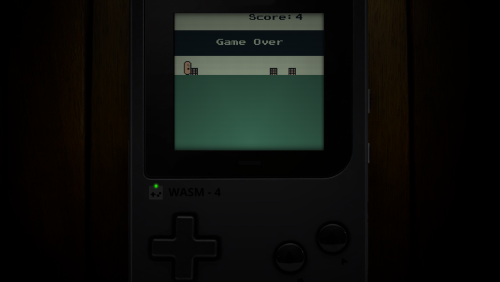
Lights Out! WASM-4 Handheld Overlays for Retroarch
By d66dle in Platform Bezels/Overlays
I needed a LightsOut-esque bezel for WASM-4 in particular, so I tried to find a generic handheld image and slap as WASM logo on it... This ModRetro "Chromatic" device here seemed promising.
Only black this time, but black goes with everything! I included non-WASM / blank ones as well to be able to use with other generic handhelds.
CREDITS: The wooden background I used is from a Mr. RetroLust bezel. The WASM-4 logo I got from Duimon's WASM-4 bezel. A mashing of two ideas, if you will...
( ゚皿゚)ノ
5 downloads
(0 reviews)0 comments
Submitted
-
Star Rating Badges ⭐ Playlists ⭐ Icons
By d66dle in Custom Badges
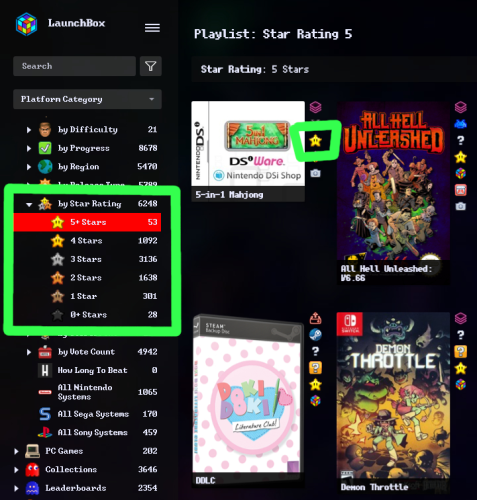
Small media pack for Star Ratings. Included is:
- 2 badge plugins + badge icons (star rating 4 and 5)
- 6 playlists + icons (star rating 0-5)
- 1 category icon (star ratings)
The badges help to see at a glance what games are rated more highly.
How To Use:
When you extract the zip, the Data and Plugins folders can go into your root "Launchbox" directory.
Inside the Images folder, you'll see two sub-folders:
I would put the images in the "Badges" folder into "Launchox/Images/Media Packs/Overrides/Badges"
And then the two folders inside "Platform Icons" can both go into "Launchbox/Images/Media Packs/Platform Icons/Legacy Conversion Icon Pack" (or whichever media pack you use for platform icons)
Disclaimer: The images are only recolored by me. I yanked the original star icon form the internet, somewhere...
⭐◟(•‿•)◞⭐
11 downloads
-
Mo' Collection Sidebar Icons
By d66dle in Custom Sidebar Icons
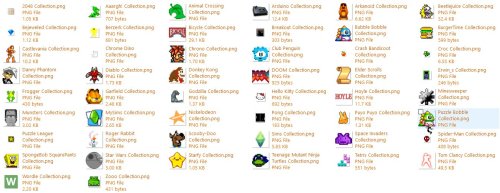
Just some filler collection icons I edited and/or yanked from various sources (mostly Google, sprite websites, and MAME icons).
They are not equal in size, but they look similar enough in size in the sidebar... ¯\_(ツ)_/¯
They can be dropped into the Playlist folder of your Platform Icon Media Pack of choice. I put them in Images\Media Packs\Platform Icons\Legacy Conversion Icon Pack\Playlists\
24 downloads
- sidebar
- sidebar icons
- (and 4 more)
(0 reviews)0 comments
Submitted
-
Lights Out! Generic TV Variations for Retroarch
By d66dle in Platform Bezels/Overlays
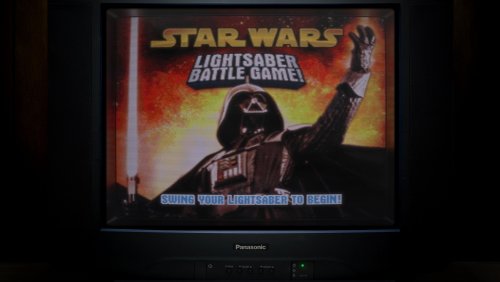
Some variations of Mr.RetroLust's Panasonic TV Bezel. Mostly some changed backgrounds, added screenless versions, and wider screen versions.
I like to use "Bezel_90s_Panasonic_BGWood" for non-arcade MAME Plug n' Play TV Games, as well as other console platforms that I don't have a specific bezel for.
CREDITS: Mr.RetroLust for their Retroarch Bezel Series
ᐠ( ᐛ )ᐟ
41 downloads
(0 reviews)0 comments
Submitted
-
Lights Out! Generic Handheld Overlays for Retroarch
By d66dle in Platform Bezels/Overlays
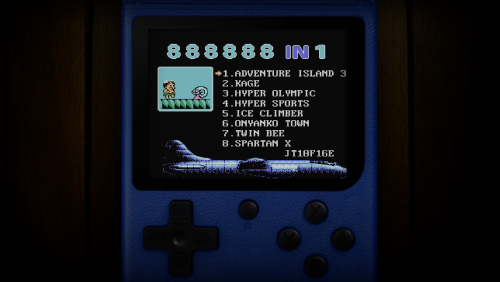
A generic retro handheld in various colors, which I like to use for some non-arcade MAME games, but it can be used for other handheld platforms that don't have a specific bezel already. GIMP file is included as well.
CREDITS: Mr. RetroLust for the Lights Out! aesthetic inspiration, and the dark wooden texture I used for the background.
ヽ(⌐■_■)ノ♪♬
5 downloads
(0 reviews)0 comments
Updated
-
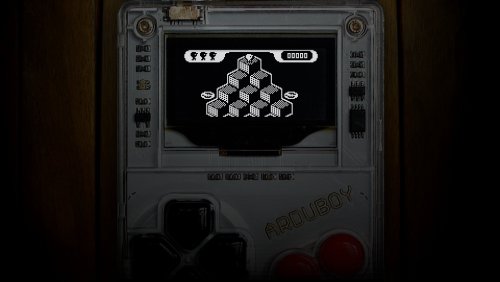
Lights Out! Arduboy Overlays for Retroarch
By d66dle in Platform Bezels/Overlays
Arduboy bezels for retroarch! The main one I use is the image named "Bezel_Arduboy" (size 1280x720) but I also included some alternatives that I experimented with. The extras are a little larger than the original (size 1920x1080).
CREDITS: Mr.RetroLust for the Lights Out! aesthetic and the backgrounds I used in most of the images.
ᕕ(⌐■_■)ᕗ ♪♬
2 downloads
(0 reviews)0 comments
Submitted
-
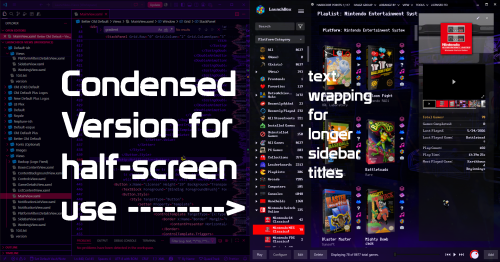
Slightly Better Old Default Theme
By d66dle in Custom Themes
An Old-Default-ish Launchbox theme, because I'm stubborn, and sometimes simpler is better. Not very fast on my 2020 laptop though. Regardless, I've enjoyed tweaking it to my needs over time, so I will call this theme "done" until further notice--or if there is something catastrophically wrong with the current file.
If you try it out, perhaps let me know if it's as sluggish as I think it is on other folks' systems... I am curious if it's an old-theme problem or a my-laptop-is-getting-old problem (it might also just be that I'm not versed enough in code to put together a theme that isn't riddled with errors resulting in slowdown).
In the theme folder Better Old Default I have also included optional font files (one of which is a URL to its itch.io page), as well as some backgrounds I edited and then upscaled based on Mr.RetroLust's Neon Deluxe Arcade background. The fonts can be chosen in Launchbox options after installing the font files to your system.
THEME INSTALLATION:
Better Old Default folder goes into LBThemes folder. Choose in LB Options or Themes & Media page.
If applicable, rename MainView_Condensed.xaml to MainView.xaml to use the condensed version that will fit the top menu in one half of the screen (badge menu and notification bell are missing in this version to make room).
Optionally, install the included fonts. (Note: "Launchbox" logo on the top left may or may not look a bit off kilter with some custom fonts.
Also optionally, use one of the included wallpapers as your default LB background.
CREDITS:
Since this is more of an amalgamation of a few different themes, credit is due to those creators, such as Retrofrogg, Mr.RetroLust, and faeran.
...I'm sure I've forgotten something (゜д゜??)
60 downloads
- default theme
- retrolust
- (and 3 more)
-
Custom Badge - Old 'Unplayed' + Alt Progress/Achievement Badges
By d66dle in Custom Badges
I made this custom 'Unplayed' badge, because the old one stopped working the way I would like it to after the progress system was added. The current 'Not Started / Unplayed' in the automation tab only allows as low as 1 minute to mark as unplayed. Ideally, I'd like to have 0 minutes as an option, so I can see at a glance what games I've played at least once, even if for less than a minute... So, this is my workaround!
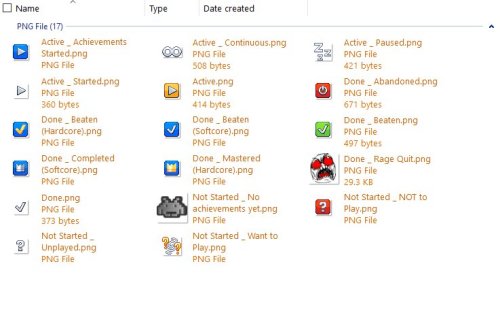
Additionally, I added my current progress badge icons, accompanied by the achievement badge icon to match + mame high score icon in the same style.
I have customized the progress organization a little different from the default, so refer to the attached screenshots and rename the badge icons as desired, or ignore the extras.
Extract and throw them into Images\Media Packs\Overrides\Badges\ to use them on top of your badge pack of choice.
CREDITS: to the Generic Icons pack by Reffpixels, which I used/edited/recolored for my personal use.
Also, to whoever the heck made these (shown below), as I've since long lost the source of them...
乁( ◔ ౪◔)ㄏ
18 downloads
(0 reviews)0 comments
Updated
-
Mo' Sidebar Icons
By d66dle in Custom Sidebar Icons
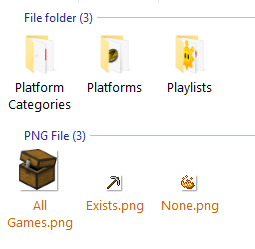
Platform/Sidebar icons form my current LB Setup. Most of them I yanked off of various internet sources and/or edited myself to my liking. I tried to narrow these down to just the ones I haven't seen uploaded in the forums yet. Note: Sizes of images may vary... They should all look the same size in LB though.
Throw them all in Images\Media Packs\Platform Icons\[PackName]\ OR pick and choose if you see some you like. ¯\_( ͡° ͜ʖ ͡°)_/¯
CREDITS: https://reffpixels.itch.io/ for a handful of the icons I downloaded/edited/recolored for my use in LB (ex. progress playlists)
26 downloads
- platform icons
- sidebar
- (and 1 more)
(0 reviews)0 comments
Submitted
-

Custom Badge - Music
By d66dle in Custom Badges
A simple custom badge I made using LBCustomBadge. This one shows when a game has a music file attached to it. I also included my "Favorite Music" playlist with its platform icon, which is an ongoing list...
Plugin .dll goes into Plugins folder.
the playlist goes into Data\Playlists
I put my custom badge image into Images\Media Packs\Overrides\Badges
and the playlist icon into Images\Media Packs\Platform Icons\Legacy Conversion Icon Pack\Playlists (or whatever pack you're using from Tools > Manage > LB Themes & Media)
this one is not so little ఠ_ఠ
You can use whatever badge icon you like, though; just replace it in Overrides\Badges
7 downloads
(0 reviews)0 comments
Submitted
-
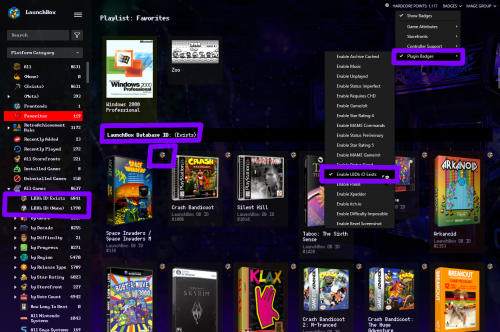
Custom Badge - LBDb ID Exists
By d66dle in Custom Badges
A simple custom badge I made using LBCustomBadge. Makes it easier to view at a glance which games are linked to the database without sorting by ID. I've included the badge plugin, badge image, automated playlists, and platform icons for playlist use.
Plugin .dll goes into Plugins folder.
the 2 playlists go into Data\Playlists
I put my custom badge image into Images\Media Packs\Overrides\Badges
and the playlist images in Images\Media Packs\Platform Icons\Legacy Conversion Icon Pack\Playlists (or whatever pack you're using from Tools > Manage > LB Themes & Media)
and that's all... ┏(◐‿◑)┛
11 downloads
- database
- platform icons
- (and 2 more)
-
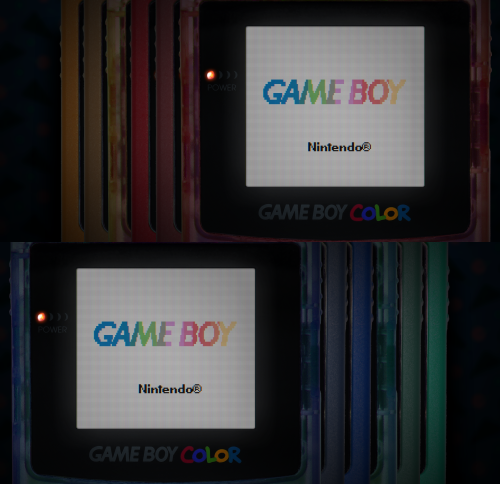
Mo' Colors for your Game Boy Color - Lights Out! Retroarch Bezels
By d66dle in Platform Bezels/Overlays
I have edited some alternate colors to go along with Mr. RetroLust's platform bezels for Retroarch (specifically the GBC ones), which you can find here:
I liked the idea of having different colored GBC bezels per game, so I added a bunch of basic colors not present in the original variants. This includes new flat and transparent colors, de-saturated versions, and a simple black one... totaling to 27 new overlays. Because why not.
You can use the save game override option in Retroarch to save the bezel per game, and/or you can pick one to use by default for your GBC core, using the save core override option.
The files are in the folder structure: overlays/_MR.RETROLUST, so you can simply drop overlays into your Retroarch directory.
GIMP .xcf file is also included separately for convenience.
┏(^0^)┛
CREDITS: Mr. RetroLust for the original overlays!
76 downloads
(0 reviews)0 comments
Submitted
-
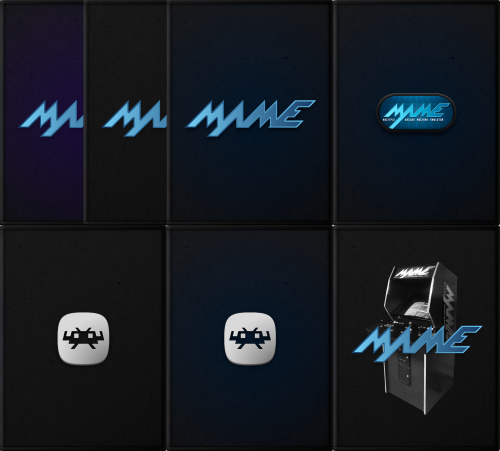
Simple Default Boxes for MAME/Retroarch + XCF Files (Updated)
By d66dle in Platform Default Image Packs
Very simple default boxes with MAME/Retroarch logos, similar to the Launchbox ones I posted earlier.
I didn't make so many variants this time, but the included GIMP files now have some more stuff in there to work with, if anyone wants to make their own boxes with them (ex. use the plastic wrap layer, recoloring). It's not the cleanest 'template' in the world... but one can play around with it if they wish ^^; You can see a preview of what those look like in the screenshots.
So far I'm content using the 'Default Boxes - [Name]' version of the files rather than the alternates just for my own use, but if get bored with them I may add more alt variants, more platforms, cart images, etc... For now, I'll just leave this here as is.
Default 3D Box and Default Box folders go into Launchbox\Images\Platforms\PlatformName\
Alternatively, you can add the default image by selecting the desired platform in the left sidebar, and clicking Edit. This will create the folder automatically and copy the selected image into it.
Credits: MrRetrolust for the base box images, and to the creators of the MAME/Retroarch logos
👾└(^o^)┐
97 downloads
- default box
- default image
- (and 4 more)
(0 reviews)0 comments
Updated
-
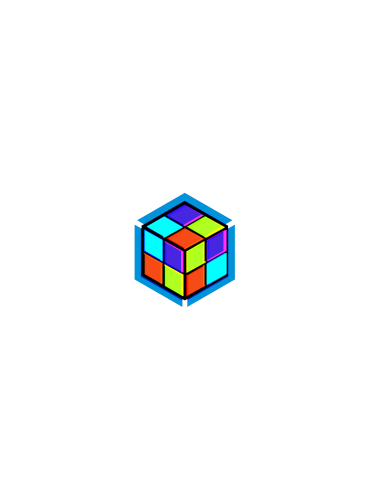
Simple Default Box/Cart Image + Symbolic Link Usage
By d66dle in Platform Default Image Packs
Basically a neon transparent version of the current default box image. It's a little less bland than and looks better alongside Mr.Retrolust's Neon Deluxe Arcade Theme.
The Default Box, 3D Box, etc. folders in the zip all contain the same image. Simply drop folders into:
Launchbox\Images\Platforms\PlatformName\
How I use Symbolic Links with this file:
I don't believe there is a way to apply one image to ALL platforms besides copying them into each default platform folder or editing within LB. I don't have THAT many platforms, so I have a 'base' folder outside of LB Images that contains my desired default image (currently this one) and I drop symbolic links of the Default Box, 3D Box, etc. into each of my platforms (I use LinkShellExtension for this), so if I happen to replace the base image, it then syncs to all platforms that still have the symlinks, and I can always delete a symlink folder if I feel like using a platform-specific box art instead.
I don't think it's possible to replace certain default images like logos or banners--anything that isn't a box or a cart, unfortunately, but this is as close as I can get at the moment.
My hope is that someone else might like to use it as a default box, if they're not wanting to use custom art per platform ¯\_(ツ)_/¯
59 downloads
(0 reviews)0 comments
Updated
-
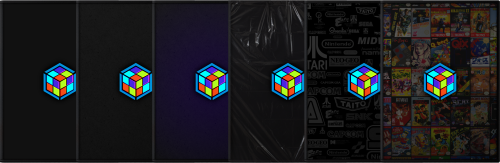
Universal Default Boxes/3D Boxes + XCF Files
By d66dle in Platform Default Image Packs
An extension of my initial default 'box' thingy--now in actual boxy form! It looks a little better than the flat logo on 3d models...
Default 3D Box and Default Box folders go into Launchbox\Images\Platforms\PlatformName\
Alternatively, you can add the default image by selecting the desired platform in the left sidebar, and clicking Edit. This will create the folder automatically and copy the selected image into it.
For an explanation of how I use symbolic links to disperse the default image across multiple platforms to avoid tedious copy/pasting, see my initial post below:
I also experimented with different looks for funzies, so I'm sharing those too, in case anyone wants them. GIMP .xcf files are included as well.
Credits: Mr.RetroLust for the base box images, niglurion and DerSchlachter for the backgrounds I used as overlays in some of the alternate boxes.
( ´◔ ש◔`) ノシ 👾
111 downloads
- default box
- default image
- (and 1 more)
-
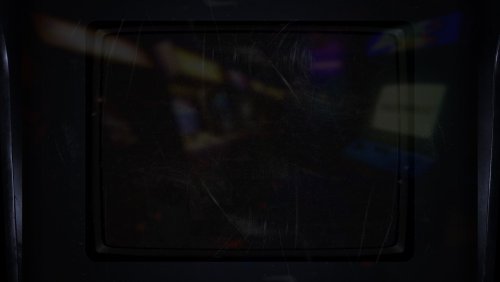
Alternative Frame for ArcCabView BGFX + how to configure your own frame
By d66dle in Platform Bezels/Overlays
For the purpose of bezel reflection in MAME, ArcCabView is a GODSEND, but I always thought the frame was too thin and too light when using Lights Out bezels.... so I made a wider darker one! The screenshots showcase the frame using different bezels.
artwork and bgfx folders go into your MAME directory, overwriting two files: ArcCabView.json and frame.png
(⌐⊙_⊙) How to use your own custom frame so it lines up properly with the game screen (using the default ArcCabView preset):
0. If not already installed, download ArcCabView_MAME_BGFX_Chain_2.2d and extract into your MAME directory
(probably backup artwork/bgfx and bgfx folders in case you want to revert changes)
1. replace frame.png located in mame/artwork/bgfx/chains/ArcCabView with your custom image
2. load up a game in MAME, then press `/~ (onscreen display hotkey) and adjust Frame Size X, Frame Size Y, and Corner Size so the game screen fits the frame to your liking.
3. Exit game, and open the .cfg file for that rom in mame/cfg
4. Also open the ArcCabView.json file in mame/bgfx/chains/ArcCabView
5. find the adjusted values in the .cfg file and copy them into the .json file.
The values in question are highlighted in the image below:
6. Save the .json file.
6½: Optionally, repeat steps 1-6 until satisfied...
7. ಠ_ರೃ P R O F I T.
I don't see a lot of mentioning of ArcCabView here, so maybe some MAME users will find it to be a decent (or more subtle) alternative to Mega Bezel Shaders for Retroarch, which I use for other platforms anyways. I'm just very attached to MAME for arcade...
101 downloads
- arccabview
- mame
- (and 6 more)
(0 reviews)0 comments
Submitted
-
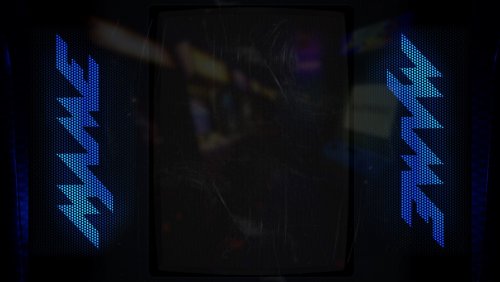
Alternative Lights Out MAME Default Bezels + XCF Files
By d66dle in Platform Bezels/Overlays
These are edited versions of Mr.Retrolust's default horizont and vertical MAME bezels. The version with MAME Logos come from Duimon's MAME bezels.
horizont & vertical zip files go in: MAME/artwork
ᕕ(⌐■_■)ᕗ MOSTLY USELESS INFORMATION:
Black Version Horizontal: indistinguishable from the original, except for an adjustment on the edges. There was a greenish line about 3 pixels wide that I just covered in black on both sides... I only noticed when I zoomed all the way in, so now it's REALLY black 😅
Black Version Vertical: the black right edge is cropped a bit and mirrored on the other side for a more symmetrical look, instead of red on the left.
Blue Versions: Duimon's metal-textured logos are layered ontop of the black LightsOut bezels. I like these the best, because they're distinct enough from the game bezels while still maintaining the Lights Out aesthetic. (some game bezels use the default image for that rom, making it harder to tell right away)
Templates: in XCF format, because I still use GIMP... I left some layers in there that I decided against using, like alternate logo sizes and buttons/sticks from the CAB version of Duimon's bezels. May or may not be useful.
Credits go to the original creators of their MAME bezels, Mr.Retrolust & Duimon! I wanted to share my edits, just because I like how they look in my setup so far.
242 downloads
- mame
- default artwork
- (and 6 more)
(1 review)0 comments
Updated
