

Light Sock
-
Posts
162 -
Joined
Content Type
Profiles
Forums
Articles
Downloads
Gallery
Blogs
Everything posted by Light Sock
-
 Thanks I really appreciate it. I wonder if you've compile it yourself or if it's the file from the foreign language website I can't remember of. Thanks!
 -
I just spent the last 3 days trying things here and there and I may have found an easy route to manually clean a romset. I'm downloading the latest non-merged romset and will try to achieve the following. Delete the unused files after the LB Mame importer process Delete all non-working CHDs Remove incompatible games with my control panel with the new tool posted yesterday If I'm able to get this working I'll try to make a post and hopefully that'll help someone.
-
Thanks a lot this seems all fresh 8 hours ago! In the meatime maybe it would be nice if we go and upvote this request of updating the Mame importer. https://bitbucket.org/jasondavidcarr/launchbox/issues/5928/mame-arcade-fullset-importer-update
-
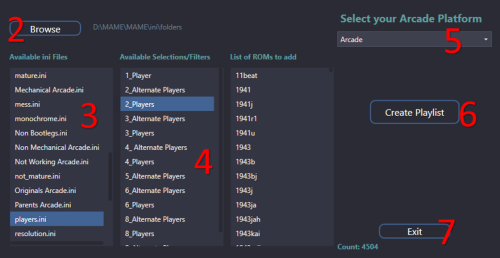
Create Playlists from MAME category ini files
Light Sock commented on JoeViking245's file in Third-party Apps and Plugins
 Thanks a lot I'll try this out! Also maybe you'd be interested in upvoting an update for the Mame importer. https://bitbucket.org/jasondavidcarr/launchbox/issues/5928/mame-arcade-fullset-importer-update
 -
I completely understand, it all makes sense, I've made the suggestion and do really hope this feature gets upvoted and that one day it'll see development! It would be really appreciated if it could be added directly to the original post by a moderator to get maximum visibility. https://bitbucket.org/jasondavidcarr/launchbox/issues/5928/mame-arcade-fullset-importer-update
-
Do you plan on adding those features? If yes, any ETA? Can we pay for the development somewhere for priorities? Thanks!
-
Hi @Jason Carr and thank you for your reply. At first I was really excited to wait for the next version of LB but reading your message again, I've checked and I already have Launchbox 11.9 version. So maybe I'm not looking at the right place but the importer in Tools > Import > Mame Arcade Fullset isn't doing exactly what Lightspeed did. It more just clean the obvious Mame junk the vast majority doensn't want. As for what could be improved in the importer; I think that some people want to have a fullset that is fully working and playable by their control panel. For example in my case I have 2 joysticks that are 4 way / 8 way only. So again, in my case, what's missing in the Mame full-set importer is the following: Removing games that have more than 2 players Removing games that have more than 8 buttons (excluding COIN and START buttons) Removing games that aren't 4 way or 8 way (analog joy, lightgun, spinner, rotating joy, etc) Thanks a lot for your great work by the way! It would be awesome to see the Mame importer updated to fin tune the collection to your control panel compatibility!
-
Anyone can give me a download link to the latest known stable version of this? Much appreciated, thanks!
-
I have a similar question. I would like to remove all the games that have More than 2 players More than 6 buttons (excluding start and coin) Every controls that aren't 4 way or 8 way Romlister - https://www.waste.org/~winkles/ROMLister/ Lightspeed - https://forums.launchbox-app.com/topic/30530-lightspeed-ultra-fast-mame-importer-tool/ Both are outdated. Isn't there's a manual way of filtering the games with Notepad+ or something? Thanks for helping!
-
Here's a fix to launch CabVol minimized to system tray if you have shelled bigbox.exe or any other frontend. This will work without explorer.exe running. 1- Create a shortcut of CabVol.exe 2- Create a .bat file with this code %comspec% /c start "" /min "C:\LaunchBox\ThirdParty\CabVol\CabVol.lnk" 3- Create a .vbs file with this code Dim WinScriptHost Set WinScriptHost = CreateObject("WScript.Shell") WinScriptHost.Run Chr(34) & "C:\LaunchBox\ThirdParty\CabVol\CabVol.bat" & Chr(34), 0 Set WinScriptHost = Nothing 4- Create an automated task in the Windows Task Scheduler to run your .vbs script. This is the only way to get CabVol launching minimized to system tray from the task scheduler. Task Scheduler doesn't let you launch a shortcut ".lnk" file with the minimized option. Task Scheduler doesn't hide a cmd prompt in case you're asking why the .vbx script file. Hope this helps someone out there, I've spent few hours on that one!
-
Thank you
-
Arcab 0.2 (Alpha) - NEW THEME FOR BARTOP & CAB
Light Sock replied to Light Sock's topic in Big Box Custom Themes
0.2 - Changelog Added game marquee image in the cab Added static fallback video background in the cab Added abstract video mask in wheel sidebar Added light video mask in wheel selector Fixed compressed video background file size Fixed first basket arcade scene to arcade machines in video bg Fixed computer battery indicator always showing File cleanup Minor fixes -
Pioneer Palcom Laserdisc (OpenMSX) help
Light Sock replied to Dave S Cramer's topic in Troubleshooting
Anyone can help with this complicated emulator? -
Just updated youtube and download link.
-
Starcraft Sound Pack View File Audio have been taken from original Broodwar game in source game files. Hope you enjoy! Find latest version here https://github.com/Emulga/BigBox-Starcraft-Sound-Pack Submitter G22 Submitted 12/06/2019 Category Big Box Sound Packs
-
- 1
-

-
-
Remade Windows to my liking if anyone prefer this one.

-
Thanks a lot for this list. This is some amazing work and I'm really looking forward to use it. I would like to keep my Mame fullset but add your no filler all killer game list as a playlist. Is there a way that I could do this without doing this manually? Thanks for anyone who could give me a hand on this ?
-
Hi it's me again! I've been back at it for a good 8 hours for 34 new clear logos. I spent a lot of time on this and hope you'll like them! For some older arcade publishers I had to redraw the logos in vector to size them up bigger. I first started to separate my games by arcade board until I realize it's a bad practice coming from the Hyperspin community. At least for me it's useless as it created just too much categories. I made clear logos for the most known publisher/developer companies out there. So you can just write Capcom in the search bar where you have all your arcade games and create a Capcom playlist. I remade them so the word "classics" isn't there. I found it irrelevant. I think we're just doing things over and over because it always been like that without questioning why ? capcom 68000 is there because it's the only one I did before changing my mind on arcade board categories
-
Demul ROM extractor pack for MAME ROMs
Light Sock commented on DOS76's file in Third-party Apps and Plugins
If anyone's interested to update their files I've decided to take the time and redo them as a lot of games have been added. I've also added ST-V, Model 2 and Model 3. Should you update with these? If your Mame set is relatively new then I guess yes! Hope this will save you some time they took quite some of my yesterday's night to do hehe! 0.215 version https://github.com/Emulga/Mame-Rom-Extractor/releases/tag/0.215 Usage https://github.com/Emulga/Mame-Rom-Extractor/wiki/Usage -
Oh my god haha! My brain had an hard time processing within the set. Thanks a lot you're a lifesaver! Much appreciated!
-
According to latest Mame 0.215 release forum topic the only set that contains all bios and devices is the non-merged set. Since Demul can't point a different folder for bios and roms some people like me that stores Arcade roms in Games/Arcade and bios in Emulators/Mame/roms to have roms and bios separated may have an issue with Demul. But still non-merged may not be the best as you'll loose 50gb of disk space. You could probably use a non-merged or split set with the bios in the Games/Arcade folder and save 50gb. I think I found what makes me think that there were missing roms in my merge set. I've found a romset of Sega Model 3 which is basically roms pulled out of a Mame set. So I compared them to my roms and found no other versions zips because they're of course in the merge zip. So I went into LB and click on that particular rom and checked under "Additional Apps" and they weren't there. Then I thought I was missing stuff. Since I used the importer and told him to not import "not working" roms I understand that what I think it's missing it's in reality broken games. BTW if anyone knows how I could put different paths for bios and roms in Demul before I move all my bios files in "Games/Arcade", which I would prefer not to. Thanks a lot for helping me, great discussion!
-
Hi @DOS76 and thank you for your quick reply! 4. I'll update them then and add them to my Github so anyone can contribute. 7. I've found that some arcade games that uses an emulator other than Mame have it's own scraping section with more metadata/artwork than it can be found when scraping as Arcade. I wonder why there are separate sections for example Sega Naomi instead of only having everything under Arcade in the games database. Hope this makes more sense. 8. New question: It seems that less games (like bootlegs) have been imported in "Additional Apps" using a merge set. Is it possible that a non-merged set results in more games in Launchbox? I know duplicates all should be under "Additional Apps" page of a game but seems like I'm missing some. Thanks a lot for helping, really appreciated!
-
Hi Launchboxers! I'm using the merged Mame 0.213 set and I'm thinking of updating to the latest non-merged set. There's some confusion and many different informations out there. Information that I suspect to be outdated are probably misleading me. So I'm making this topic because different informations about the same thing said inverse. If you can answer these questions, I should be good to go back on building the most complete arcade build. What's best between merged or non-merged for LB? It's best to have a non-merged set for Demul (naomi1, naomi2, atomiswave, hikaru, cavecv1000 and gaelco). If I download the non-merged set I don't need the (machines-bios-devices) pack too right? http://prntscr.com/puen11 Is this outdated? What's the difference between Naomi and Naomi GD? What's the difference between Naomi 2 and Naomi 2 GD? When scraping for example 'Sega Model 2' should I choose Arcade or Sega Model 2 or run both? Why all arcade games aren't scraping under Arcade? Are there plans on merging and updating the database. I think it would be much more easier like this. Thanks for helping me!
-
Exactly what I would have done but honestly I'm thinking just like you as I can see no difference. OpenGL was probably a great alternative back then with slower spu.



