.png.d63b88dc3d5c6db8803dfbd996ce65fc.png)
JoeViking245
-
Posts
4,992 -
Joined
-
Last visited
-
Days Won
36
Content Type
Profiles
Forums
Articles
Downloads
Gallery
Blogs
Everything posted by JoeViking245
-
Try force downloading the update. Tools < Download < Force Update Games Database Metadata...
-
-
.thumb.png.c9faf450e4d2b690a819048b18173f61.png)
Gopher 64 full screen launch for launchbox
JoeViking245 replied to phisch's topic in Troubleshooting
Just tested, and yes, that works. Thanks -
Gopher 64 full screen launch for launchbox
JoeViking245 replied to phisch's topic in Troubleshooting
Not sure if there is one. Plan "B": Edit the emulator (in LaunchBox) and in the Running Script section, add WinWaitActive, ahk_exe gopher64-windows-x86_64.exe send !{Enter} ;fullscreen [toggle] -
Duckstation: prevent gui from showing when booting game?
JoeViking245 replied to Jayinem's topic in Troubleshooting
To help circumvent any potential "rumors", current production of the 2 emulators are not from the same developers. The UI's are similar because they use QT something-or-another. I think Dolphin and some others use that as well. Glad to hear you got it working. -
Duckstation: prevent gui from showing when booting game?
JoeViking245 replied to Jayinem's topic in Troubleshooting
This is what I have and is working here. Check that you have the startup screen enabled. That's the point (well, one of them) of startup screens. To hide the flash of potential UI's.
-
@Drodrik @Klopjero Thought I'd take a stab at this. I don't personally use these/this, so if anything's wonky feel free to let me know and I'll see what I can do. Doomworld Scraper Redux What's different from the original plugin (some housekeeping) This version will remove the following Custom Fields (if they exist from a previous run of the original plugin): "doomworld:description" It's already set in the games Notes "doomworld:title" It's already set as the games Title "doomworld:author" It's already set as the games Developer "doomworld:url" Will Add an Additional App that can be seen/clicked in the game Details panel creates a DoomWorld direct LINK (if found) to that game "doomworld:textfile" Will Add an Additional App that can be seen/clicked in the game Details panel creates TextFile direct LINK (if found) to the games [online] text file "Close matches" can be gone through AFTER importing all the exact matches.** Save reported output/log to a text file for later viewing **If a game didn't find an exact match and it has one or more possible ("fuzzy") matches, after completing the Search, a Look at Fuzzy Matches button will show. This will open a window in which you can optionally import metadata from a "close match" for those games. Installing: If you have @Nielk1's plugin in your /LaunchBox/Plugins/ folder, move/delete it 1st. Extract the contents of the attached zip into /LaunchBox/Plugins/. e.g. D:/Launchox/Plugins/DoomworldScraper/DoomworldScraper.dll If you have placed your own metadata for these games and you don't have it enabled already, you should enable backups, exit then restart LaunchBox (to create a backup) before running this plugin (In case you don't like the results). Tools < Options < Data < Backups Using: Select your game(s) then click Tools and select Doomworld Scraper Redux Click Begin Search to: scan your games against Doomworld add custom fields and additional apps to matching games (Optional) After scraping click Save output to text file. This will create "output.txt" and is saved in the plugins folder. Subsequent clicks will overwrite the file with whatever's in the output screen. After saving, a text file icon will appear which you can click to view the text file. (Optional) If shown, click the Look at Fuzzy Matches button. Click on a game Click through the possible matches If you see one you like Click Apply to add the custom fields and additional apps to the game When completed (takes about 100 milliseconds), "Done" will appear Wash, rinse and repeat for other games Click Close when done DoomworldScraperRedux (v1.0.0).7z
-
Right-click the platform and select Edit. Go to the Parents tab and uncheck Root (leaving just the Consoles (Category) box checked). Click OK to save and close.
-
I don't have this emulator setup on my system. I'm hoping @Jabb3rJaw (or someone else in-the-know) can maybe look at them and see if anything stands out. If no one chimes in with any ideas, I can try sometime this week to set it up, see what happens and report back here.
-
Can you share a few screenshots? In LaunchBox, edit the emulator and share a screenshot of the main Details section the Associated Platforms section Still in LaunchBox, edit a game you're trying to launch and share a screenshot of the Launching section the Emulation section (Four screenshots total)
-
Haven't tested any games, but try setting the Application Path to citron-cmd.exe (vs. citron.exe). Here's the variables that can be passed to it: -c, --config Load the specified configuration file -f, --fullscreen Start in fullscreen mode -g, --game File path of the game to load -h, --help Display this help and exit -m, --multiplayer=nick:password@address:port Nickname, password, address and port for multiplayer -p, --program Pass following string as arguments to executable -u, --user Select a specific user profile from 0 to 7 -v, --version Output version information and exit
-
Nice!!! I wonder if in the prior one, was the Additional App removed? eh... Doesn't matter. Glad you got it working!
-
Glad to hear it (mostly) worked. Sounds like what's happening is LaunchBox is being forced closed and changes aren't being saved. The process: When you close LaunchBox (normally), the UI will close and [hiding] in the background, LaunchBox saves any changes you made. Theory: When you close LaunchBox, you don't want to "see" it so you can "go about your other business". Changes you made are saved (again, in the background) for when you next start LaunchBox. The fix: Don't do it that way. Alternate: Use Big Box and then you can shut down the PC from its System Menu. System Menu < Shut Down. Plan "B": Use a batch file start LaunchBox: start LB (you play games or whatever) you exit LB normally it waits for LB background processes to finish then shuts down the PC. @echo off cd "D:\LaunchBox" start "" "LaunchBox.exe" :waitloop tasklist /FI "IMAGENAME eq LaunchBox.exe" | find /I "LaunchBox.exe" >nul if not errorlevel 1 ( timeout /t 2 >nul goto waitloop ) rem start your shutdown process here rem shutdown -s -f Change line #2 to your LaunchBox location. The commented out "shutdown" line will shut down (-s) the PC and force close (-f) any lingering apps (so it doesn't get hung up) and does not require it to be ran as Administrator (assuming you're logged on as Admin on your PC). Or at least that's supposed to work that way. "shutdown -s -f" NOT TESTED BY ME! You can create a shortcut to 'this' batch file and set Run to Minimized to get the Command Prompt window out of the way.
-
Convert multiples Bin/Cue games into ISO
JoeViking245 replied to EduInmigrante's topic in Troubleshooting
As stated, you just need to add the one line (plus "pause" so you can see the results before the Command Window closes) for %%f in (*.bin) do ("C:\Program Files\PowerISO\piso.exe" convert "%%f" -o "%%~nf.iso") pause to a text file and save it as a batch file (.bat). Just like you did previously. Put this file in the same folder as your ROM files and run (double-click) it. Then move the newly created .iso files (in that same folder) to wherever you want. -
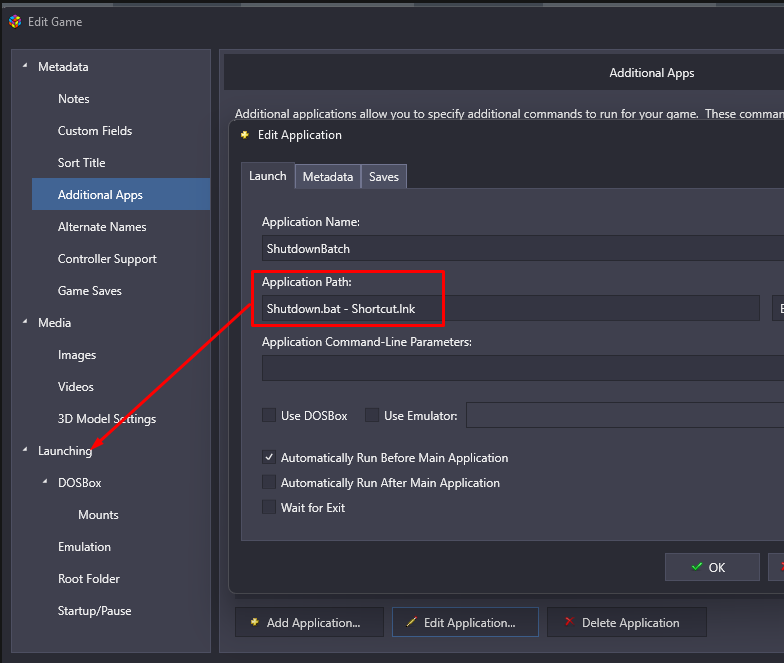
Ahh... Since this is "its own game", instead of adding an Additional App to itself, you want the Application Path to be in the games Launching section. Then remove the Additional App. Also, in the Emulation section (3 below Launching), be sure that Use an emulator to play this game (primarily for console games) is un-checked.
-
To clarify: You created a batch file (that does something) called Shutdown.bat You then created a shortcut for that batch file. Shutdown.bat - Shortcut.lnk You edited the shortcut, clicked Advanced and checked Run as administrator You imported the .lnk file into LaunchBox as "Other" (vs. as a ROM file.) aka, it's not using an emulator as shown in that "games" Emulation section If you right-click the "game" and select Play, it works ...but in the Game Details panel (right side) it shows Unavailable. (where others would show Play) After right-clicking and selecting Play, the batch file 'does its thing'. But when returning to LaunchBox, the game is no longer there. Unless you mean something different by "doesn't save on return"? Is that correct? Because 5) and 6) contradict each other and doesn't make sense. Can you edit your Shutdown "game" (in LaunchBox) and share some screenshots The (main) Metadata section The Launching section The Emulation section
-
Launch box Mame Intergration Plugin 1.3
JoeViking245 replied to Gamerbydesign's topic in Troubleshooting
I've seen reports from others where they try it 3 or more times, and eventually the update takes. I'm not saying this is "the fix". But an interim means to resolving the issue you're seeing. I would recommend filing a Bug Report though. (Top is this page under Help & Support - File a Bug Report) -
Convert multiples Bin/Cue games into ISO
JoeViking245 replied to EduInmigrante's topic in Troubleshooting
Try the batch file solution that rye74 posted above. Put the one line of code they show into a text file and save it as a .bat file. Then as stated, "place it in a folder with your bin files and run it". If it doesn't work, edit the .bat file, add a 2nd line and put in pause. Save and close. This way when the process part of the batch file is complete, the Command Window will stay open and you'll be able to the process, and/or any errors. -
Convert multiples Bin/Cue games into ISO
JoeViking245 replied to EduInmigrante's topic in Troubleshooting
K, that's the PowerShell script (vs. a batch file script) and needs to be saved as a .ps1 (vs. .bat) file. Then needs to be ran from PowerShell. Depending on your computer, you might/should be able to right-click the .ps1 file and select Run with PowerShell. -
Convert multiples Bin/Cue games into ISO
JoeViking245 replied to EduInmigrante's topic in Troubleshooting
Are all your games 1 .cue file and 1 .bin file? Or do some have more than 1 .bin file? Are you using the batch file that rye74 posted? Did you save the file as .bat file (make sure it's not filename.bat.txt) Does anything happening when you run it? If so, what? Or the PowerShell script that runeblade posted? Did you change the path that the .bin files are located in? Does anything happening when you run it? if so, what? Do you have PowerISO installed in your C:\Program Files\PowerISO\ folder? If it's located somewhere else, did you change the path in the batch file (or script, depending on exactly which one you used)? -
It's showing the Version. View < Show / Hide < Text on All Games (Ctrl+Shift+T) Edit: (oops. Wrong one) View < Show / Hide < Versions (Ctrl+R)
-
Help needed playing console games with standalone Finalburn Neo
JoeViking245 replied to chavatar's topic in Troubleshooting
Run fbneo.exe. Click Game - Most Recent Games. Look at one of your MD games that you played. Look at the filename to the right of the Title. On my test, I ran A Bug's Life using a MAME softlist ROM bugslife.zip. What FBN shows as the filename is md_bugslife. In LaunchBox, I edited my FinalBurn Neo emulator. In the Associated Platforms section, I added to the Default Command-Line Parameters for my MD platform, md_%romfile%. And [for me] it worked. In the Details section, Remove Quotes and Remove File Extension are both [still] checked. This assumes you have your ROM paths set in the emulator itself. Which I imagine you do, because you indicated the games work directly from the emulator.
-
Depending on the number of videos there, one may want to just re-name the folder, rather than copy the files. Excellent point!
-
There is not. Not innately, at least. This is displayed by checking Tools < Options < Visuals < Platform Details - Most Played and is hard coded into LaunchBox. So can't be altered. If you so desire, you can request a feature to add another checkbox/option for Longest Playtime (or something similar). At the top if this page, click Help & Support and select Request a Feature. If you do make a request, be sure to come back here and add a link to it [when it becomes public] so that others can Upvote it.
-
You can add the batch files in Tools < Options < General < Startup Applications I'm not sure if they execute prior to initiating LB/BB though. (But imagine they do.) Tou can set them specifically for LaunchBox and/or Big Box. For "cleanliness", you may want to create shortcuts for the batch files. Then right-click each one (the shortcut, that is) and select Properties. Change Run: to Minimized. Then when adding the Starup Apps, select the shortcut(s). Respectively. This way you won't see the Command Prompt window when they run.
.thumb.png.c9faf450e4d2b690a819048b18173f61.png)