

sundogak
-
Posts
1443 -
Joined
-
Last visited
-
Days Won
8
Content Type
Profiles
Forums
Articles
Downloads
Gallery
Blogs
Everything posted by sundogak
-
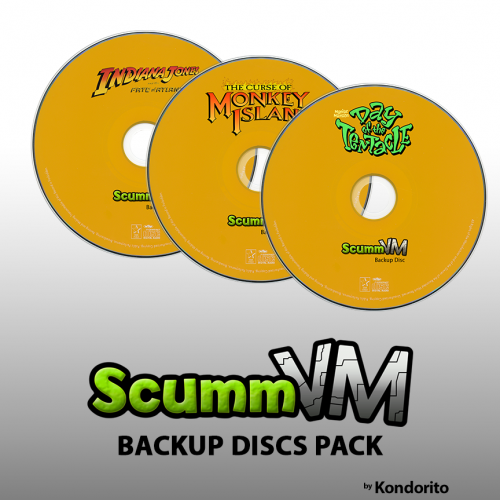 @Kondorito Thanks for the work on this pack. I was able to pretty much drop this in and go with my collection along with the box pack of same design. One disc I didn't see but the 3D box was present was Broken Sword - Shadow of the Templars. I see the other two versions of the series but not this one. I used your template and pulled one together and attached here in case others want. 242 vs my 1 was easy! ? Thanks, again.
 -
@cleverestThere is this tool linked below which will allow to toggle off/on the media if it is present in collection or not. It is a lot faster pulling the information than Audit and it is handy to see what is in your collection that doesn't have LB DB ID yet. It is just a lister and doesn't actually modify anything. Can export out to text of excel directly (which would be useful if Audit function would do with out having to copy/paste). A couple things to watch out for: It hasn't been updated in awhile (sadly) and seems to have issues with some data where it will miss media that it is present but it is actually there in LB folder. MAME is a big one where for purpose of media checking it cannot be used since gives false negatives. It doesn't pick up media that is named like the ROM that is completely different than the title. For example, in MAME it will see media for the game "005" since the ROM and media are same name. But in my case 99% of my media is named after the ROM in MAME so "18 Holes Pro Golf" where the media uses the "progolf" rom name it will show the media as absent. The Database ID indicator works for MAME and it does list it your full DB set, just cannot use for media management sadly. The other one is that it doesn't like "colons" or apostrophes in name and will indicate media missing (for similar reasons as above, since colons are replaced with dashes in actual media Windows file names). On the positives, and why I use as tool for certain things is that it is fast and that it allows for checking of things like "manuals" and "music" which for whatever reason the Audit function in LB still doesn't allow. It allows more granularity to check media since drop down boxes are more specific than LB Audit function (gameplay vs title for example). It is also good for checking if games are in LB DB and is much faster than audit function. If the above two name format issues were fixed it is superior to the Audit function as far as granularity of media audited. Unfortunately, doesn't seem it is likely to be updated at this point and the audit function doesn't seem high on priority list in LB to add any features similar to this tool so have to kludge away.
-
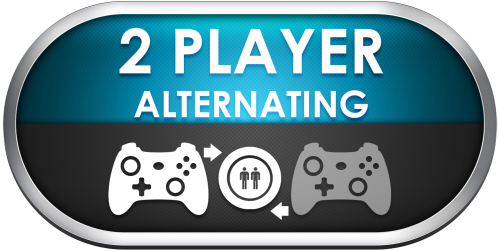
Uploaded three sets of player mode logos (arcade, PC, and console). One to eight players with each having a version with alternating, simultaneous, and player mode text only. Arcade logos modeled (mostly) after Dragon57 set made earlier but with versions up to eight players (MAME has a few with 8).
-

Version 1.2.0
1097 downloads
Three sets of player mode silver ring logos in following formats: Arcade - with arcade joystick pictogram modeled after Dragon57 style. PC - with PC player pictogram Console - with XBOX controller pictogram Each set contains 25 logos with from one player up to eight players for each of the following: Alternating Simultaneous Plain (just Player logo with no alternating or simultaneous text) A logo for each set is also present for more than 8 players. -
Silver Ring Clear Logo Play Mode Playlist Set View File Three sets of player mode silver ring logos in following formats: Arcade - with arcade joystick pictogram modeled after Dragon57 style. PC - with PC player pictogram Console - with XBOX controller pictogram Each set contains 25 logos with from one player up to eight players for each of the following: Alternating Simultaneous Plain (just Player logo with no alternating or simultaneous text) A logo for each set is also present for more than 8 players. Submitter sundogak Submitted 01/12/2019 Category Playlist Clear Logos
-
Not sure why wouldn't just run all off SSD if space then don't have to mess with folder path changes. Regardless, if do you could use the Tools option to change ROM folder paths. However, if your install path for LB is still on the same drive as the ROMs (just moved to different drive letter) then in most cases LB stores things in relative paths so shouldn't have to do a whole lot. But good to check Emulator paths after move as well as the platform settings (below). The quick way if for some reason things are hard mapped and have a lot to do is to go into the Launchbox\Data\Platforms directory and will see XML files for each platform. So if some reason it used "C:" you could do text edit/replace to "D:" (or with relative path) if needed. But likely things are relative paths so won't have to bother with that. Just make a backup of XMLs before changing anything (and of course the full install of LB and ROMs)

-
This is working FP setup. You no longer need to use the AHK.exe anymore as long as you use the commands listed in the Default Command-Line Parameters below: /open %romfile% /play /exit If using BAM (which really should to get most of FP) it looks the same, just points to BAM exe: If you are getting meditation errors 99% of time is due to settings under Preferences. This setup below has worked on +500 tables I have opened to generate screen caps (Ignore the 2nd monitor checkbox, I have setup so 2nd screen shows the backbox for the pinball machine). There are a few tables where you must change the model quality to Medium. Some video cards can also cause issues. So if still having issues try lowering texture filtering and turning off reflections and other graphic enhancements. The key ones that cause most issues are the "Render the Game Room" turned to off and most tables need the "High Quality Textures" turned on. I have found at least on my card the Back Board reflection and Playfield Reflections cause problems on tables, so I just leave off. Lastly, if still getting errors in a table then there are some that have messed up code. Going here (or many others) to download an updated version solves most other problems. http://www.pinsimdb.org/ Other than that, without knowing the table name, hard to say.
-
You can do several ways depending on preference. Option 1: You can place the videos in your specific theme folder like shown here: Example: Playlist. These go in folder called "Playlists". You may have to create folder. Example: Categories. These go in folder called "Platform Categories". You may have to create folder. Where they go depends on if your video is for a category or playlist (categories go in Platform Categories). You also need to make sure you have used the same naming you have in Unique Name for any videos (and works same for images). Option 2: Video folder for all themes. If you want video for all themes, then they go in the Launchbox\Videos directory. Using option 1 takes priority over anything in the all themes video folder.
-
@weller96c Forgot this one. I don't have a good pixel font. The one I had was hard to read which (to me) defeats the point of the logo.
-
@weller96c Afraid I don't have the skill and or templates to make all logos you wanted and/or the way the originals were done. Putting out here in case others can chime in. 1) I would need the PSD file or the honeycomb/matrix background screen to make a Super Nintendo version of this one that Dragon57 did. My skills are very basic and typically only if I have a PSD I can mod. Anything fancy, I don't have the art skills. So no go on the SNES one. 2) The smaller sized ResidualVM, RetroPie logos you wanted replaced, I don't have the backgrounds that were in the originals and/or don't know how to recreate it in PS. So what have below are simply colored backgrounds which is limit of my PS skills: Here are two versions of the "Collections" logo you wanted (one I had made for my setup). Not one on your list, but here is MMO one that others may find useful and that I needed for some games in my Dreamcast listing.
-
Silver Ring Clear Region Playlist Logo Set View File The region set of playlist silver rings includes: Argentina Asia Australia Brazil Canada China Czech Republic Denmark Europe Finland France Germany Hong Kong India Ireland Italy Japan Korea and another logo that is more technically accurate map wise as "South Korea" Mexico New Zealand North America Norway Russia Spain South America Sweden Taiwan The Netherlands UK USA World x 2 different versions with one in ALT folder Inspiration for set was by Dragon57 for his original set of regional logos. Submitter sundogak Submitted 01/07/2019 Category Playlist Clear Logos
-

Version 1.0.0
120 downloads
The region set of playlist silver rings includes: Argentina Asia Australia Brazil Canada China Czech Republic Denmark Europe Finland France Germany Hong Kong India Ireland Italy Japan Korea and another logo that is more technically accurate map wise as "South Korea" Mexico New Zealand North America Norway Russia Spain South America Sweden Taiwan The Netherlands UK USA World x 2 different versions with one in ALT folder Inspiration for set was by Dragon57 for his original set of regional logos. -
2 and 4 player already done by Dragon57This is a three player version in same design as Dragon57s.
-
Here are a more region logos (see spoiler for list) using same format Dragon57 used and I stole shamelessly (see zip file for all logos). I also included Dragon57s in the alts folder along with a South America one that was missing from original set in case folks want those. My main goal was to include any country that I had, any that I knew were floating about but not in my set, and others just "cuz". I am sure I missed a few, but should be the major game hub countries. I personally use more broad groupings in my region playlists (i.e., South America playlist includes Mexico, Brazil, etc.) but others with larger/more international collections may want granularity of specific country. A few examples: Regions.7z
-
@cataclysm67 A lot of those on the list on are on Page 20 of this thread some of which included in the spoiler below but others likely there as well. Dragon57 also did a Nintendo Vs set and it is here : @fyrenthenimar There are Wiiware PSD blank game templates here:
-
Thanks, I looked there but must have missed since it showed as WIP on the first page. I figured it had to be completed at some point. Will upload to LB DB.
-
I am working on my SCUMM/MSDOS games and came across this one that does not have a logo. I looked at Hyperspin and the normal Google locations and couldn't find a logo for Zork: Grand Inquisitor other than the one attached which isn't in best of shape. I figured it would have been created at some point in that older game but Google fu failed me. Attached is the highest resolution of cover art could find. Appreciate if anyone has time to create.
-
Platform and Platform Category question
sundogak replied to GimmeClassics's topic in Troubleshooting
This is the Games Database subforum so not many cruise through this neck of the woods. Anyway, to your question. I had similar observation with "Arcade/Arcade" once the playlists were in use. At moment, there isn't a way to hide a platform/playlist (I hope it gets added for various reasons). So there is only various work-a rounds and depends on your preference. In my case I had Daphne as well in the Arcade platform so I broke down and renamed the emulator "Arcade" to "Mame" so those two systems sit under Arcade Category. I then moved the main playlists that I frequent into the root of the Arcade Category rather than under the MAME Platform such as Favorites. I left some of the less used playlists under MAME platform category since most of time (at least in Bigbox) users will stay within the first level Arcade Platform and not dive into the MAME listing. Plus they don't care about "CPS I, III, etc) so made a bit more sense that way. The nice thing with the playlists is you can move them around to decide which directory structure makes sense for your use. One other work around, is to rename the emulator Platform (Mame) to "Arcade All Games" (or whatever name prefer) and that fulfills the role of your "All Games" playlist via the platform or can cheat and leave name and just change logo so user thinks it is the All Games listing. Then just put all other playlists under the root of the Arcade Category. It is pain to rename the "Arcade" Platform and I found it is best after renaming to wait a bit (no actions in Arcade section) and then close LB. Reopen and the directories should be renamed (but verify). I found in some cases it didn't always move directories (likely a file was locked when it was moving files). Plus, you have to rename your logos/videos for that platform to match whatever it gets changed to. The last one is to just ignore it and you have two "Arcades" in the the listings which has advantage of not having to mess with media. I am sure there are other examples but those were ones I tried until there is way to hide things.
-
Tough keeping track of all of them, but a few of those were in Viking's (et al.) existing sets. So options o'rama depending on preferences.
-
Hmm, interesting it was losing player 2 again. I was hoping it was that JOYCODE setting. USB IDs are being difficult I suspect. MAME is a dark art at times! I definitely would go with the read only CFG file then. I used that option for many years, so it doesn't seem to cause any issues that I found. Good to know that the CTRL settings may be wonky when I start fiddling with my 360 controllers and may just skip and go the read only route again.
-
As noted above, device IDs are potential issue. However, one item I see below is your Joycode reference vs the player reference. Had you intended to map joystick 1 as player 2? Your Joycodes are 2,3,4, 5 rather than 1,2,3,4. Other than that, looks okay. I attached my working 2 controller CFG version with XBOX ONE controllers. In theory, it would be adding in the other two by duplicating (minus the keycodes) for the other two controllers and inserting the devices 3 and 4. Lastly, might take a look at the MAME Docs here, it isn't super detailed but might be helpful. https://docs.mamedev.org/advanced/devicemap.html I haven't tried firing up my XBOX 360 controllers but may try and see if it is doing the same thing. My long term goal was to have a setup similar to yours, with 2 XBOX ONE controllers and my two non-used 360 controllers. Just have to find the 360 dongle buried in a drawer somewhere...... xbox2player.cfg
-
The ctrlr directory is typically in the root. However, check you Core Search Path entries in your MAME.INI file. You should see an entry (default) of: ctrlrpath ctrlr Also within the MAME.INI file is an entry under "Core Input Options" that is "ctrlr" which is where you can set which controller file you want MAME to use. Then you don't have to use the -ctrlr flag in LB as noted by TheNewClassics since the MAME.INI file will tell MAME where to pull the CTRLR file. Basically, all this does is that when MAME launches, it looks to the CTRLR setting. If there is an entry it copies those settings within the named CFG file to the Default.CFG file located in the \CFG folder at MAME launch. That is why when you don't use the CTRLR option you can get everything setup and working (which saves everything to the Default.CFG file) and then if you launch MAME and the controller isn't on the Default.CFG gets overwritten with "null" entries since the controller isn't there. The other "cheat" you can do and which I used before I got the CTRLR option working was I setup controllers the way I wanted and then went into the CFG folder, found the Default.CFG file and set it to read only (via Windows properties). MAME will then not be able to overwrite the file if controller is not on when launches. It never seemed to cause issues (or whined that was read only) but the CTRLR way is the "right" way to do it and less likely to cause issues (or if you forget it is write protected, your changes you make will not be saved). Because of the above, the easiest way to generate your custom CFG file for the CTRLR entry is to setup in MAME as you want. Then copy the DEFAULT.CFG file located in the CFG directory to the CTRLR directory and rename it. Then whatever you name it reference that in the CTRLR entry within the MAME.INI file.
-
Yeah, it is a bit confusing and my screen snap was before I had reorganized and/or figured it out. Priority of how LB picks Logos and Videos for Playlists and Platform Categories is: Playlists: Unique Name >>> Nested Name (if no Unique Name). This is the reason you can have an "Racing" logo and will pickup under multiple platforms. Platform Categories: Unique Name only. So you have to have the exact Unique Name of the Category for each logo/video as listed in the LB Edit Platform Category window. So for example on the Genre logo I have logos named "Atari 2600 Genres" and "Atari 5200 Genres", etc. They are the same round logo but it will not pickup otherwise. Newer screenshot where I have working logos is below. You can also do by folders within the Images directory but again they have to be the Unique Name of your Category, not the Nested Name. I tried to not get too complicated so folders seemed to be more work. If you download the clear logos that are associated with the Refried theme you will see all the folders he had to make since he has unique logos (not round ones like in this thread) for each and every Category. Playlist Categories Playlists (you will notice I have a "games" version for Mame and non-version for all others. I didn't feel like renaming the playlists each time I reimport Mame so this seemed easier.
-
Whatever you have listed in the additional apps tab (within Edit Game) will then be tied to the main game (if right click will be in pop window). You can make one in the list the default with the Make Default button. However, one thing to note is that on the Arcade/Mame side if you use the import Mame Full Set feature again it will reset your defaults. Not an issue with the other platforms.
-
Click on the platform you want (say Atari 2600), then go to the Tools menu. Then look for the Audit selection under Import, and it will bring up grid with information that you can use to determine missing media. Can also export (by copy all in screen) to Excel. Off screen are the columns for media and if they are present.





VSSystemplatformSilverRing.png.54f3f48a9294ffab2e3859917db6513c.png)


