

sundogak
-
Posts
1,442 -
Joined
-
Last visited
-
Days Won
8
Content Type
Profiles
Forums
Articles
Downloads
Gallery
Blogs
Everything posted by sundogak
-

Can someone do an updated Apple IIGS setup Write up?
sundogak replied to DanTheMan1379's topic in Noobs
I assume you are trying to setup via MAME (formerly MESS for IIGS emulation) since that is what the LB video was presenting. So will go over that as initial setup. There are other emulators such as GSPlus, KEGS32, and GSPort. MAME in theory is the easiest to initially get rolling, particularly if you are familiar with the inner workings of MAME for arcade setups. The advantage of the others is you can typically run as a true "computer" a bit easier than in MAME but they come with a big learning curve of understanding the era's disk formats and guts of IIGS. All three also require you to track down the IIGS ROMs and are on a whole not user friendly but more powerful with some feature sets than MAME IIGS emulator (also typically faster emulation). First thing, set your expectations for MAME for the IIGS because it isn't straightforward: Setting up computer emulator, particularly the Apple II, MSDOS generations, is not near as simple as consoles/arcade some of which is due to the very computers they are emulating. They also emulate that complexity. Don't expect within LB to import a whole slug of 1,000s of pieces of software and expect to work out of the box. You will want to be choosy. I assume you have access to MAME software for the IIGS, ideally the Software List MAME dump. Zip files are great and for most emulators you can leave them as is. Even for MAME and IIGS emulation you can leave as ZIP for simple one disk software but when you get into multiple floppy disks or "A and B" side floppies, unzipping is easiest and the least confusing (to me). This will also let you see what the image type of the software (e.g., 2mg, dsk, po) There are a variety of different disc formats for the software; it is confusing because you dealing with 35 year old tech. Additionally, just as a native IIGS there were 5.25 inch floppies (single and double sided), 3.5 inch disks (various sizes), and the IIGS MAME emulator can also run a "hard drive" emulation. Many games require a "user disc" or a "player disc" (e.g., Bards Tale series) where you save your progress, and those are MOST times not included in any software sets you acquire. So you will need a blank "floppy" image (attached). You will run into software that has been "cracked" to remove the era's disk copy protection schemes (which were numerous). MAME software lists usually will indicate if it is a cracked software file in the title (if you unzip to look). There is nothing in particular you have to do in these cases but can cause some weirdness in emulators. One thing you will likely run into is copy protection related to having access to the game manual. Many games required you to look up something in a manual or card they included with the store bought copy. Battle Chess is good example for IIGS. At the start of the game, it will ask you for a move from a famous chess game and that code sheet is in Appendix I of the manual. So you can get it easily to launch in MAME via LB but if you don't have that you will not be able to play. Although most games have the system files need to boot automatically, not all games do, particularly Shareware/Homebrew type games. That means you will have to boot from a IIGS system disk and then run the game. I am not going to get into system disks and such but the process is similar once you get properly PRODOS system disk. For the IIGS, I have found MAME can be a bit laggy at times and in most cases there are no disk "speed up" hacks. So that means you have to be patient when booting a disk. In many cases it takes as long as "it really did". So when you launch a game, if it appears it is hanging, let it run a bit longer. Most likely it will work. Okay, with all that here is how you get things working for IIGS: Step 1: Make sure you have your MAME setup correctly. Validate that MAME is pointing to your software location for the IIGS. The folder that MAME looks for software (by default) and ROMs is called "apple2gs". Make sure you MAME.INI points correctly to the applicable software path and rom path. Figure 1: MAME Software List for Apple IIGS. Note it must be in the "software" folder (first screen snap) if you use the default MAME settings in the MAME.INI file (second screen snap). Step 2: Setup a folder test folder somewhere on your drive. You will use this to unzip test software outside the MAME software location. The reason to do this is when we get into multiple discs it is easier to work with the original image than in the ZIP. MAME can "look" into ZIP files for multiple discs or A and B side discs but personally, find it easier to just unzip and work with the images directly outside ZIP file. Figure 2: My unzipped file location. Example only (I call "roms" but that is not to be confused with an actual Apple IIGS rom but is software). Step 3: How MAME references drives for the IIGS - This is key table since it is what tells MAME how to launch your image From the MAME documentation the emulator that MAME uses is referenced by the "apple2gs" switch. When you use that it tells MAME to use the IIGS emulation. When you do, there are a variety of options that can be called after that to tell the emulator how to run. The main one we need to know/use is how to call the correct floppy drive. Sadly, because of all the formats it isn't straightforward. But MOST times the "flop3" (or Floppy Disc 3) is the one we use to start the emulator. Note that the types of discs can only be run by certain floppy drives so this is why unzipping files is useful to see what is going on. Like said, most times can use Floppy Disk 3 and 4. What each "floppy" drive will run as far as image types. For example, floppy disk 1 will not run a 2.img file whereas floppy disk 3 will. apple2gs floppydisk1 -flop1 .do .dsk .bin .po .nib .fdi .td0 .imd .cqm .d77 .d88 .1dd <<< 5.25 inch drive 1 floppydisk2 -flop2 .do .dsk .bin .po .nib .fdi .td0 .imd .cqm .d77 .d88 .1dd <<< 5.25 inch drive 2 floppydisk3 -flop3 .dsk .img .image .po .dc .2img .2mg .fdi .td0 .imd .cqm .d77 .d88 .1dd <<< 3.5 inch drive 1. Typical drive for IIGS floppydisk4 -flop4 .dsk .img .image .po .dc .2img .2mg .fdi .td0 .imd .cqm .d77 .d88 .1dd <<< 3.5 inch drive 2 Floppy 3 and 4 are 3.5 inch disk drives. Floppy 1 and 2 are 5 inch disk drives. Most IIGS software was in 3.5 inch 800kb size. Some of the above will not make sense until we see examples below. Step 4: Putting it all together for test run. If want to skip right to LB, go to Step 5 but if have issues at 5 come back to 4. For computer setups I always make sure things are running first OUTSIDE of Launchbox via command line. This will help keep you sane since many times you need to see what is going on if there are errors. Once you get the hang of it, you can work in LB directly but it helps initially to make sure you have all things working first before going into LB. Pick a game such as Battle Chess (called btlchess.zip if using MAME software set). If zipped, open it up and copy the file into you test folder. If using the MAME file inside the zip is called: "battle chess (1988-89)(interplay)(trex crack).2mg" [note may be different name, but paste in what you have). If need manual for codes it is here: http://apple2online.com/web_documents/battle_chess.pdf NOTE: Can use another game as test, but make sure only ONE floppy file and it has an extension in the list above under flop3. In the text editor, type in command below but change the path to your MAME directory (red) and to your test directory location of you test file (orange). The bold items must be in your command. I do things in text editor since easier to see/fix then paste into CMD window. Then in DOS CMD window, change directory to your MAME folder. If you are not in the MAME directory "G:\Emulators\MAME\mame64.exe" apple2gs -flop3 "G:\Emulators\Apple IIGS\roms\battle chess (1988-89)(interplay)(trex crack).2mg" In MAME Directory: Error if not in MAME directory (for others, yes I know that can reference path to MAME.INI but want to keep command line simple like will be in LB). If all is well then program will launch. Hit escape to exit. If doesn't work, then double check your paths and names. Step 5: Setup Launchbox This assumes you have MAME emulator installed and working in LB already and that MAME has the proper files to work with the IIGS (see above). Now may seem like the roundabout way to get here but it is key to understanding what LB is doing by all the above. Add the Apple IIGS Platform. Add the MAME settings for the IIGS in the Emulator window: Go into Tools, Manage Emulators, MAME, and click on Associated Platforms. Type in Apple IIGS. Add in the command line section the following. This tells to run by default the software on 3.5 inch floppy drive: apple2gs -flop3 Now drag and drop from whatever you consider to be your main IIGS software directory the test file we had above (you can use a zip file if want now if only one disk image in the zip) or if using file outside the zip file (MAME works either way) For any game that is ONE disk, the image file uses any of the flop3 extensions, and the game doesn't need to save file to disk, then that is all you have to do in LB. Just drag and drop/import those zip or image files. If you run into issues, likely the zip and/or software image uses a different extension than Floppy 3 allows. Go back to the chart of extensions and floppy references. If for example your software image has a ".do" extension then -flop 3 gets changed to -flop 1 Multi-Disc games: It gets more sticky though if you have multi disks or if A/B disks or need a player save disk. You can open the multi-disks a variety of ways (within MAME via File Manager, setup Batch file, etc). For two disk games, I chose to do this way so already loaded in MAME (many times the game will recognize without going outside into MAME interface). For two disc games such as Bard's Tale here is screenshots of setup: First tab is same, but here I almost always use an unzipped file. Under the emulation tab, you need to setup a special command to automatically load the second disc (Or Side B) Here is the command I use: apple2gs -ui_active -flop4 "G:\Emulators\Apple IIGS\roms\Bard's Tale, The (1987)(Interplay)(Disk 2 of 2)[Character].2mg" -flop3 the -flop4 command tells MAME to load the 2nd disc in the second 3.5 inch floppy drive (floppy 4). You will need the FULL path to this location (I wish this feature would be added to LB, that can take from additional APPs....someday). You need to add the -flop3 again since that is where disc one will go. You do not need the path for the primary disk 1 since LB will put in whatever you have listed in the first tab. You can use this command for any disc with two disks or two sides so it is already loaded in MAME. I have also attached a "blank" 800kb 3.5 inch image (blank.po) that you can use for any game that needs a blank disk to be loaded. Copy, rename and then reference that image as the "flop4" reference in the commands described below for a game that needs to save. An example for that is Beyond Zork using my blank disk for the save file disk (I called my blank disk "byzork.po") : apple2gs -ui_active -flop4 "G:\Emulators\Apple IIGS\roms\Player Discs\byzork.po" -flop3 Same here as other example, can use a zip of the actual disk 1 image. I would stick to one or the other (even though I haven't!) In Mame, when need to load the "blank" or save file disk click the "disk" button. The blank disc I attached is noted as "new.disk" and here you can save and/or restore you file. Now when you launch with LB you have Zork with the save file attached so user doesn't have to toggle into MAME interface. In theory you could use 4 disks using this method (or more if get into adding things via slots. See this website for the various switches...gets complicated!) As said, there are many ways to go about this such as batch files or just launch the zip with all the disk images and then toggle into MAME File Manager to open, just depends on what you want to do. ==================Other Items that may be of interest The -ui_active command is to tell MAME not to fully emulate IIGS keyboard (i.e., tab works to open MAME). This is normally on by default in MAME. You can use the scroll lock to toggle ui active or not. That setting is the MAME.INI file under uimodekey. ============= Extra: Apple II software You can in theory run Apple II software in the Apple IIGS emulator. Note that Apple II uses 5.25 inch disks almost exclusively. Thus, to use these images have to use -flop1 and -flop2. In the example below, use -flop1 command as noted below. Note that MAME can have some issues with speed /timing of these games since the IIGS used a faster CPU than the IIe model. Some copy protected games/cracks will also gag. Use the Apple IIE MAME emulated instead as primary. ============== Extra: Hard Drives: If you see "HDV" extensions on a file then it is a "hard drive" image. Note that MAME cannot use HDV directly. They must be converted to MAME CHD format first. Update: Versions of MAME 214 and higher can run hard drive images in CHD, HDV, or 2MG format. This is the command I use for the HD of games I made for HDVs I converted to CHD. Note that due to all the copy protection the games used at the time, it isn't as simple as copying all the games to a HDV and running from there (sadly!). In most cases, the code of the game has to be modified to do that (plus most games were not designed to see/work on a HD). apple2gs -sl7 scsi -noautosave -hard1 More Memory: Some games may need more than the 2 MEG of RAM that IIGS had. You can use up to 8 MEG. Use the following switch in the command before the "flop" command. You can also include this into an apple2gs.ini specific file in your ..\MAME\ini\ folder: -ramsize 8M Save States: Typically, I do not use save states for the computer based emulators in MAME. However, for some games where no good save points, it can be useful. The main issue is that the save states do not always work correctly with multi disc games. The following command is what I use to toggle /try. If I add then the game state will be saved under the MAME folder ..\Sta\apple2gs\name of the game (flop 3). The -noautosave switch stops saving if that is your default for MAME. -autosave -statename %g/%d_flop3 Final: There are a ton of options within MAME that haven't shown but this should get you going. Some of these options you can include in a apple2gs.ini file located in the ..\Mame\ini folder so don't have to include in LB (such as the RAM and statename switches), but that varies on your setup. The other emulators listed at the beginning are a bit better if getting into more complicated setups and act more "like a IIGS". Those I typically do not run within LB simply since it doesn't make as much sense. My intent with LB is always as close to "one click" and all the background stuff is taken care of, where possible. blank.po
- 37 replies
-
- 11
-

-

-

-
Arcade cabinet build with Launchbox & Bigbox issue
sundogak replied to ikilby's topic in Troubleshooting
Have you tried going (from within BB) to Options, Controller, and clicking the "Use all controllers" box? Assuming both controllers have same buttons might try that. -
Seems weird that one at time works and not in mass since in theory not really anything different mechanically between the two. But glad you got the one at time method going.
-
Although seems odd that there would be that many, might try this: Take a couple of zip files you know are not importing and drag drop then into the platform window (or through normal import) but when you get to this last dialog box, make sure to check the "force importing duplicate" games. It might be the zip file names are confusing and/or considered to be a duplicate (i.e., if one is USA version, and another Europe, it will only import one, not both if don't force). Other than that would need to see a screen snap of the zip file names that are not importing. But would try this first and see what happens.
-
Did you do a refresh of the images in BB via the Options? Anytime making changes to images and such need to do that. Where are you placing the clear logo's and banners? They either go here into the specific theme folder: or if want to apply to all themes (organized by playlist, platform, etc) Doesn't explain the playlist issue. You can try manually deleting the older/unwanted playlists from here (make backup outside of the LB path just in case): and any name in here: Way back I had an issue where older data kept getting restored even when I deleted from backup directory and main directory (it would regen the older XML file magically, very odd since could see it copying back). It was an odd thing that could never replicate for bug purposes but a few others have had. In my case clearing the backup folder, and the main folder of the unwanted XML, and then deleting the Windows TEMP folder files seemed to stop it. Anyway, things to try.
-
There is also this option discussed in this thread
-
Would adding the script (non-compiled) to the Emulator AHK Script window work?
-
Sadly it was manual on 99% of the Future Pinball, Pinball Arcade, and Pinball FX3. Look in the Game Media section of Downloads for some packs (Future Pinball, Visual Pinball specifically). Don't recall if there were Pinball Arcade packs. The LB DB isn't setup 100% for Pinball tables to be easily added since it clumps them all into "Pinball" rather than by emulator. So it holds me back in adding what I have to DB. Plus then you get into the myriad of versions even within each platform, especially for Future Pinball and Visual Pinball. I only have recently added Pinball Arcade and only have a few games so it wasn't too difficult to add the art. A couple of places to look (example Docklets for Pinball Arcade): https://emumovies.com/files/file/3083-pinball-arcade-docklet-wheels-pack/ https://www.gameex.info/forums/topic/19831-pinball-arcade-docklet-missing-wheels/ Things like the logos you can usually steal from other pinball packs in many cases if cannot find a specific Pinball Arcade pack (i.e., in LB Downloads section).
-
@Agrajag I have MAME working but use Retroarch core that emulates Colecovision as my primary method (uses the BlueMSX core). May be an alternative if you have RA in your setup. However, you would need to have the appropriate ROMs in the \Retroarch\system\Machines\ directory to work with the core. RA keeps the ROMs here. The folder names and paths need to be as noted in screenshot: COL - Colecovision: coleco.rom with CRC 3AA93EF3 << this is the same as the MAME rom "313 10031-4005 73108a.u2" spycat referenced just renamed (same CRC). Although cannot attach the ROM, the config.ini in the above listing is attached. CRC with some Googlefoo will get you there on the ROM for MAME and/or Retroarch. config.ini COL - ColecoVision with Opcode Memory Extension: The Retroarch ROM with Opcode is actually the same CRC as above and also named coleco.rom in the folder. So just duplicated but in separate folder for RA. The config file is slightly different and also attached (will need to rename back to config.ini). config_OPCODE.ini
-
see the wiki for the -e and -b switches which are snipped below: https://wiki.dolphin-emu.org/index.php?title=Help:Contents#Command_Line_Options -h, --help Show this help message -d, --debugger Opens the debugger -l, --logger Opens the logger -e, --exec=<str> Loads a specific game file (ELF, DOL, GCM, ISO, WBFS, CISO, GCZ, WAD) -b, --batch Exit Dolphin with emulator -c, --confirm Set "Confirm on Stop". -v, --video_backend=<str> Specifies a video backend to use, D3D or OGL. -a, --audio_emulation=<str> Specified the type of audio to use, HLE or LLE. -m, --movie=<str> Plays a movie file -u, --user=<str> Specifies a path to the user directory -C, --config=<System>.<Section>.<Key>=<Value> Set a configuration option.
-
@taz2350 You need to go into Retroarch and download the cores from within the emulator, that isn't done by LB which is why they are all listed as missing. I use RA for most things and here is example of working setup (notice the status). See snap of RA where you download via their updater system. @CDBlue You do not need to check the "Extract ROM archives before running" in LB for almost all RA cores. RA will work natively with 7Z and ZIP format.
-
@Belgarath Oops, I stand corrected. https://gamesdb.launchbox-app.com/games/images/87087 I guess when I looked way back when adding didn't notice since hadn't imported them with search turned on. I remember seeing a thread at one point on adding some fields as well. The problem I see is that with them all jammed into the Pinball platform and not by say Future Pinball, Virtual Pinball, etc. along with no version field or indicator of "recreation" or "original" (for FP) it will get confusing on which table is which art wise. It took me a long time to cleanup my Pinball section and add art, naming, etc, so will have to take a look and see what can add media wise at least for the more popular tables.
-
@Strblast Not sure if still having issue but in case someone comes across the thread with same question. Here is a screenshot below. Need to check the highlighted box. Pinball Arcade only wants the short table name to start and not full path as long as CamMod settings.ini file has the correct path to the Pinball Arcade DX11 executable. Then I just have a dummy text file with the appropriate table name reference in the title of the text file (see highlight for Star Trek example)
-
@vaderag EmuMovies does have some media, so likely that is where it is pulling from if query from LB. But Pinball (sadly) is not in the DB beyond those few that are part of MAME. You can validate by noting in the edit window and pinball games will not show there is a Launchbox DB ID to the far right of the name. There are some packs of media in the download section of the forum (logos for FP for example) so might also check that section out. But otherwise a lot of hunting and/or generating of own media on the pinball front.
-
With the recent updates in MAME with TV Plug and Play Games, here are a few logos that may have be of use to others:
-
@fyrenthenimar Dragon57 did the X and X2 blanks already. See here on page 31 of this thread for those two: Here are the two others you wanted for TaitoType X+ and Exboard in similar style to what was done previously:
-
I am not clear why you are trying to re-download the files if you have the VLDPs and ROMs from PD as you mention in your post. Ultimately, don't need the loader once have the files (framefile, vldp, rom, and batch to call daphne.exe) since can launch with batch command which is also what LB needs anyway. If have the VLDP and ROMs than likely a framefile and path issue which can be fixed with no downloads (would need more info to help, like screen snaps of directory structure you have, particularly the VLDP locations). If you don't have the VLDP files, then like Asparky said, the torrent feature in the Daphne loader no longer works so you have to acquire via other means.
-
When I had this issue, the fix was to go to the emulator site: https://www.ppsspp.org/downloads.html Then download the Windows ZIP file with the emulator and look inside the Asset directory. Make a duplicate of your existing PPSSPP directory in your Retroarch/System/PPSSPP path. Copy the the newer *.zim files, two of which are UI related from those you downloaded from the PPSSPP site into your Retroarch/System PPSSPP directory (which is basically all the files that are in the Assets folder from the PPSSPP site). That should fix. Alternatively, if that doesn't work try replacing all files with the entire contents of the Asset directory from the downloaded PPSSPP zip file to your Retroarch/System/PPSSPP path. Make sure to move the PSP folder (which has all your save files) from your backup over to the new PPSSPP directory with the Asset contents.
-
You are getting this error which seems like a path issue: EXCEPTION: The given path's format is not supported. at System.Security.Permissions.FileIOPermission.EmulateFileIOPermissionChecks(String fullPath) Also, your edit game window doesn't look quite right. I snapped mine below and I also use RA. That should be a relative path in the ROM file listing (see yellow highlight) which should be two periods followed by path. Your path starts off with the "Games" directory with no backslash or periods. As a test, you might go to the browse button and browse to the SMC file and see if that test file works.
-
Future Pinball Loader for Launchbox
sundogak reviewed JaysArcade's file in Third-party Apps and Plugins
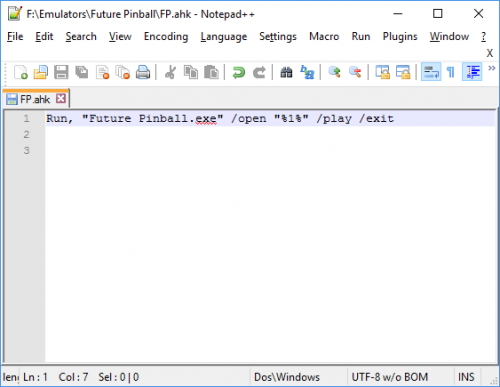 Not sure the prior reviewers issue. The script works as intended. I used this script when originally released because at that time there was no built in solution within LB and it was a real pain to integrate otherwise. So my review is a bit late, but thanks for making life easy! When LB was updated some time after this loader was made, LB allowed the %romfile% variable where you can now call the command line parameters directly from the emulator details screen under Default Command-Line Parameters: /open %romfile% /play /exit Basically, use this AHK script or the LB built in call command above and get FP goodness in LB/BB. On the screen rotation issue noted above. Rotating the screen is an emulator function, not a LB or a launcher issue. So not sure what the reviewer was thinking LB and this script were supposed to do. You want fancy with backglass and arcade mode (rotated into table view) on per game basis, gotta go the BAM route with a saved BAM CFG file with whatever settings you want within FP.
 -
Changing the settings in the Daphne Loader doesn't work because the batch commands are launching the Daphne.exe file directly, not through the loader. The Daphne Loader is really just a small front end to a program that generates a custom launch command, you just don't see that it is really sending a command line to run things (unless you set otherwise). Basically, that means any cheats have to be enabled via the command line that is launching the Daphne game from LB. To enable cheats in some games like Dragon's Lair, you have to do it by the command line that changes the "bank" setting (or dip switches). Sadly, it is somewhat confusing to implement via command line since you have to know which bank and bits to change. There is an easy way and hard way. First the hard way. A list of dip switch settings for Daphne games are here. Just to be more difficult, for the Dragon's Lair and Space Ace games the settings they will show as "Bank A" and Bank B" which correspond to Bank 0 and Bank 1, respectively in the command line and the number indicates a bit number starting with ZERO and from the RIGHT. So if it says change B3 to "on", that means you have to change -bank 1 00000000 to -bank 1 00001000 So for example, Dragon's Lair for most ROMs (dip switch settings can vary by ROM version) is for Unlimited Derk's by changing Bank 1, 2nd bit from 1 to 0. So in my case (note your other dip switch settings may be different than mine depending on ROM revision you have): -bank 0 11011001 -bank 1 00100011 For normal lives it is: -bank 0 11011001 -bank 1 00100111 For Space Ace it is Bank 1, 5th bit from 0 to 1 (again, starts from right and and numbered 0 through 7) -bank 0 00000000 -bank 1 00100001 Easier Way: A bit easier way is to do the following. Open up the Daphne Loader from outside Launch Box. Go to the Configure Menu: Select the options you want such as "Unlimited Lives" Hit Apply. Go to the Advanced Tab and toggle the "Display Command Line" option to on. Hit Apply. From outside Launchbox start a game within the Daphne Loader. Before the game starts, you will see a pop up box with the command line that the Daphne Loader is using to launch the game. The "Bank" settings/dip switches (highlighted below) are now automatically set with whatever options you set in the Loader drop downs and you can copy/paste the bank portion of the command into your batch command that Launchbox uses. No worries about searching for the bit settings to change. You should then have unlimited lives with that batch command and those bank/dip switch settings. You can use this method to change any of the options such as difficulty level. The key is that the "bank" settings are what is telling the Daphne.exe emulator via Launchbox what to do option wise.
-
I re-downloaded via the online downloader (not the version in the LB repository) and it still has this issue present. Anything with a name where it has a set of (USA) for the region like "Asteroids (USA).png" will not show up as present if doing a "filter missing" check box. Files that have the typical LB naming work as expected. Consistent across groups such as Front-Cart and Box 3D. If I rename the file without the "(Europe)" or "(USA)" it picks up. I replace back then doesn't again so definitely the (*) is causing issues. Cannot tell which version I am using since don't see rev number, but downloaded on 3/10 so should be the latest. Thanks for the program, much speedier than LB to when working out gaps on media. But a lot of my art was imported in mass with the above naming convention corresponding to the ROM, so makes a problem on some sets.
-
Removing all adult themed games in large collection...fastest?
sundogak replied to cleverest's topic in Troubleshooting
If just talking MAME and imported using the fullset feature then just do a playlist with following: It will pull off the genre tag in MAME and include those they deemed mature. If talking all other platforms, then depends on what "mature" means (i.e., violent games or those with nudity/adult themes). Could pull off the ESRB rating for post 1995ish games but that assumes they have been flagged in the LB DB where could use a playlist to sort/exclude. Anything prior to 1995 (other than MAME), likely hit or miss. When I had to do this for some younger relatives, I erred on side of caution and only included my "favorites" in each platform and only the early console eras (e.g., NES, SNES) where I could be sure we were looking at games that wouldn't cause any issues. There were not as many during that period but did have the occasional ones like "Custer's Revenge" for Atari 2600 to watch for. Hiding is not good in my mind if you no longer have control of the system since someone is bound to un-hide if not knowing (or curious).
-
There are many different playlists videos here: https://forums.launchbox-app.com/files/category/24-playlist-theme-videos/
-
Might also check this thread out with similar discussion.
- 15 replies
-
- 1
-
-
- compression
- cso
- (and 2 more)


