Retro808
-
Posts
7,334 -
Joined
-
Last visited
-
Days Won
27
Content Type
Profiles
Forums
Articles
Downloads
Gallery
Blogs
Everything posted by Retro808
-

refried Refried Theme Platform Video Set
Retro808 replied to RetroHumanoid's topic in Platform Media
If you want to use them for any theme they go: \Launchbox\Videos\Platforms\ If you want to use them only for a specific theme they go: \Launchbox\Themes\[Theme Name]\Videos\Platforms\ Place each platform video in either of the folder options above named exactly as you have your platforms named. -
I have a Startup that does somewhat what you are looking for. I actually never posted it (actually forgot it was in my test folders) as it was just something I was tinkering with when I made the Pause Menu versions. I can tweak it a bit if you want and then send it to you. Let me know what changes you might be after.

-
.thumb.png.83dcf83ef17bd58458b90edd83312ca3.png) BigBox themes will not work in either of those.
BigBox themes will not work in either of those. -
Question- what metadata/ images needed for unified
Retro808 replied to Hollingsbee's topic in Big Box Custom Themes
Looking at the theme from the download post in the forum looks like at least: Clear logos, Box art, Background fanart, Disc, Cartridge, Screenshot, and videos. Of course all this depends on the view you choose to use in the theme. BigBox can also have priorities for images which means you can select other image types to fill in for missing images. So, another preference item that may determine what you personally choose to download. -
All images are located inside the \Launchbox\Images\[Platform Name]\ folders. Just head there and look around you will quickly see how everything is organized. I have never really messed with that pause menu plugin so could not offer any tips.
-
Yes, Its possible to do this. Just depends in the theme and if you have to edit the code. What do you mean how can you find them?
-
nes Nestopia Won't Exit Fullscreen Properly
Retro808 replied to Whitestrake1967's topic in Troubleshooting
LB does not actually need an AHK to close Nestopia. Bind your exit button or button combo in LB and/or BB controller automation and it just works. Just tested both with the AHK and without and it works either way. Both in Fullscreen and Windowed mode. In the Nestopia preferences do you have the box for "Confirm on Exit" unchecked? Also make sure you are not running the emulator as admin. Doing so will not allow LB to elevate and have the AHK close the emulator. -
There is not a simple way, as in settings you can just adjust. You have to know how to do some basic coding to get this theme you are showing to display what you want and where you want.
-
LB defaulting to beta version of games
Retro808 replied to cheesetriangles's topic in Troubleshooting
11.2 is the latest stable version. As I mentioned it is the latest betas (11.13) that has some more improvements to this. So you can try the beta or wait for the release to stable which I believe is just around the corner as we are nearing the point of the next stable release. . -
I don't use GroovyMame since I do not have a CRT, but this seems like a resolution issue when your setup is switching from BigBox to GroovyMame. I am not too familiar but I think the way GroovyMame internally forces resolution for a CRT would cause an issue with the LCD being at a different resolution. Edit: Looked at some older posts and Arcade Controls forum and does seem like the case. I did not dig too deeply but there were several post about trouble getting marquee screen set-up with GroovyMame.
-
Looks like this is from running a Mame game. Does it do this when you run a game in any other emulators?
-
LB defaulting to beta version of games
Retro808 replied to cheesetriangles's topic in Troubleshooting
What version LB are you on? There have been some improvements to this in the latest betas. -
@C-Beats Good to know. I tested his data in several builds and no issue. Had him try a few things on his end with no fix. So glad you were able to figure it out.
-
@malarrya I know CBeats is going to try and test your data, but if you want to PM your data folder to me I am doing some tinkering in a new cabinet build and I can test your data as well.
-
I responded in your bitbucket ticket with some pics as well showing that the Default does in fact show fanart images when in the paltform wheel views you mentioned, but good to see @C-Beats posted here. I tested on 4 machines and like C-Beats could not replicate the issue you are having. I made sure to use the same settings you mentioned.
-
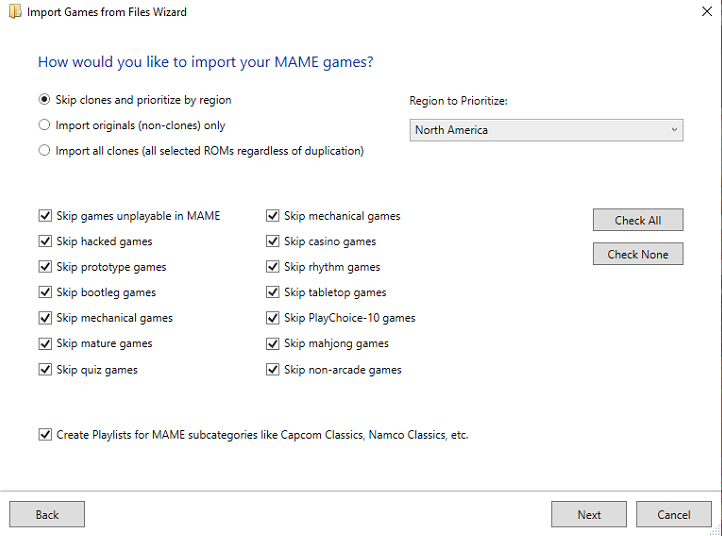
Maybe when running the media download wizard for a game that options is applying the Arcade platform import rom default setting for it to skip "Non-Arcade Games" so when running a scan through the import wizard versus the edit screen it is possible it applies those defaults (snap below is from the Arcade import screens). I only mention this because if you import that game from a fresh import LB will not find it unless that option is unchecked. The edit screen option is searching the game name against the Games DB and allows you to pick the correct name so it is possibly not applying any of the import wizard skip options.
-
No, that is not weird at all. It is not uncommon for software to save settings on exit. That depends on if you bought a yearly or a lifetime license. The \Launchbox folder itself is the parent so just copy the whole thing to make it easy. For roms and emulators that would depend on how you set those up and where you chose to save the emulator files and the rom files.
-
Look in your \Launchbox\Updates folder do you see the update file for 11.2? If so just run it.
-
To update: Open LB and go to >Tools>Options in the Updates section you need to check the first box. If you check the box for Auto download in Background you will not get a prompt and it will not let you know it is updating. So I typically leave that off. To see current version: In LB look for the Hamburger menu button in the upper left near the Launchbox logo (the three horizontal lines). Click that and go to >Help >About version will show there.
-
No. A game can only be in one Platform. The best path would be create a lightgun "Playlist". This way the game will stay in the platform and show up in a playlist at the same time.
-
Marquee images for 2nd display - Default placeholder?
Retro808 replied to drewjbx's topic in Troubleshooting
You could a text binding for the platform name of the game then have that text field pull a platform default marquee image from the folder you have them stored. -
BigBox can show custom fields in the Game Details page if you have the option selected in BigBox settings. However, I am not sure if there is a specific binding to call the data for use on other screens. I do know it is possible with a plugin. I had a theme one of our theme creators helped me edit that used Eatkinola's Ao.BigBox.Themer plugin to call the specific custom field to display on the main game screen I was wanting.
-
I responded to that ticket, but will post here as well. The Default theme can show game fanart on the playlist wheel level. In BigBox image settings tick the option to allow "Use Random Game Image for Filters". Below is a pic of the Default theme showing game images when on the playlist wheel level.
-
Cool. Glad it works and I did not miss something.
-
Attached are the two views I edited and the folder with the images I used if you want to take a look at the code and mess around with it. When you edit the file look for the sections labeled for "Buttons". These are the specific areas related to the text and images as well as the movement of the elements on/off the screen. Drop the image folder inside the theme's /Images/Theme/ folder. So it should look like /Launchbox/Themes/Unified & Ultrawide/Images/Theme/ControllerButtons Drop the two xaml files inside the theme's /Views folder. Just make sure to save the original files so you can put it back to stock if you need to. Unified & Ultrawide.zip


.thumb.png.83dcf83ef17bd58458b90edd83312ca3.png)